Make it feel like a real game
New in 1.77.0. A scene becomes a game when it starts like one, stops like one and talks to its players. This page covers the pieces players expect. None of them needs code.
| Players expect | Where you make it |
|---|---|
| A title screen with Continue / Play / Settings | Configure Scene ▸ Game menus |
| A pause menu that really pauses, and player settings | Configure Scene ▸ Game menus |
| Save slots they can come back to | Configure Scene ▸ Game menus |
| Letting friends join while you play | the pause menu's Join requests, or Auto-admit while playing |
| A gamepad that just works, and keys they can remap | built in; the pause menu ▸ Accessibility ▸ Controls |
| A camera that suits the game: third person, side-scroller, top-down | the Character Controller node ▸ camera |
| Characters who talk, with choices | the Dialogue node |
Start from the template
New scene ▸ Templates ▸ Starter game has all of it wired: a title screen, a pause menu, save slots, a gamepad-ready third-person camera and a character who talks. Play it, then change it.
Title screen
Your game can open on its own start screen: its name, a subtitle and the buttons Continue · Play (or New game) · Load game · Settings · Quit to editor. Behind it is your scene (dimmed), a plain colour or a picture from your Library.
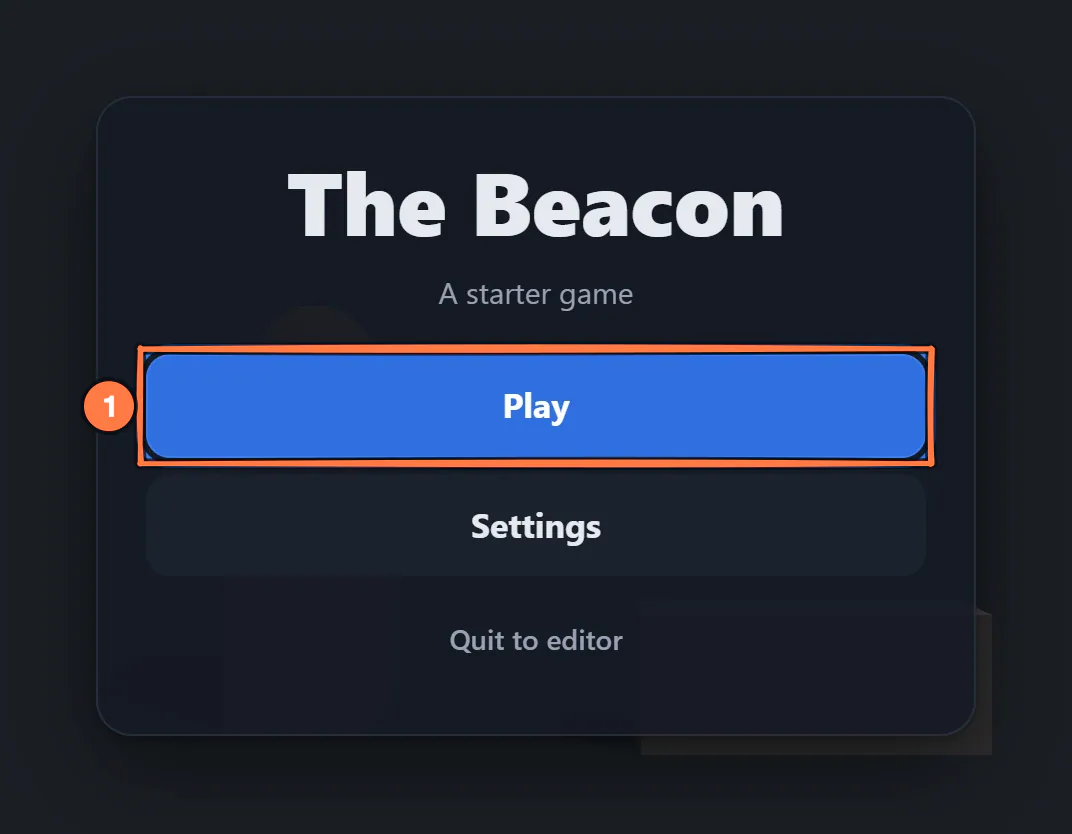
The title screen, when you press Play.
- Play starts a new game in the first empty slot.
- Turn it on: Configure Scene ▸ Game menus ▸ Title screen. Set the title, the subtitle and the background. Show it when I press Play here decides whether editor Play opens on it too.
- Play links and exported games always open on the title screen when the game has one. Its Play button starts the game (and full screen, when the export asks for it).
- Continue loads the newest save. Play starts a new game in the first empty slot; with all three full, it asks which one to replace.
- The first time you turn a title screen on, a hint offers to try it.
- In a headset the title screen is skipped for now: VR Play starts the game straight away, as Play would (in the first empty slot; with all three full it plays without saving over one), and the headset's menu has no Quit to title. Leave VR and the next Play opens on the title again. On a headset's browser, a play link's title screen offers Enter VR.
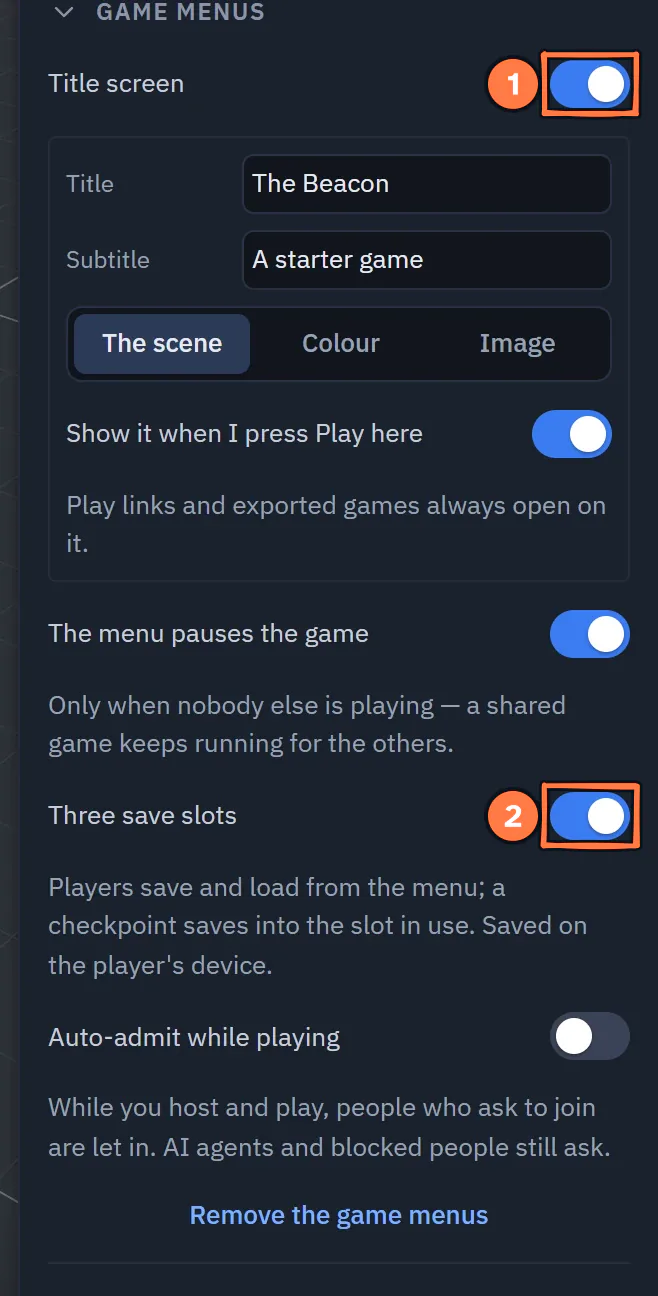
Configure Scene ▸ Game menus.
- The title screen: its title, subtitle and background.
- Three save slots: adds Save game and Load game to the pause menu, and Continue to the title.
Pause menu and player settings
Esc, a gamepad's Start or the Menu button opens the pause menu.
- It pauses. While it is open the game holds still (physics, timers, the round clock) and the sound dips. It only pauses when nobody else is playing: in a shared game the others keep playing, and the menu says so. You can switch the pause off in Game menus.
- New rows: Restart level (in a game with a Levels table), Save game, Load game, Join requests, Quit to title.
- Settings has the player's own settings: music and effects volume, Look speed, Invert look, Subtitles, Reduced motion (this device), quality, and Vibration with Vibration strength (since 1.79: controller, gamepad and phone vibration; see Vibration). They are saved per game on this device.
- A game made before this release keeps its old menu (no pause, no title screen) until you turn the game menus on.
Save slots
Turn on Three save slots in Game menus. The pause menu gains Save game and Load game, and the title screen gains Continue.
- Each slot shows its name, when it was saved, the level and a small picture.
- Saving over a slot or deleting one asks first.
- A Checkpoint saves into the slot you are playing.
- A save made by a newer version of the app is shown but cannot be loaded ("Made with a newer version").
- Saves are kept on the player's device; an exported game keeps them in that browser. Cloud saves are not part of this release.
Joining while you play
When someone asks to join while you host and play, a small card appears over the game. Press Esc (or Start) and pick Join requests to let them in or say no, without leaving the game. The game keeps running for everyone.
Auto-admit while playing (Game menus) lets people in by itself while you host and play, and says who came in. AI agents and people you blocked always ask, even with it on, and so does everyone while Require approval to join (Settings ▸ Connection) is on.
Controllers and remapping
A standard gamepad plays every built-in action:
| Action | Pad |
|---|---|
| Move / look | left stick / right stick |
| Jump | A |
| Use, click | X |
| Fire / grab | RT / LT |
| Crouch / sprint | B / L3 |
| Reload | Y |
| Fly up / down | RB / LB |
| Menu | Start |
A button that a Gamepad Button node uses belongs to that game instead. Move Input reads the left stick too.
- Prompts follow the device you used last. The Playing banner, How to play, HUD key hints and the dialogue box show your pad's own buttons (PlayStation shapes, Xbox letters, Nintendo letters) or your keyboard key.
- Remap: pause menu ▸ Accessibility ▸ Controls lists the keys and the pad buttons. Pick a row and press the new key or button; Esc cancels. When the new one belongs to another action, the two swap and the page says so ("Jump took Circle; Crouch moved to Cross"). Reset controls puts them back.
- Quest controllers keep their own mapping.
Vibration
New in 1.79. Games vibrate gamepads and Android phones, not only Quest controllers.
- The Vibrate node plays a pattern or your own strength and length, on one hand or both, for the player who did it or for everyone.
- Camera Shake, Screen Flash and Hit Pause now vibrate a little too; switch it off with the vibrate switch on the node.
- The player's settings gain Vibration (on / off; it starts off when the device asks for reduced motion) and Vibration strength (0 to 100 %).
- Code:
api.feel.vibratein a module or code node.
What works where:
| Device | Vibration |
|---|---|
| Gamepad | Chrome, Edge and Firefox (two motors) |
| Xbox pad | trigger rumble too, in Chrome and Edge |
| Android phone | Chrome (the phone's motor) |
| iPhone, iPad | none: their browsers cannot vibrate |
| Quest | the controllers, as before |
It vibrates only in Interact and Play, never in the editor, and only on the device of the player it is meant for. A player on a version before 1.79 feels nothing from a Vibrate node.
Cameras
On the scene's Character Controller node (Logic ▸ Character), camera picks the view. Agents use
game_setup {play_camera} with mode: "third" | "side" | "top".
- first (the default): through the player's eyes.
- third: the camera sits behind you (distance, height) and looks where you look. A wall between you and the camera pulls it in (switch that off with collide). Your own avatar is drawn where you stand.
- side: a side-scroller. A / D (or the stick) walk left and right along the plane you started on, Space jumps, and the view leads the way you face by lookAhead metres.
- top: top-down at a fixed angle (90 = straight down). W walks up the screen, and the player turns to face where it walks.
- The mouse wheel zooms the third, side and top views between minZoom and maxZoom. Each view's rows show on the node only when that view is picked.
- Limits: VR stays first person (comfort). A possessed object or an active scene camera draws instead.
Characters who talk
Give any object a conversation: a shopkeeper, a sign, a door that answers back. Its lines show in a box at the bottom of the screen with the speaker's name, and their picture if you set one. In a headset they show on a panel that stays put in the world, above the speaker. Only the player who started the talk sees it: two players can talk to the same character at once, each in their own box.
- Make one. Select the object, open the Node editor (it shows that object's own flow) and add HUD ▸ Dialogue. Wire a Proximity (to: player) into its start so it opens when someone walks up, or an On Click so it opens when they click (tap on a phone, point the laser in VR).
- Write the lines in the node's text box, one per row:
Old Man: Welcome, traveller!
Old Man: Will you find my cat?
> Yes, I will. [set helping = 1] -> yes
> Not today. -> no
# yes
Old Man: Thank you! It went north.
# no
Old Man: Maybe another time.
Speaker: text is a line; a line with no Name: is narration. > text is a choice for the line above it.
[set name = 1] (also += 2, -= 1, [toggle name], = "text") changes a variable when that choice is picked;
on a row of its own it runs when the talk reaches it. -> part jumps to the part that starts with # part, and
-> end finishes. {name} in a line shows a variable's value ("You have {gold} gold."). @portrait Old Man =
old-man.png gives a speaker a picture from your Library.
- Playing it. E, Enter, Space, a click or tap, or gamepad A continues. The first press while a
line is still typing shows the whole line. Pick a choice with 1-9, the arrow keys or the D-pad, or click it. The
player stands still while the box is open. In VR, either trigger continues and either stick moves between choices.
Reduced motion shows each line whole at once, and the HUD text-size setting makes the box bigger.
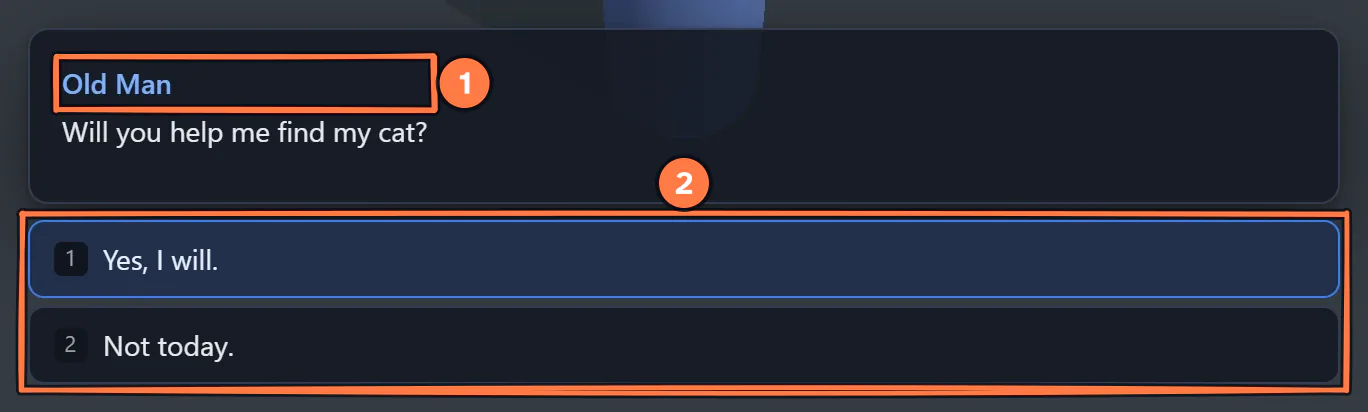
A talk with two choices, in a small window.
- The speaker, from
Old Man:in the lines. - The choices: press 1 or 2, or click one.
- What it changes. choices set picks where a choice's
[set ...]goes: shared (the default) is the game's variable, the same for everyone; player gives each player their own value. The node's output pulses when the talk ends: wire it on to open a door, give an item or start the next quest. - Who sees it. Set who to everyone to show every player their own copy when a click or key starts it. With a Proximity, it is always whoever walked up.
- Limits: one talk open at a time on a device (a new one replaces it); up to 200 rows and 6 choices a line, at most 4000 characters. Leaving Play closes it. Voice-over comes later.
See the Dialogue node.
Games behave the way you expect
- Timers start with the game. A HUD Timer set to Autostart counts down from the moment the round starts (or, in a game with no rounds, from when you press Play). Pausing the game stops every HUD Timer, and a player who joins late sees the same time as everyone else.
- Spawned copies act like the original. Give the template object its own flow (On Click, On Hover, On Grab, On Enter / On Exit, On Hit) and every copy a Spawn node or a kit spawner makes reacts to its own clicks and touches, with "this object" meaning that copy.
- Each player sees their own team and score. A behaviour hears players arrive and leave
(
playerJoined({ by }),playerLeft({ by }),this.players()); a Game Value node with For: me shows each person their own entry. - Movement is per second. Walking, flying, the gamepad and touch stick, the VR edit stick, kit enemies and possessed objects cover the same distance at 30, 60, 90 or 120 Hz. Scenes made before keep the speed they had at 60 Hz.
- NPCs climb and jump (the Navigation module). On the scene's Navmesh node, Ledge is the highest ledge NPCs climb (0-3 m) and Jump is the widest gap they jump across (0-4 m). Both are off by default, so a navmesh baked before stays as it was.
For agents
game_setup gains title, pause, saves and dialogue, and play_camera gains the third, side and top
modes:
{action: 'title', title: 'My game', subtitle: 'Press Play', background: 'scene' | 'color' | 'image'}(clear: trueremoves it){action: 'pause', pauses: true, autoAdmit: false}{action: 'saves', on: true}{action: 'dialogue', object: 'Guide', lines: '...'}(onlyobjectreads the talk back)
Nothing new is saved for scenes that do not use these.