3D Text
Signs, titles, labels, a score over a goal: Add ▸ Text puts words in the scene. One text object does both looks:
- Flat letters are crisp at any distance, can have an outline, can follow a path, and can colour each letter on its own.
- Solid letters are real 3D shapes with depth, a bevel, and separate face and side colours. They cast shadows.
You can switch between the two at any time. The words, the font and the colour stay. Every change is one undo step and shows for everyone in the session.
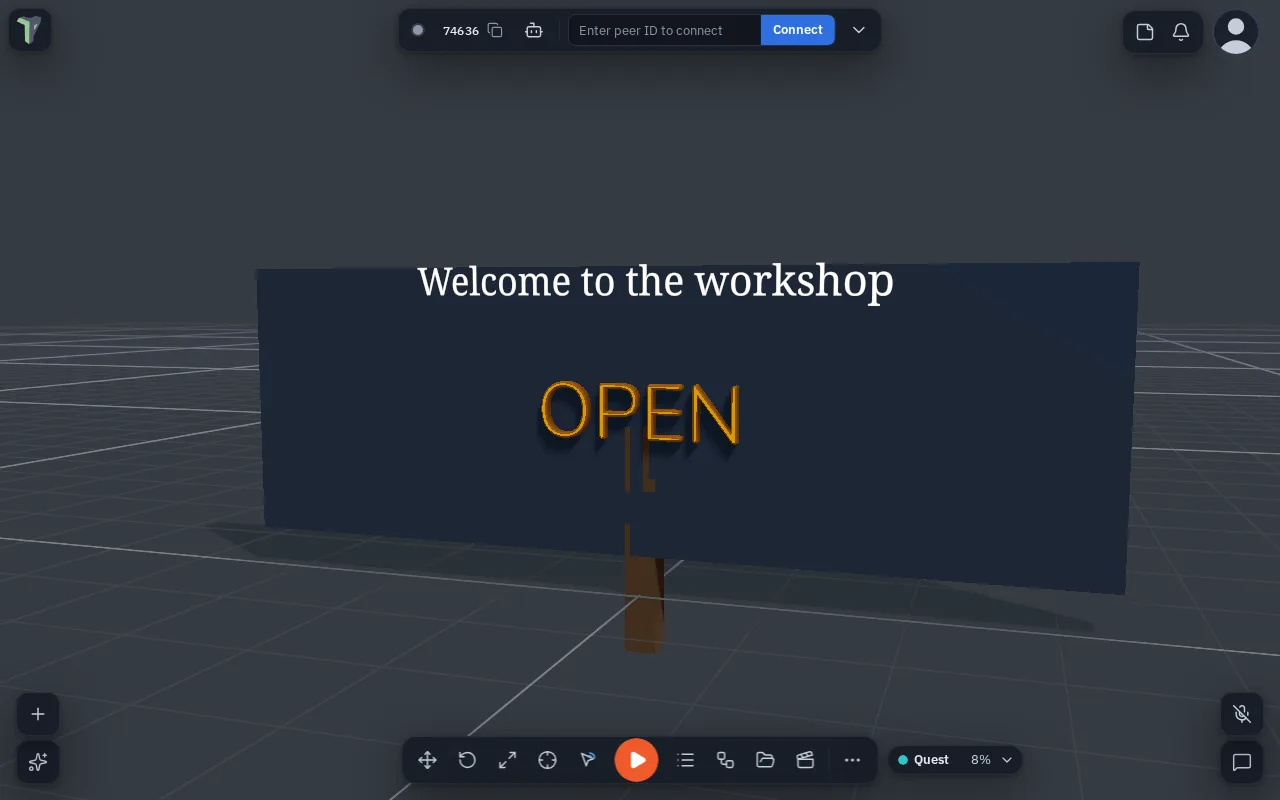
Adding text
Open Add ▸ Text and pick one:
| Item | What you get |
|---|---|
| 3D text | Flat letters reading "Text" |
| Solid 3D text | The same, already solid |
| Text on a path | Flat letters on an arc (see Text on a path) |
Select it and open Properties ▸ Text. Type in the box. Enter starts a new line.
The Text section
| Row | What it does |
|---|---|
| Flat / Solid | The look. Solid is greyed out while the text follows a path |
| Font | A bundled font or one from your Library (see Fonts) |
| Size | Letter height in metres |
| Colour | The letters (the face, for solid text) |
| Spacing / Line height | Gaps between letters and between lines |
| Align | Left, centre, right, or justify, for text with more than one line |
| Wrap width | Lines break at this width, in metres. 0 means a line only ends at Enter |
| Anchor | Which point of the block sits on the object: one of nine, from top-left to bottom-right |
| Bold / Italic | Flat Noto Sans only |
| Outline | Flat only: an outline around each letter, with its own colour |
Solid letters
Switch to Solid and these rows appear:
| Row | What it does |
|---|---|
| Depth | How thick the letters are |
| Bevel / Bevel depth / Bevel steps | The rounded edge: how wide, how deep, how smooth. A bevel of 0 means sharp edges. The width stops at 6 % of the letter size, so thin strokes and small holes (a, e, g) stay whole |
| Curves | Low, medium or high: how smooth the round parts are (more triangles) |
| Sides | The colour of the sides. ↺ sets it back to a darker shade of the face colour |
| Metal / Roughness | The material of face and sides |
| Glow | Makes the letters glow in their own colour |
| Bake to mesh… | See below |
A solid text is built on every screen from these settings. The mesh itself is never sent or saved, so a sign costs the same few hundred bytes whatever its size.
Bake to mesh
Bake to mesh… turns solid text into an ordinary mesh. You can then edit its vertices in Mesh Editing, but not its words, font or bevel. It asks first, and one undo brings the text back.
Mesh Editing does not open on text that is not baked. The next rebuild would undo the edits.
Fonts
Bundled
| Font | Style |
|---|---|
| Noto Sans | Sans (the default; also draws most of the world's scripts in flat text) |
| Noto Serif | Serif |
| IBM Plex Mono | Mono |
| Nunito | Rounded |
| Press Start 2P | Display (pixel) |
| IBM Plex Sans | Sans |
All are under the SIL Open Font License. They load only when a text uses them.
Your own fonts
Fonts you add become Library fonts. They live in the Explorer and peers download them once. They are saved inside the scene's .tpscene and go into an export.
- Upload a font… takes a TTF, OTF, WOFF or WOFF2 file. You can also drop one into the Explorer.
- Google font… takes a family name such as
Lobster. The app fetches the font once and stores it like an upload. After that, the scene never contacts Google: peers, a reload, offline use and exports all use the stored file.
Under the Font row, the licence line shows what the font file says about itself, with a link if it gives one.
Fonts that may not be embedded
Some commercial fonts mark themselves as not embeddable. The Text section says so in amber. Exporting or publishing a scene that uses one shows the same licence warning as other restricted assets.
If a peer or a reloaded scene doesn't have a font yet, the text uses Noto Sans and a short notice says so. It switches as soon as the font arrives.
Limits
| Flat | Solid | |
|---|---|---|
| Desktop | 2000 characters | 300 characters |
| Phone or headset | 500 characters | 80 characters |
Typing past your device's limit is refused with a message. If a phone or headset shows longer solid text from a desktop peer, it draws only its first 80 characters.
Text on a path
Set Follows to a line, an arc, a circle or a wave, or to another object such as a spline. The letters then run along it. Offset %, Lift and Turn place them on the curve. Letter styles nudge, scale, turn or colour single letters. Text on a path is always flat.
Saving and older versions
A scene saves the text's settings, never its mesh. If a scene was made with a newer version of theprototype.app, a notice says some text may look different here. Editing the text keeps the settings the newer version added.
With an agent
Agents make text with create_shape {action: "text"}. For example: "a big solid HELLO with a bevel over the door". They change it with edit_shape {action: "params"}: words, font, size, depth, bevel, align, wrap width, anchor and colours. assets {action: "fonts"} lists the bundled fonts, your Library fonts and the fonts the scene uses. The font field takes a bundled font, any Google Fonts family name, or {asset: "<hash>"} for a Library font. An agent can add a font file with import_file. See Shapes and modelling with an agent.