Code workspace
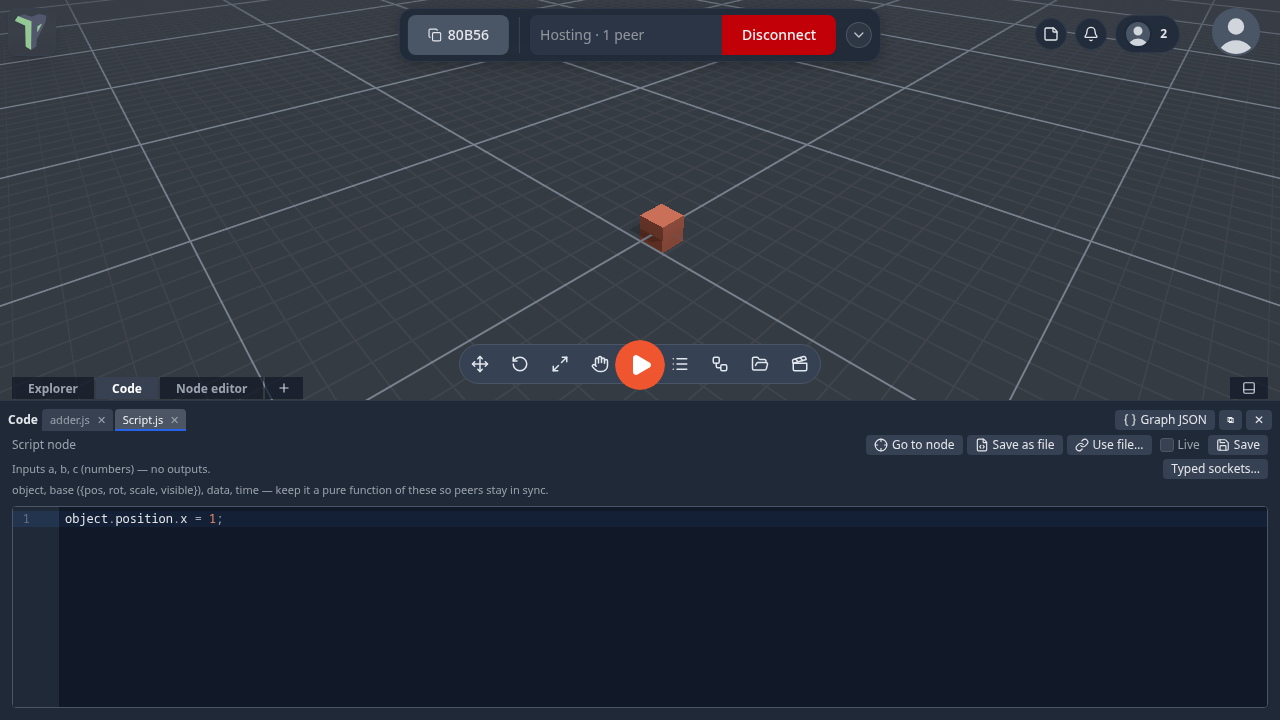
The code workspace is one place for every piece of code in a scene: a Script node's code, a
behaviour, a .js script file from your Library, a module's own source (read-only), and the flow graph
itself as JSON. Each source is a tab, and your edits stay in the tab until you save.
Where it is
It opens by itself when you ask for code:
- Edit code on a Script node, Code on a Behaviour node, or a double-click on any node that has code (see Open code) — since 1.25 that includes a game's Player;
- a double-click on a
.jsfile in the Explorer, or right-click it ▸ Open in code editor; - the dock's + menu ▸ Code, or the optional
{}toolbar button (add it with Customize the toolbar); - Graph JSON in the workspace's header opens the graph the Node editor is showing.
It docks as a tab at the bottom, beside the Node editor and the Explorer, or floats as a window (⧉ to float, ⇩ Dock to put it back). Everything on this page works in both. In a narrow window or on a phone the sidebars open over the editor, one at a time (toggle buttons in the header).
When the workspace has the keyboard, it keeps it: WASD never fly the camera from here (see Keys follow the panel you are in). In the undocked window the tabs sit in the title bar and can be clicked; the title bar around them still drags the window.
Editing and saving
Type, then press Ctrl+S (Cmd+S on a Mac) or Save. A ● on a tab means it has unsaved edits; Revert throws them away.
Saving checks the code first. If it does not parse, nothing is applied: the tab shows a red !, the banner names the line (click it to jump there), and every node the code feeds shows an amber edit not applied badge while it keeps running the last good version.
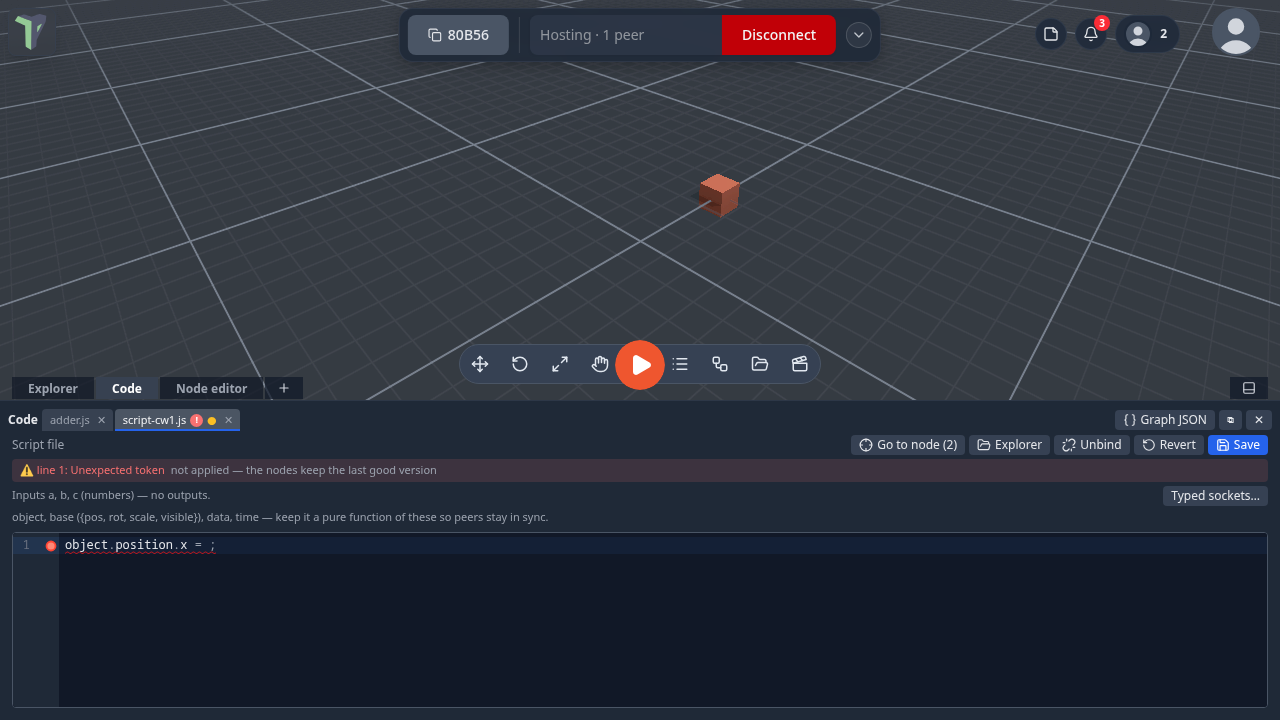
When the code is good, everything that runs it reloads — on every player's screen.
Unsaved changes are guarded. Closing a tab with unsaved edits asks first. Closing the whole workspace with unsaved files asks Save all / Don't save / Cancel — a file whose code has an error is not saved, and the dialog says so. Leaving the page with unsaved code shows the browser's warning.
Undo and redo (Ctrl+Z / Ctrl+Y) step through saved code edits, on every peer; an open tab follows them.
Sidebars
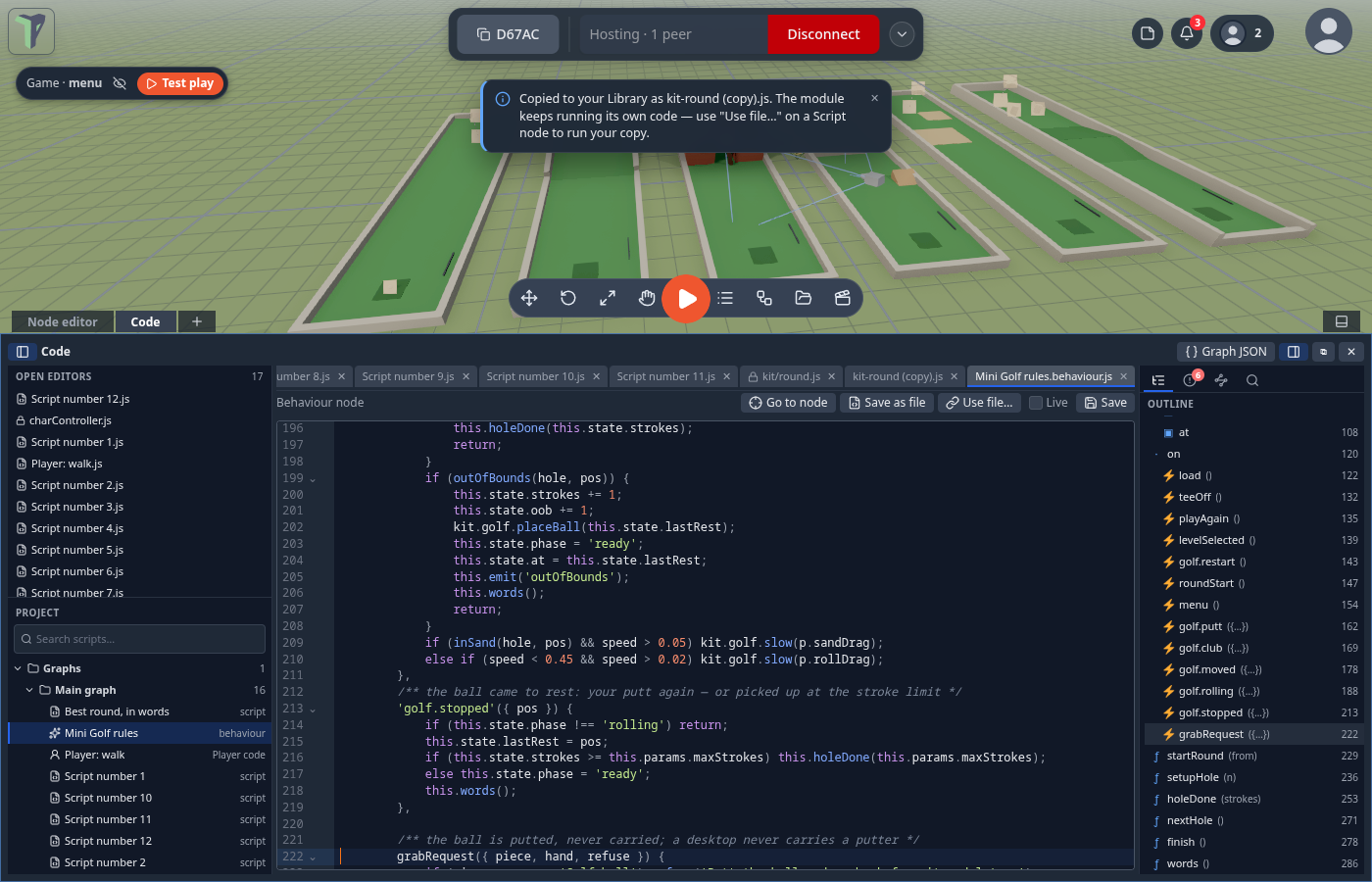
Left: Open editors and Project
Ctrl+B shows or hides the left sidebar.
- Open editors lists every open tab, in the same order as the tab strip. Drag a row to reorder (the strip follows); ✕ closes it (unsaved files ask first).
- Project lists every script in the scene as a tree, with a search box:
- Graphs — per graph (Main first, then each object's), its Script nodes, Behaviour nodes and the
Player's code, plus
graph.json(the whole graph as editable JSON). - Script files — the
.jsfiles in your Library, with how many nodes run each. - Module sources — the module and kit files the game uses, read-only (see Module code).
- Graphs — per graph (Main first, then each object's), its Script nodes, Behaviour nodes and the
Player's code, plus
- The search also matches folder names (minigolf rules).
- Drag the line between the two sections to share the height; double-click it to reset. Drag the sidebar's edge to resize it — the width is remembered.
Right: Outline, Problems, Bound nodes, Find
Ctrl+Alt+B shows or hides the right sidebar. It has four tool tabs:
- Outline — the active file's params, state, handlers, methods and functions, a script's inputs and returned outputs, a graph's nodes. Click one to jump to its line.
- Problems — syntax errors and lint advice (for example,
Math.randombreaks peer sync) for every open file as you type, plus anything a node reported while running. The tab shows a count; click a problem to jump to it. - Bound nodes — which graph nodes run this file. Click one to select it in the Node editor (entering its group if it is inside one).
- Find in files (Ctrl+Shift+F) — searches every script in the project, open files' unsaved text first. Toggles: match case, whole word, regular expression, include module sources. Click a result to open it at its line.
Tabs, quick open and the keyboard
- With many tabs the tab strip scrolls: the mouse wheel scrolls it sideways and a thin scrollbar shows. The active tab is always scrolled into view. Drag a tab to reorder it.
- Ctrl+P — quick open: open any script in the project by typing part of its name (letters in
order:
plwafinds Player: walk). ↑/↓ and Enter. - Ctrl+Shift+O — go to symbol: jump to a function, handler, param or state key of the current file.
- The tab strip, Open editors, the Project tree and the tool tabs are each one Tab stop. ←/→ (strip, tools) and ↑/↓ (lists) move, ←/→ in the tree close and open folders, Enter opens, Delete closes a tab.
The Player's code
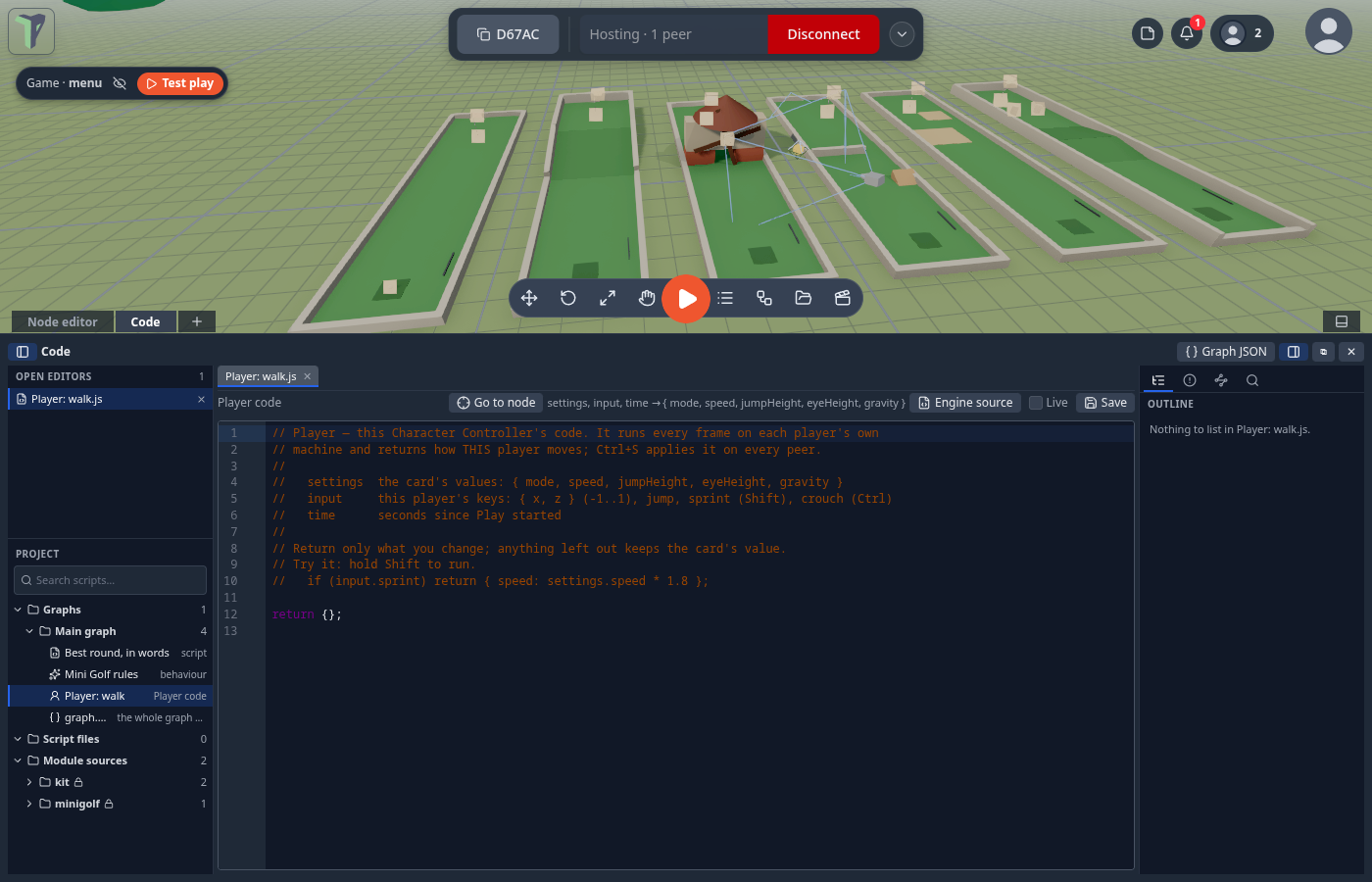
Since 1.25 the Player card in a game's graph (a Character Controller, such as Player: walk in Mini Golf, Escape Room, Sky Run and Towers) opens its code like any other code node: double-click it, or right-click ▸ Open code. The code runs every frame on each player's own machine and decides how that player moves:
// settings = the card's values { mode, speed, jumpHeight, eyeHeight, gravity }
// input    = this player's keys { x, z, jump, sprint (Shift), crouch (Ctrl) }
// time     = seconds since Play started
if (input.sprint) return { speed: settings.speed * 1.8 };   // hold Shift to run
return {};                                                  // anything left out keeps the card's value
- Ctrl+S saves it — checked first (broken code never applies), sent to everyone, one undo step.
- A wrong key or type in what you return shows on the node's red error badge.
- Engine source (toolbar) shows the built-in walker code it steers, read-only.
- With no code saved, the Player behaves exactly as before.
Code and files
- Save as file turns a node's inline code into a script file in your Explorer and binds the node to it.
- Use file… binds a node to a script file you already have.
- Several nodes can run one file. Saving the file reloads every one of them, on every peer, as one undo step.
- Unbind keeps the code in the node and forgets the file.
- Go to node shows the node in the Node editor — or lets you pick one, when several run the same file.
If someone else changes the same code while you have unsaved edits, the tab says so: Load theirs takes their version, Keep mine keeps yours (your next save wins).
Module code
A module's source opens read-only (a lock on its tab): it runs the same for everyone. A Script or Behaviour node that a module binds to its own file offers Make editable copy, which copies the code into a script the scene owns and points the node at it — see Make editable copy.
A file opened from Module sources in the Project tree has a copy button (or Make editable copy in the toolbar) that puts a copy in your Library for you to edit. The module keeps running its own code, so use Use file… on a Script node to run your copy.
Graph JSON
Graph JSON opens the graph as JSON. Edit the nodes and edges and press Apply (Ctrl+S). Invalid JSON, two nodes with the same id or a wire to a node that does not exist are refused with the line; a good apply is one undo step and reaches every peer. (Flow Code shows the same graph as compact text.)
Live
The Live checkbox on a node or behaviour tab applies inline edits as you type instead of on Ctrl+S — how the Script panel felt before 1.23. It is a setting of this browser, off by default.
Limits
- The Player's code can change speed, jump height, eye height, gravity and walk/fly each frame; it cannot replace the walker itself (collisions, steps) — that is the engine source.
- Other built-in nodes have parameters only (edited in the ⓘ panel); Script, Behaviour, Custom nodes and the Player are the nodes with code.
-
Find in files stops at 400 results.
-
A node bound to a file still carries its code, so a scene runs the same whether or not the file is in anyone's Library.
- Files are addressed by their content: two files with byte-identical content are the same file.
- The second-monitor window (⧉ Window) is an experiment, switched on with
localStorage['code:popout'] = 'true'in the browser console.