Notifications & Notes
The top-right cluster next to your avatar holds two history surfaces — the notification center and the scene-notes drawer — plus the tools for leaving notes on objects, chatting and pinging things for everyone to see.
Notification center
A 🔔 bell button sits in the top-right chrome. Click it to open a dropdown listing recent notifications, newest first. When it's collapsed, a red badge shows the unread count (9+ above nine).
Every toast the app shows — connection events, simulation start/stop, imports, warnings — is recorded here with a relative timestamp (just now, 5m ago, 2h ago, 1d ago), so a message you missed while it was on screen is never lost. The list keeps the most recent 50 entries and survives reloads. Opening the panel clears the unread badge; Clear all empties the history.
Since 1.30 a message that repeats is one entry with ×N and the latest time; click it to see each time it arrived. Since 1.32 reconnecting to the peer server says nothing at all — only a link that stays down for about a minute leaves one entry here (see The status dot).
The center is a read-only log — connection requests are actioned from the toast itself (see below), not from here.
Toasts
Toasts pop up briefly for feedback — the outcome of something you did (Saved, Copied, Exported…). Since 1.32 a question that needs your decision, such as Delete flow or Restore previous session?, is a dialog instead of a toast. Two things are worth knowing:
- Ordinary toasts sit below modals, so an open Settings or Modules dialog is never blocked by a transient message.
- Connection requests and approvals stay on top — a peer asking to join is always visible, even over a modal.
Plain messages auto-dismiss after a few seconds; ones with a button (like a connection request) linger longer. At most three toasts stack at once (four before 1.30); when more arrive, a +N more… button under the stack shows how many are hidden and opens them in the Connect drawer's Toasts tab — they are in the notification center too.
Undo after Clear, Delete, Remove
Clear scene, deleting the selection, removing a module and Reset all settings happen at once, and a toast offers Undo for about 8 seconds — a thin bar shows the time left. Undo puts back exactly what was there: for everyone in the session (the scene and its objects), or on this device (modules, settings).

After the 8 seconds, Ctrl+Z still undoes a delete; a Clear scene can no longer be undone.
Scene notes
Notes are little pinned comments you can attach to any object — feedback, TODOs, labels — and they're visible to everyone in the session.
Adding a note
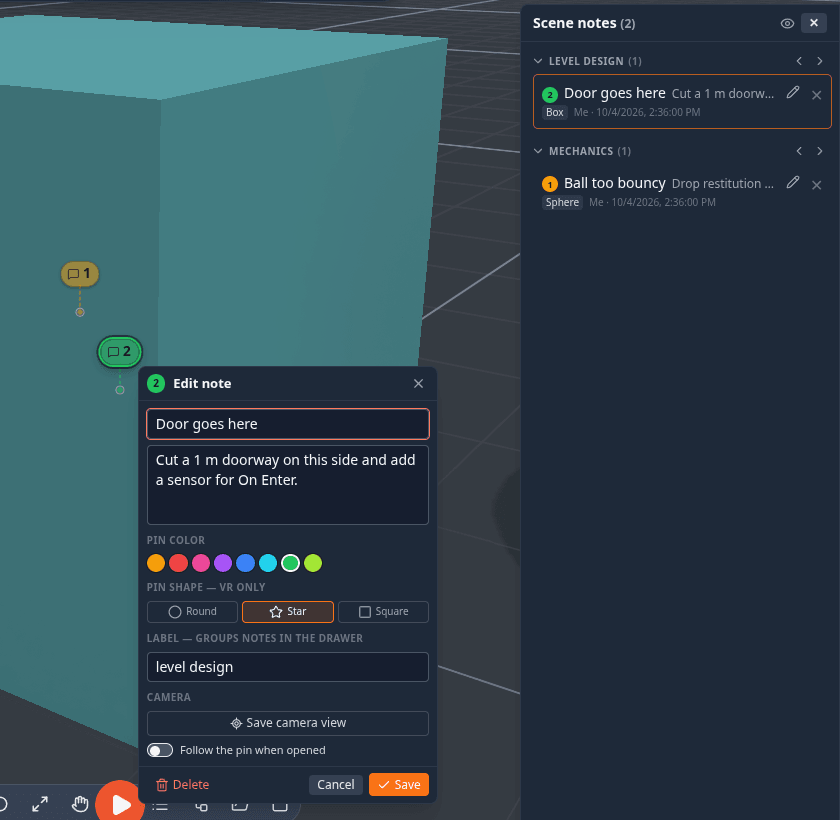
Right-click an object ▸ Add note. The note is pinned exactly where you clicked on the object and follows it as it moves. The card that opens has:
| Field | What it is |
|---|---|
| Name | optional — a short title shown in the drawer, on the card and in the marker's hover tip |
| Description | the note itself (Enter saves, Shift+Enter adds a line, Esc closes) |
| Pin color | a swatch for the marker |
| Pin shape | round, star or square — used by the pins in VR; on a desktop every note is a badge in its colour |
| Label | a group name such as mechanics or art — suggestions come from the labels already in the scene; the drawer groups notes by it |
| Camera ▸ Save camera view | stores your current view with the note; Update saved view replaces it, ✕ forgets it |
| Follow the pin when opened | opening the note flies the camera to it and keeps following the pin as its object moves; Esc stops following |
Save keeps it, Delete removes it. Notes replicate to every peer with your name attached.
Replies. An open note has a Reply box under it; replies show as a thread, each with its author and time, and you can delete your own reply (×). Adding, editing or deleting a note and replying are each one Ctrl+Z — and the undo reaches everyone in the session.
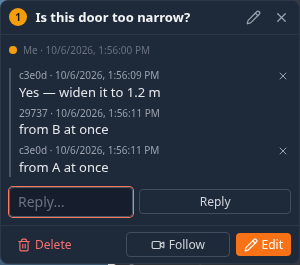
Clicking a saved note's marker opens it to read: its text, label, author and date, with Delete, Follow (fly to the pin and keep following it) and Edit, which brings back the card above.
Since 1.32 an open note has ‹ › in its header that step through all the scene's notes in pin order (wrapping round), with n/N showing where you are — on a computer and on a phone.
Markers. On a desktop a note is a small badge beside its exact spot, joined to it by a thin leader line. A note that is behind something stays visible but faded, with a dashed leader. When several notes crowd together they merge into one badge with a count — click it and they spread out. In VR, note pins stay on their objects while you grab and move the world.
The scene-notes drawer
The 📝 notes button in the top-right chrome (just left of the bell) opens a right-docked drawer listing every note in the scene, grouped by label:
- Each group can be collapsed, and has ‹ › arrows to step through its notes one at a time — a review tour.
- Each row shows the note's name and text, which object it is on, and who wrote it. Click a row to fly to the note and open it; the pencil edits it and the bin deletes it.
- The eye button in the header shows or hides the note pins in the viewport (on your screen only). On a phone the notes are the Notes tab of the bottom dock (More ▸ Notes; see The dock on a phone), and the dock's grab bar resizes it. Opening a note shows it as a page of the Notes tab: its ‹ › step through the notes, and closing it — ✕, or swiping it down — returns to the list exactly where you left it. The note page and the list share one height, and neither covers Play.
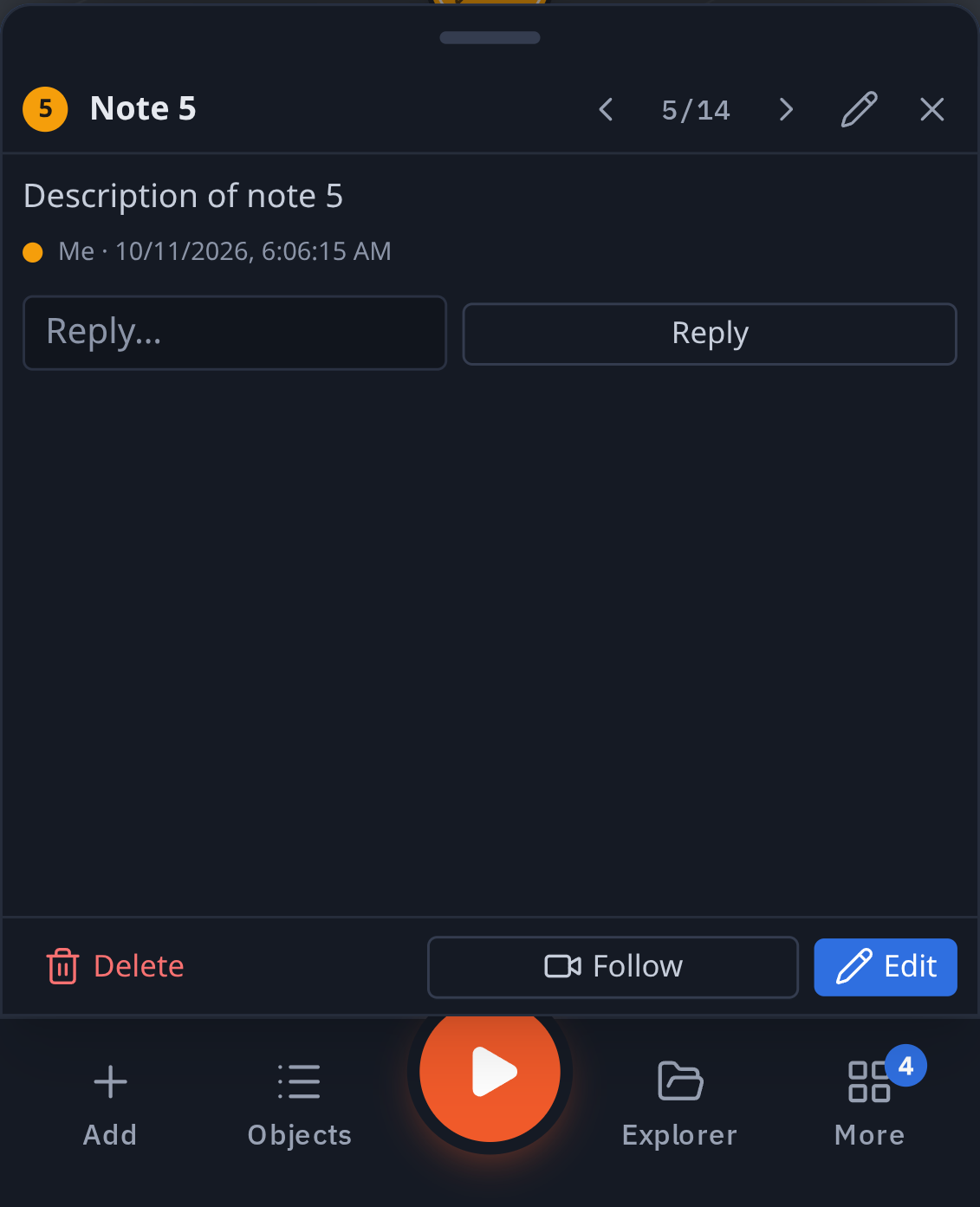
Settings ▸ Controls ▸ Double-click to open notes makes a single click on a marker — and the ‹ › arrows — only fly the camera to the note, with the card opening on a double click: handy for walking through a scene full of notes without a card in the way.
If there are no notes yet, the drawer tells you to select an object and add one from its context menu.
Chat
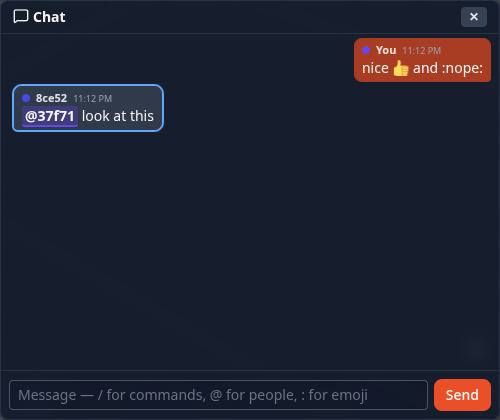
C (from the 3D view) or the chat button opens the session's text chat.
- @mentions — type
@and a name; Tab takes the first suggestion. The name shows in that person's colour, a line that mentions you is ringed, and the chat button's badge turns to the accent colour. - Emoji shortcodes —
:tada:,:+1:,:fire:… turn into emoji when you send. Type:and a few letters for suggestions (Tab picks one); unknown codes are left as typed. - Unread badge — the chat button counts the messages that arrived while the chat was closed.
- History — someone who joins the session sees the conversation so far. A session saved in the
Sessions manager keeps its chat; an exported
.tpscenenever contains it.
Pinging
A ping is a momentary "look here!" pulse everyone sees at once — great for pointing during a call.
- Ctrl+Alt+click anywhere in the scene to ping that exact spot. (Before 1.25 this was Alt+click, which now cycles the selection.)
- Right-click the viewport ▸ Ping here.
- Right-click an object ▸ Ping this object (or Ping selection for several) — this flashes a highlight box around the object as well as the pulse.
- In VR, click the right thumbstick (or Tools ▸ Ping in the radial menu) to ping where you're pointing.
Each ping carries a color and a chime. You can set your own ping color and ping sound (Ding, Chime, Pluck, Pop or Bell) so your pings are recognizably yours — profile menu ▸ Customize Character ▸ Ping, where Preview tries it out (see Your Character); leaving the color blank uses your peer color. The chime is spatial when spatial voice is on — it sounds like it's coming from the pinged spot.