Pro Look
New in 1.63. Make a scene look like a professional lit and shot it, mostly with one press each:
- Pro presets — Product shot, Cinematic and Stylised set the sky, the light, the exposure and a whole stack of post effects together.
- Lens and film effects — lens flare, god rays and volumetric fog join the look stack.
- Smoother edges — temporal anti-aliasing (TRAA) is the new default.
- Baked light — soft corner shadows and bounced light, worked out once and saved with the scene.
- Photo mode — a path-traced still of your view as a PNG.
A quick way to try all of it: open Templates ▸ Product shot, press Bake light, then Photo….
Pro presets
Open Configure Scene ▸ Environment and pick a preset chip. The three pro presets sit beside Studio, Daylight, Sunset and Night:
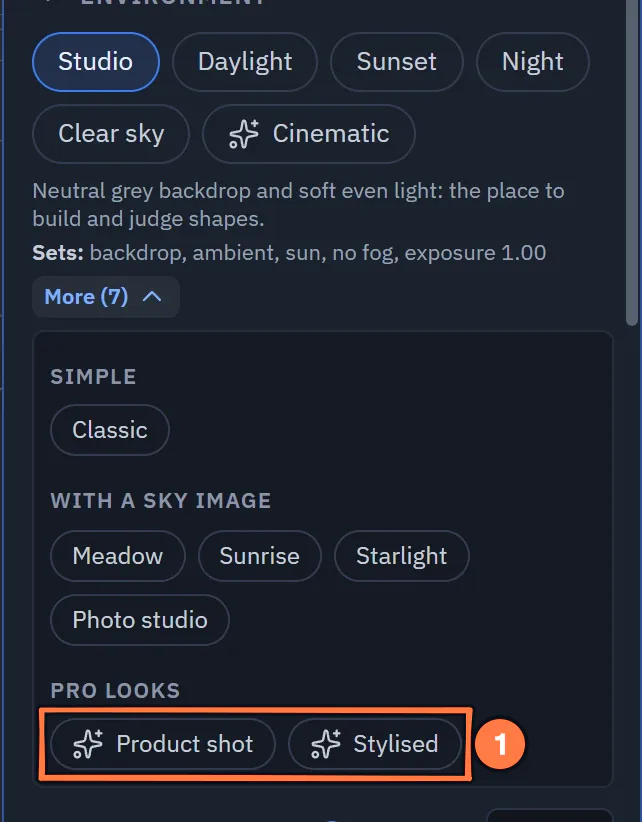
Configure Scene ▸ Environment: the pro presets sit with the other preset chips, two of them under More.
- The pro presets: Cinematic in the row, Product shot and Stylised under More.
| Preset | Look |
|---|---|
| Product shot | A clean studio: soft light from a photo studio, neutral tone mapping, gentle bloom, soft corner shadows. Made for showing one object off. |
| Cinematic | Low warm sun, haze in the air with light shafts through it, a little lens flare, film grain and a dark vignette. |
| Stylised | Bright, saturated and punchy, for games and toy-like scenes. |
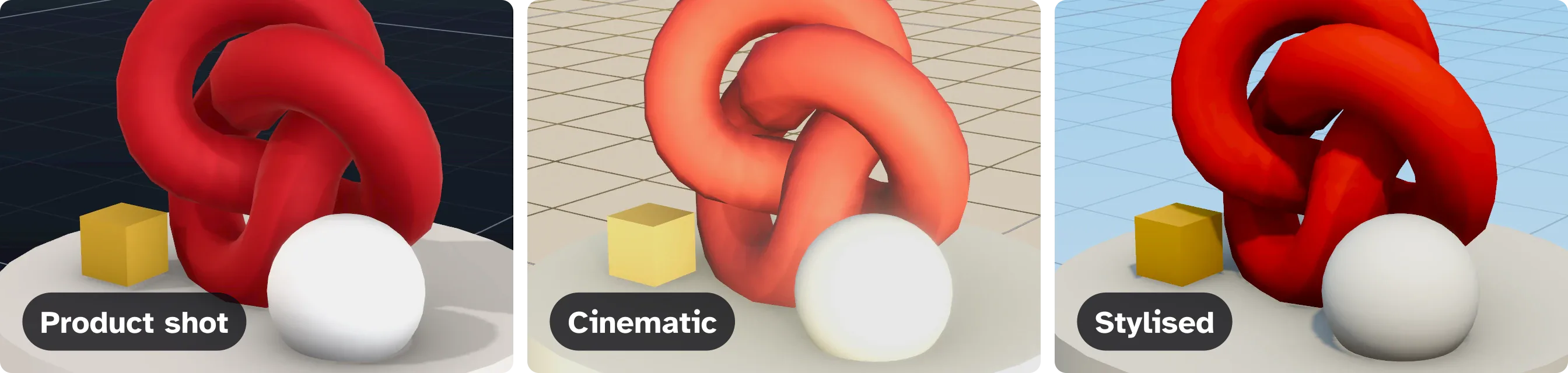
Product shot, Cinematic and Stylised on the same objects — one press each.
One press changes the sky, the light, the exposure, the tone mapping and the post effects. Undo takes all of it back in one step. The preset is saved with the scene and everyone in the session sees it.
After picking one, everything stays yours to change: open Scene look and tune, remove or add effects as usual.
Each device draws its own share
The scene keeps one look, and each device builds as much of it as it can afford:
| Device | What it leaves out or makes lighter |
|---|---|
| Computer | Nothing. |
| Phone | Volumetric fog and god rays take fewer steps; ambient occlusion runs at half size. When the phone runs short of time, automatic quality first draws a lighter look — the colour grade, tone mapping, bloom and vignette stay — before it turns the look off. |
| Headset | Volumetric fog, god rays and lens flare are left out. |
So a phone and a computer in the same session look at the same scene, each at a cost that suits it. Nobody's device changes the scene for the others.
Lens and film effects
Three new effects in Scene look ▸ + Add effect ▸ Camera FX. Each is off until you add it, and an effect that is switched off costs nothing.
| Effect | What it does | Settings |
|---|---|---|
| Lens flare | Ghosts and a halo from bright spots, like a real camera lens. | Amount, threshold, ghost spacing, halo |
| God rays | Shafts of light from the sky, blocked by the objects in front of it. | Amount, samples, length, decay, sky threshold |
| Volumetric fog | Fog that is thicker near the ground, glowing around the sun. | Amount, colour, density, height falloff, base height, sun glow, steps, reach |
Film grain and chromatic aberration were already in the stack.
Anti-aliasing
Scene look ▸ + Add effect ▸ Anti-aliasing is now one entry with a Method:
- TRAA (temporal, the default) blends the last few frames for the smoothest edges. Moving and animated characters stay sharp: their motion is tracked so they do not smear.
- SMAA smooths each frame on its own.
TRAA in Play: Auto keeps it on for a computer and off on a phone, where fast motion could leave trails. Pick On or Off to decide yourself. New-frame weight: lower is smoother, higher trails less.
Scenes that use the older Anti-aliasing (SMAA) entry keep working unchanged.
Photo mode
Configure Scene ▸ Scene look ▸ Photo… renders a path-traced still of your view — soft shadows, real reflections, glass — as a PNG. See Photo Mode for every setting, headsets and phones, and what a photo cannot show.
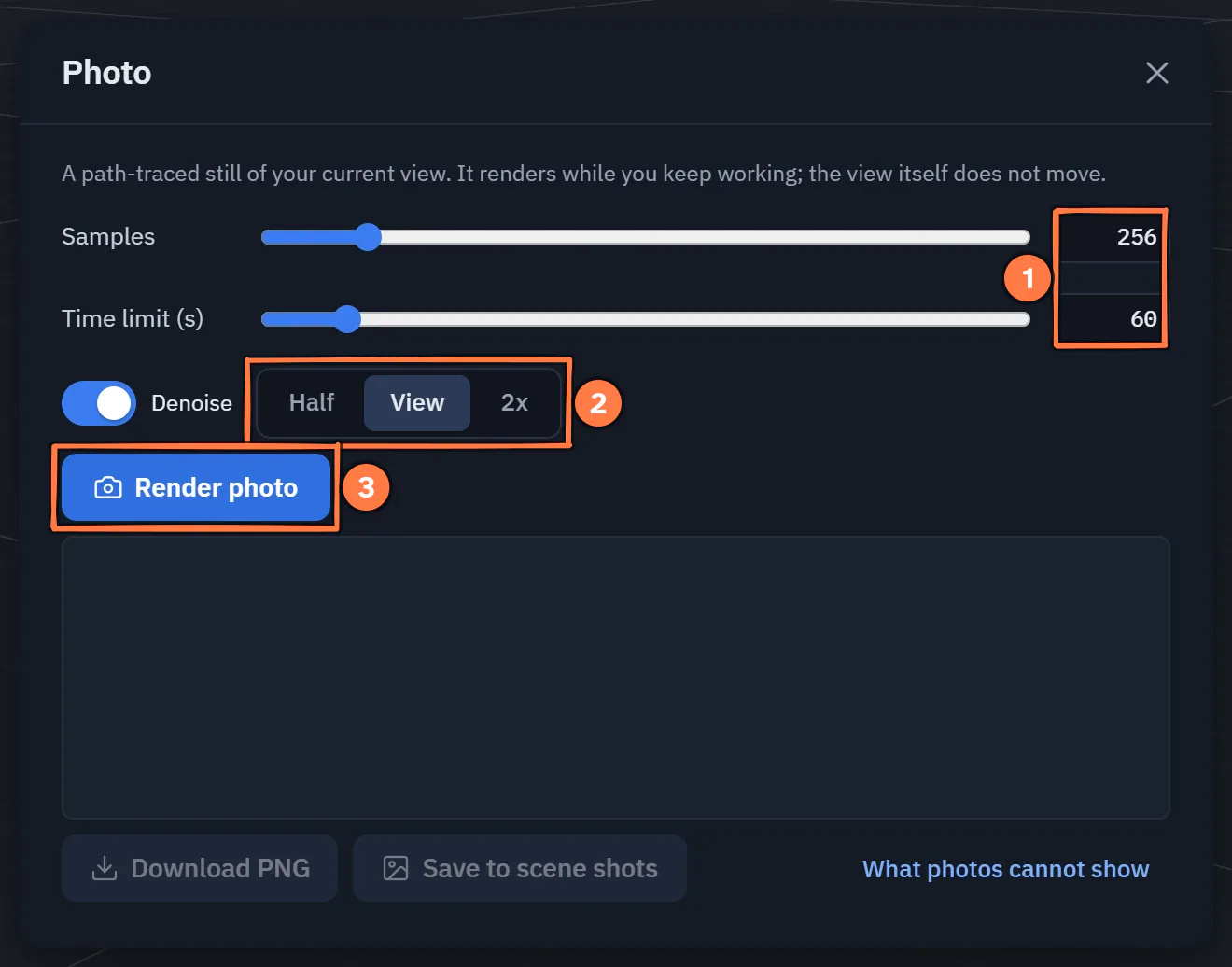
Scene look ▸ Photo…: the settings of a path-traced still.
- Samples and Time limit.
- Size: Half, View or 2x.
- Render photo.
For AI apps
An AI app uses the same features with actions on tools it already has:
| Ask | Action |
|---|---|
| "Give it a cinematic look" | set_look {action: "preset", preset: "cinematic"} (or product, stylised) |
| "Bake the lighting" | set_look {action: "bake"} |
| "Take a nice photo of this" | run {action: "photo"} |
The preset and the bake ask the host first, like any scene-wide change.