Material Presets
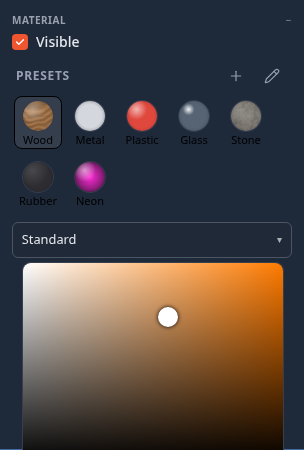
A material preset is a named look for an object's surface — colour, roughness, metalness, glow, transparency and up to two image maps (a texture and a normal map) — that you apply with one click. Seven come built in: Wood, Metal, Plastic, Glass, Stone, Rubber and Neon. You can save your own, rename and delete them, and everyone in your session sees your presets and can use them.
Where: select an object and open its properties (double-click it, or right-click ▸ Properties). In the Material section, the Presets row sits at the top, above the material type.
Using presets
- Apply — click a swatch. With several objects selected it applies to all of them (the row says applies to all N), and one Undo puts every object's previous material back. The swatch of the preset an object is wearing is outlined.
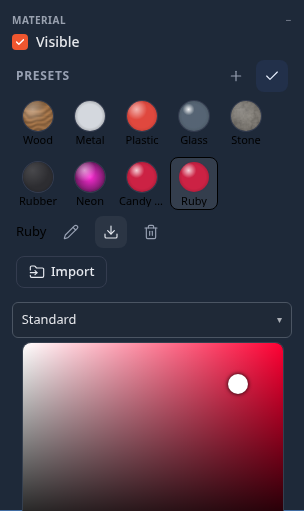
- Save the current look — press +, type a name and press Enter. The name must be new: if it is taken, the preset is saved as Name 2.
- Rename, delete, export — press the pencil. Your own swatches grow three small buttons: rename, download as a
.matpreset.jsonfile, and delete (it asks first). Import loads a.matpreset.jsonfile into your library. Press the tick to finish. - A friend's presets — when someone in the session has saved presets, they appear under From ‹name›. Click one to apply it; while editing (pencil), the copy button saves it into your own library.
What gets saved, and where
- Your presets live on this device (browser storage). They are not part of the scene file. An object that wears a preset keeps that look in the scene, for everyone, like any other material edit.
- Your library is shared with the people in your session while you are connected, and leaves with you.
- The Storage breakdown — the disk chip in the Explorer header, the Explorer's background menu, or Settings ▸ Explorer — lists your saved presets under Material presets, and can delete them.
Limits
- Presets apply to objects with one material. An object with several material slots (an imported OBJ with an
.mtl, a mesh you assigned slots to in the UV editor) is skipped, and objects driven by a shader graph are skipped with a note. - Applying a preset keeps the object's Side (front / back / double) and Wireframe setting.
- Glass is a see-through, clear-coated surface rather than true refraction, so it stays cheap on a Quest. Raise Transmission on a Physical material for real refraction on a desktop.
- Very metallic surfaces look darker than in other tools, because the scene has no image-based lighting yet; the Metal preset is tuned for that.
- Water objects draw their own water surface: a preset changes only the material they show before the water is ready. Use the Water section's look presets for water.