Gamepad Button
Fires a pulse, or holds a level, while a gamepad button is pressed. It's the gamepad's counterpart of Key Press.
Output: event (1 while the button is held, a short pulse per press; 0 otherwise)
Inputs
None.
Parameters
| Parameter | Default | Options |
|---|---|---|
| button | A | the button to watch (see below). Pick it from the list, or press capture on the card and then the button |
| edge | down | down: pulses on press, and stays at 1 while held. up: pulses on release. held: the same as down, read as a level |
| pulse | 0.3 s | how long a single press keeps the output at 1 |
| action (for players) | empty | a name such as Jump. The button appears under it in the player's Controls list |
The buttons follow the standard gamepad layout:
| Button | Where it is |
|---|---|
| A, B, X, Y | the four face buttons: bottom, right, left, top (Cross, Circle, Square, Triangle on a PlayStation pad) |
| L1, R1 | the shoulder buttons |
| L2, R2 | the triggers. They count as pressed past halfway |
| Select, Start | the two small centre buttons |
| L3, R3 | pressing a stick in |
| Up, Down, Left, Right | the d-pad |
The card shows no gamepad detected while no pad is connected. You can still pick a button from the list without a pad.
How it behaves
It works the way Key Press does. Each press travels as one small shared message, so every player's graph sees the same
pulse, and anyone's button press fires the node. Holding the button re-pulses it, so the output stays at 1 for as
long as it is down (except with edge up, which waits for the release).
A gamepad and the keyboard never fire each other's nodes: a Key Press can't be fired by a pad, and a Gamepad Button can't be fired by a key. To accept both, wire a Key Press and a Gamepad Button into the same input. Two event wires into one input fire on either.
The pad goes quiet when it is switched off under Settings ▸ Input, when it is unplugged, and while an app dialog is open.
A gamepad already works in a scene with no gamepad nodes: the left stick moves, the right stick looks, and the d-pad and A move through and press HUD buttons. Gamepad Button is for a game that wants buttons of its own. Stick deadzone, look sensitivity, invert-Y and swapping the sticks are the player's own settings under Settings ▸ Input (see A character that walks).
Players can move it
Fill in action (for players) and the button appears under that name in the game menu's Accessibility ▸ Controls list. A player can move it to any other button there, and the node follows their choice. See Making your game accessible.
Practical example
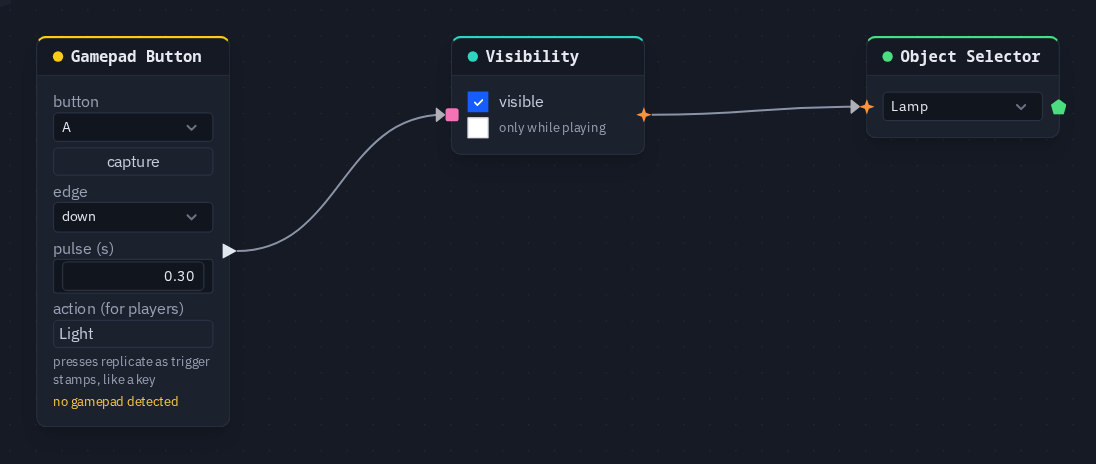
A lamp that shows while A is held:
- Create a sphere and name it Lamp.
- Add a Gamepad Button (button A, action
Light). - Wire it into a Visibility node's on input, and wire Visibility → an Object Selector that picks Lamp.
- Hold A on the pad: the lamp appears on every player's screen, and it hides again when you let go.
Tip
For a stick, use Gamepad Axis. It gives a number instead of a pulse.