Measure, Align & Distribute
Since 1.38 the Measure tool snaps to the geometry and chains segments, and a selection can be lined up, spaced out and dropped onto the ground in one click. Since 1.39 the measurements you keep are scene items everyone sees.
Measure
Where: right-click the viewport ▸ Measure distance (the row reads Stop measuring while it is on). A small Measure window opens — a bottom sheet on a phone.
Changed in 1.39
A measurement you keep is now an object in the scene, like a drawn stroke: it is in the object list, every person in the session sees it, it is saved with the scene and it undoes like any object. This replaces 1.38's pinned measurements, which only you could see and a reload cleared.
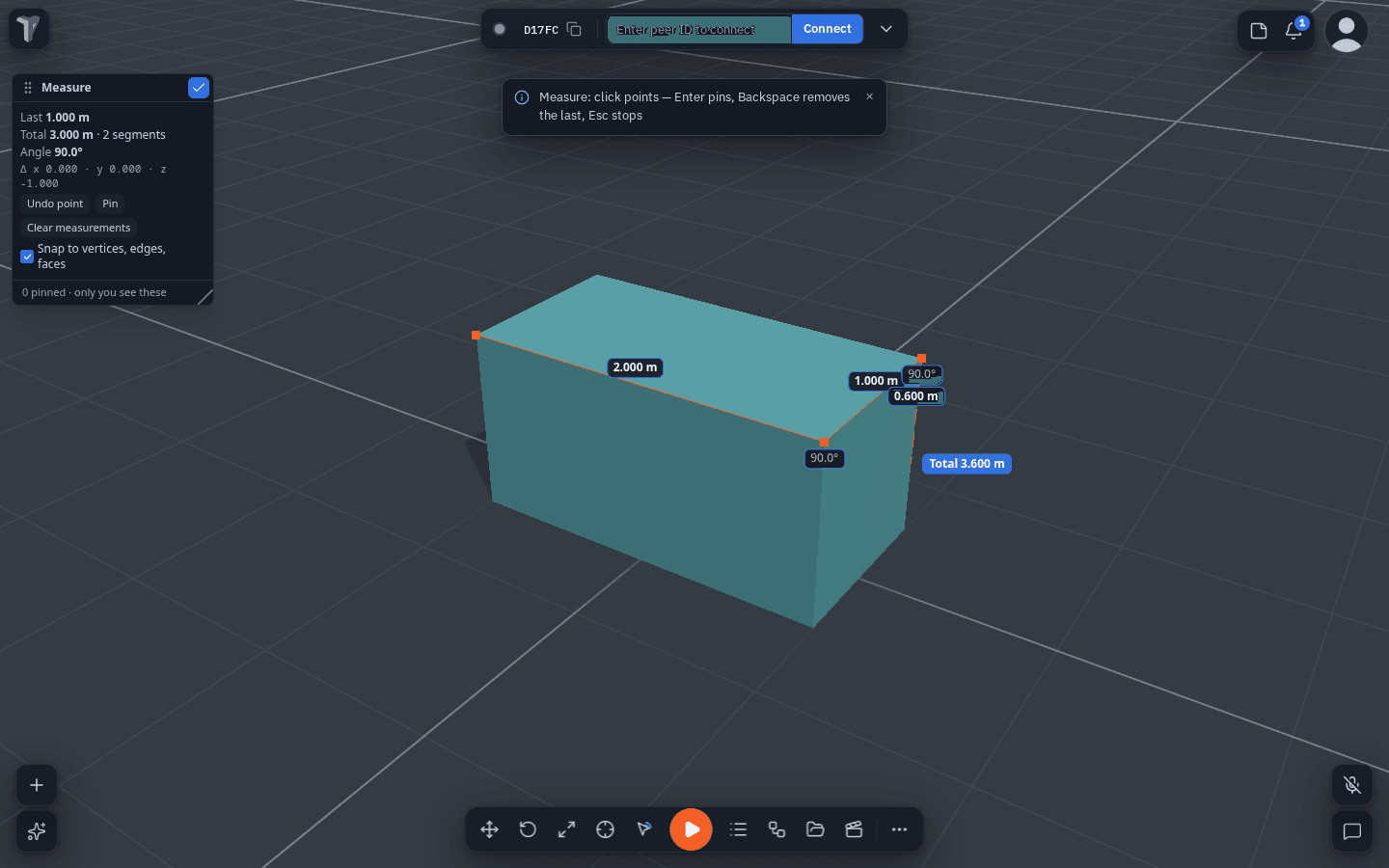
- Click (or tap) points. Each point snaps to the corner, edge or face under the pointer — a small orange dot shows where the next click will land, and a dashed line runs to it from the last point.
- Keep clicking to chain segments. Every segment shows its length, every corner the angle between its two segments, and the end of the chain the total. The window also shows the last segment's Δ x / y / z.
- Keep it: ✓ (Done) or Enter keeps the measurement; Keep in the window keeps it and starts the next one; a quick second click on the last point does the same.
- Backspace removes the last point. Esc cancels the one being drawn; Discard drops it.
Snap to vertices, edges, faces (in the Measure window, remembered on this device) can be switched off to measure the exact point under the pointer.
Kept measurements
A kept measurement appears in the object list with a ruler icon, named Measurement. Move, rename, hide, delete and undo it like any object.
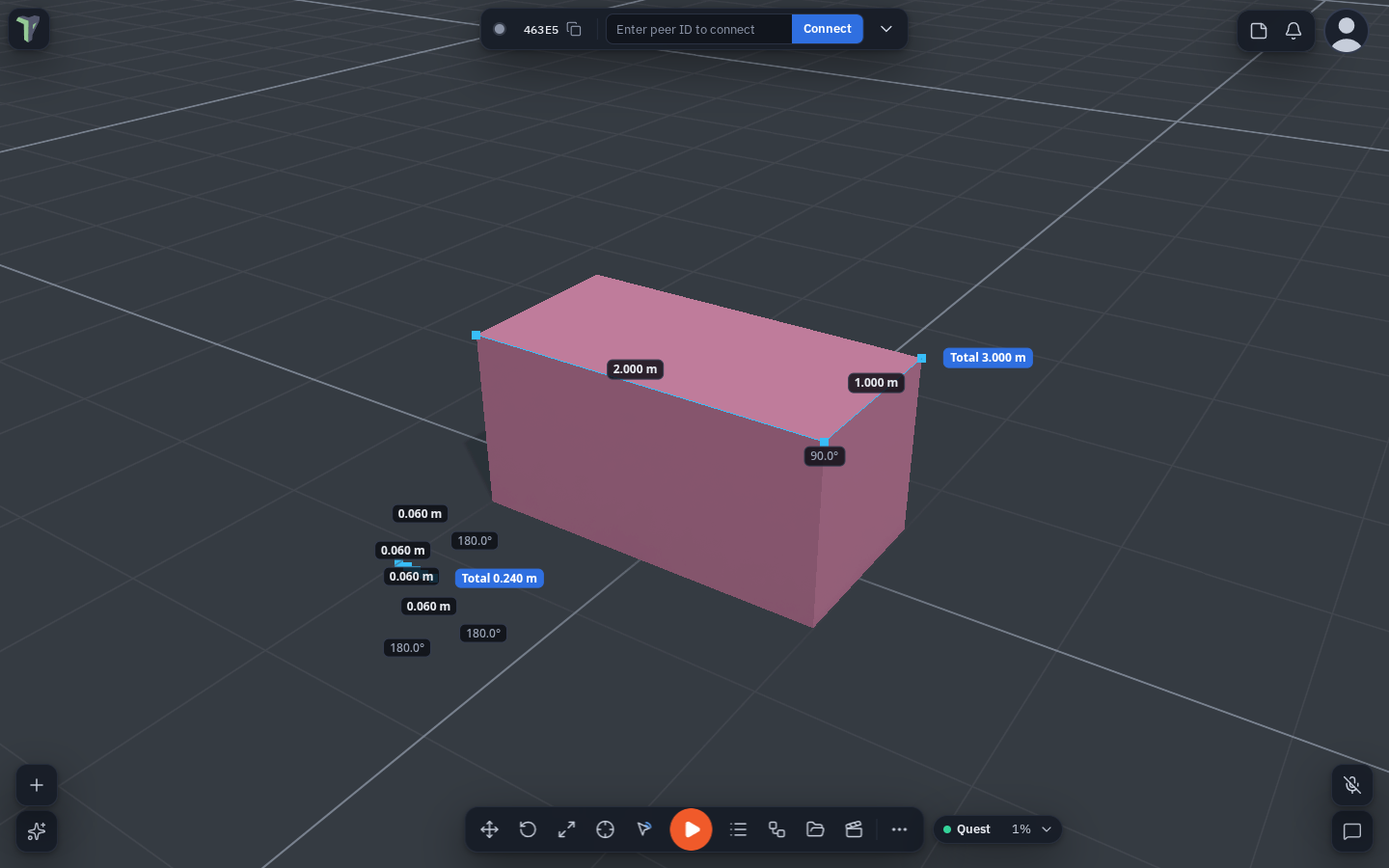
- Select one by clicking its line (or its row in the object list). Properties shows a Measurement section with each segment's length, the angle at each joint and the total.
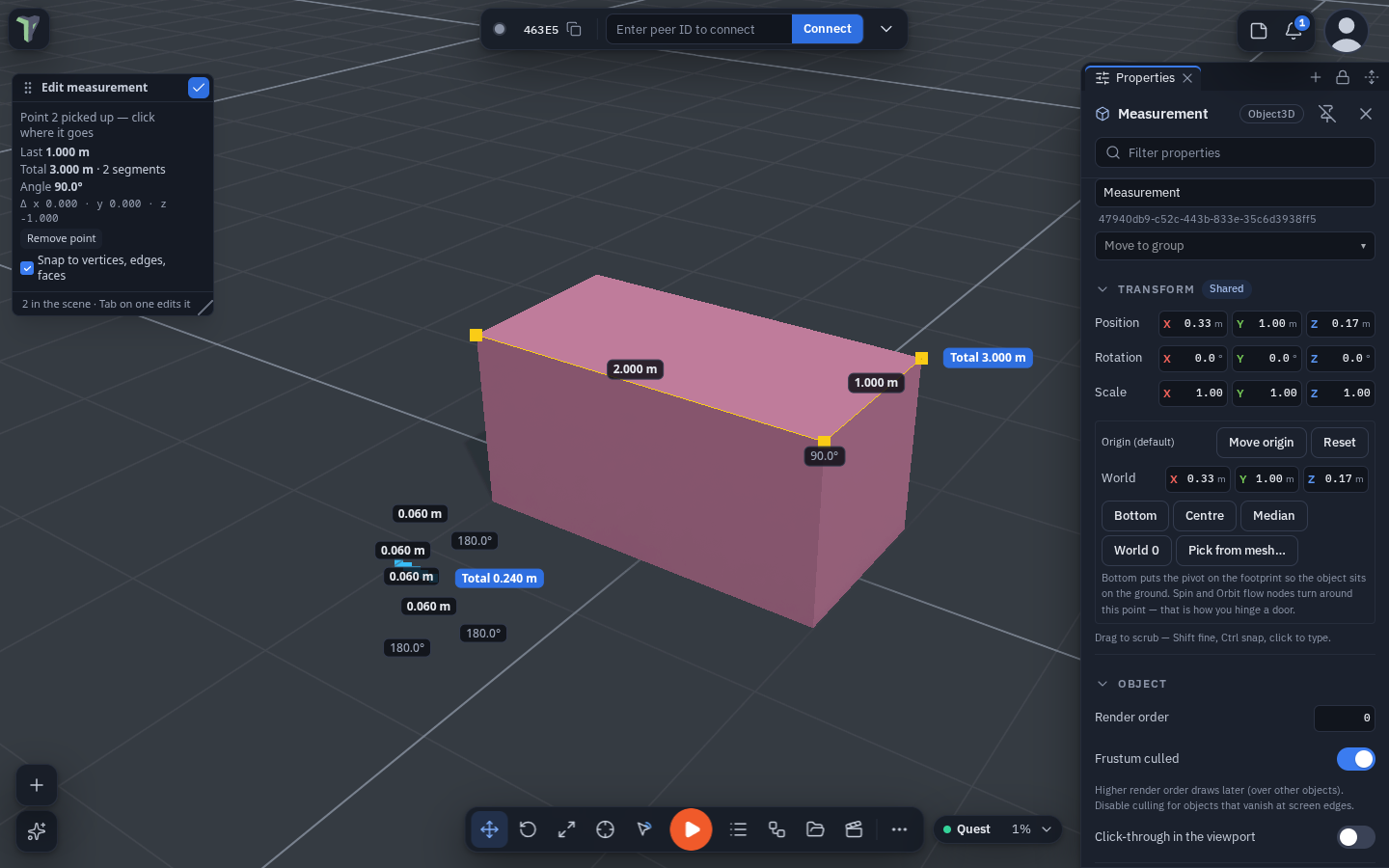
- Edit its points: select it and press Tab (or Properties ▸ Edit points, or the object menu ▸ Edit measurement). Click a point to pick it up, click again to put it down — it snaps exactly like drawing. Click anywhere else to add a point at the end. Backspace / Delete removes the picked (or last) point. Tab, Esc or ✓ finishes. Each placed point is one undo step.
- Delete them all: viewport menu ▸ Delete measurements (N) removes every measurement in the scene in one undo step.
Labels do not pile up. On short segments, the lengths, angles and total step aside; a label with no room left is not drawn. The Measure window and the Properties section still show every number.
Limits
Measurements are an editing aid: they are hidden in Play and in VR (their labels are drawn on the screen), they have no physics body and an export draws nothing for them.
Align, distribute and drop to ground
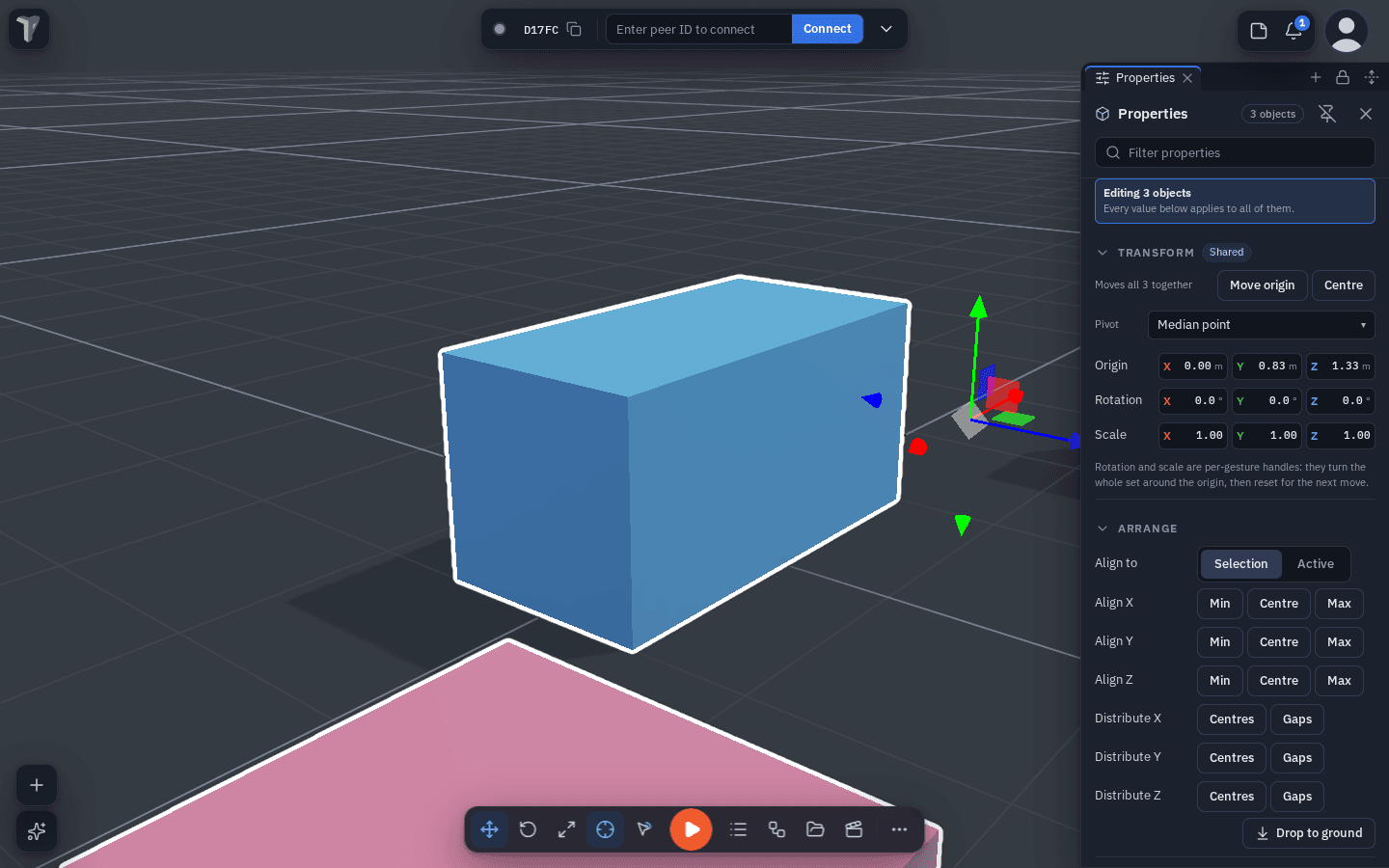
Where: select two or more objects ▸ Properties ▸ Arrange; or right-click a selected object ▸ Transform ▸ (Drop to ground, Align ▸, Align to active ▸, Distribute ▸).
| Control | What it does |
|---|---|
| Align X / Y / Z — Min / Centre / Max | Lines every object's lowest edge, centre or highest edge up on that axis. |
| Align to: Selection / Active | Selection uses the bounds of the whole selection; Active uses the last object you picked, which stays where it is. |
| Distribute X / Y / Z — Centres | Spaces the centres evenly (three or more objects; the two outermost stay). |
| Distribute X / Y / Z — Gaps | Makes the empty space between neighbours equal — better when the objects are different sizes. |
| Drop to ground | Each object rests its bottom on the surface below it, or on the ground (y = 0) when there is nothing under it. A stack settles from the bottom up. |
Every button is one undo step for the whole selection, and everyone in the session sees the result. Objects another person is editing are left where they are. (Drop to ground replaces the old Align to ground row.)