Settings
Settings holds everything that is yours to set: how the app looks, your keys and controllers, the scene defaults, VR, AI and the connection. Open it from the logo menu ▸ Settings, or follow a link that names a page — the Connect drawer's Connection settings, the HUD's AI button, a VR edit-limit toast — and it opens on that page.
Since 1.26 Settings has a new layout. No setting was lost or changed meaning: every switch keeps the value it had.
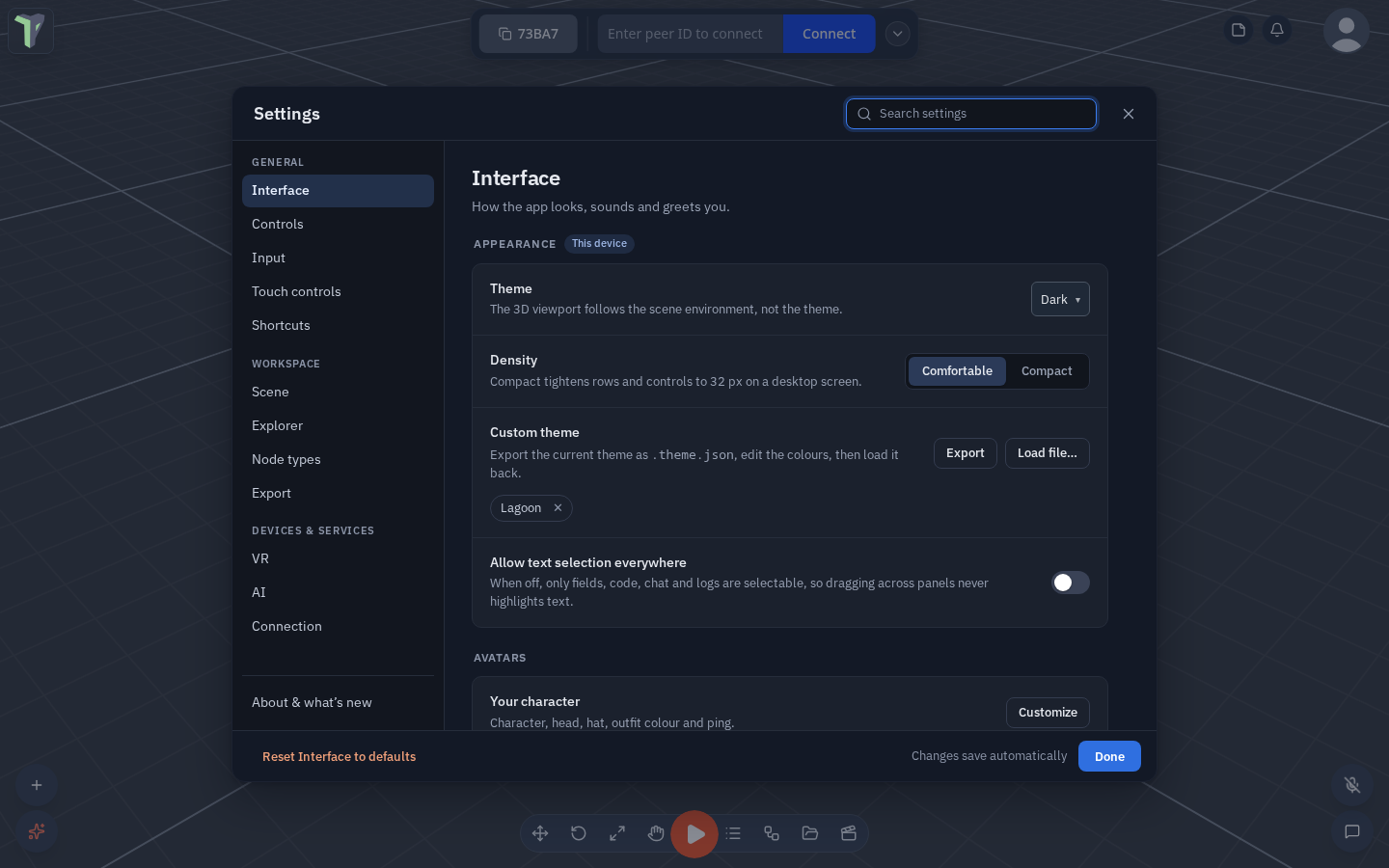
Finding your way
-
On a computer the window has a menu on the left in three groups, with About & what's new pinned at the bottom:
Group Categories General Interface, Controls, Input, Touch controls, Shortcuts Workspace Scene, Explorer, Node types, Export Devices & services VR, AI, Connection A dot on About & what's new means there is an update you have not read. ↑ / ↓ walk the menu.
-
On a phone Settings opens on the list of categories. Tap one to open it; ‹ Settings goes back.
-
Sub-pages. Some rows open a page of their own instead of a pop-up: VR ▸ Remap buttons, a touch button's look (Touch controls ▸ Jump), an AI provider, the voice-typing server, a custom signaling server, a node group (Node types ▸ Physics), About ▸ What's new. A breadcrumb (VR › Remap buttons) or ‹ Back returns, and Esc backs out of a sub-page first.
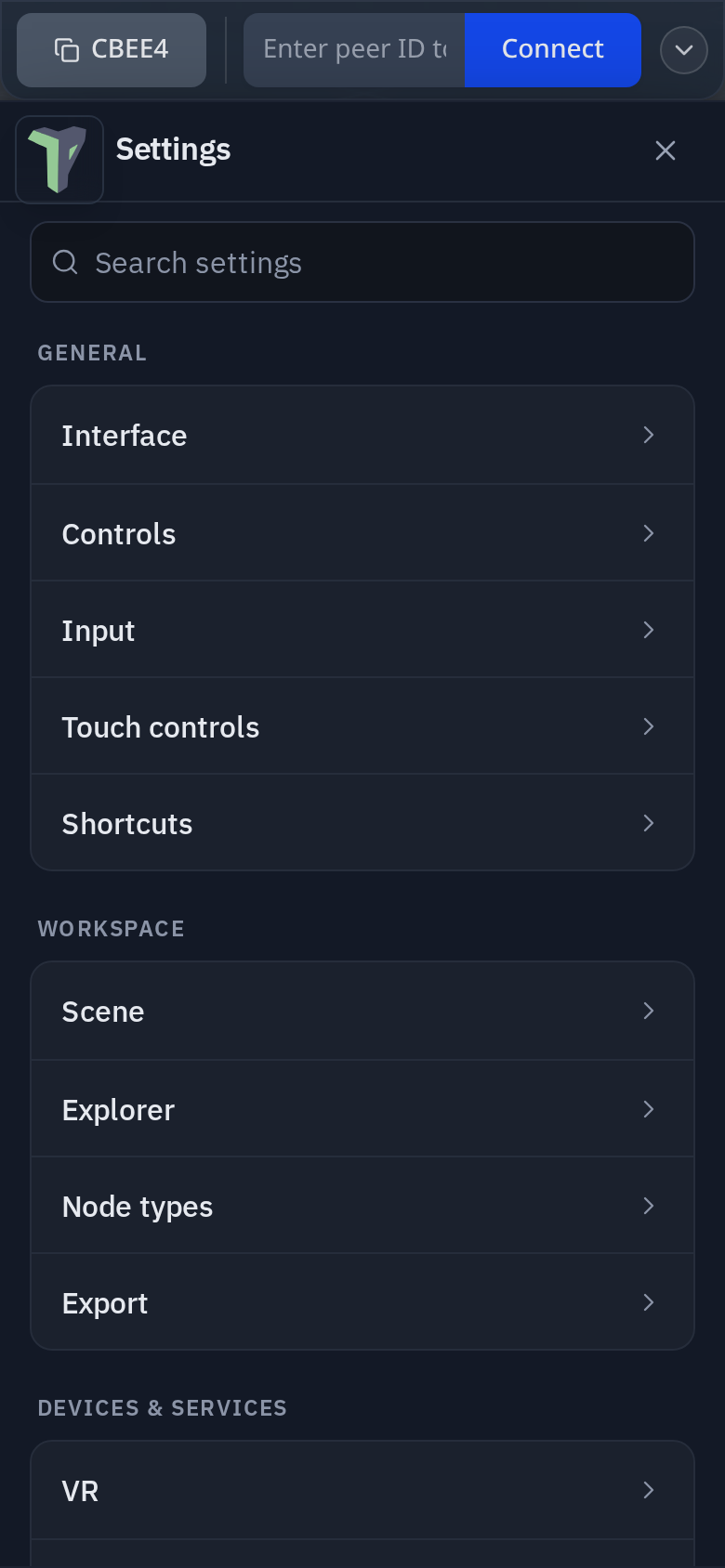
Search
The search box sits in the header (on a phone, at the top of the list). It finds a setting by its name, its description or the words people use for it — dark finds Theme, southpaw finds Swap sticks. Each match shows where it lives (INTERFACE › APPEARANCE); click a setting's name to jump to it on its page. Esc clears the search, a second Esc closes Settings.
Reading a row
Every setting is one row: its name and a one-line description on the left, the control on the right. Switches are on / off; two to four choices are a segmented control; a value with a range is a slider with its number beside it.
| Badge | Means |
|---|---|
| This device | the setting is kept only on this computer or headset |
| Shared | other people see its effect — your ping colour and sound, your VR hands, shared materials |
Saving and resetting
Changes save as you make them — there is no Save button; Done closes the window.
- Reset ‹Category› to defaults — bottom left on a computer, at the end of the page on a phone — puts every setting on that page back, after asking. There is no undo for it. It never touches your work: the AI page keeps your saved providers and keys, the Interface page keeps the themes you loaded.
- About ▸ Danger zone holds the two big ones, each asking first:
- Clear saved session — the autosaved copy of your work (see Autosave).
- Reset all settings — every setting on this device, in every category at once. A toast then offers Undo for about 8 seconds (see Undo after Clear, Delete, Remove).
Density
Settings ▸ Interface ▸ Density chooses how tightly the interface is packed:
- Comfortable (the default).
- Compact — tighter 32 px rows and controls on a computer screen. Phones keep finger-sized targets.
Where things moved
| Setting | Was | Now |
|---|---|---|
| What's new | the bottom of the window | About ▸ What's new |
| Reset settings | the bottom of the window | About ▸ Danger zone ▸ Reset all settings |
| Clear saved session | the bottom of the window | About ▸ Danger zone ▸ Clear saved session |
| Workspace layouts | new | Interface ▸ Windows & chrome ▸ Workspace layouts — see Workspace layouts |
| Knocked-off idle | new | Interface ▸ Avatars ▸ Knocked-off idle — see Knocked-off idle |
| Density | new | Interface ▸ Density — see above |
| Sky image quality | new in 1.27 | Scene ▸ Performance ▸ Sky image quality — Auto / Full (1k) / Low (headset), this device only; see Sky image quality |
| World grab snapping | new in 1.28 | VR ▸ Controls ▸ World grab snapping — on by default, this device only; see Snapping the world while you grab it |
| Placement preview | new in 1.31 | Scene ▸ Performance ▸ Placement preview — Full model / Within budget / Box only, plus the preview triangle budget and Show dimensions, this device only; see The Placement preview setting |