Saving & Sessions
How to save and load your work: the recommended .tpscene bundle, the whole-project .tp, GLTF interchange, named sessions, and autosave.
The main menu (the logo button) has Import (bring 3D files into the scene), Load (open a saved file) and Save in its Project section. Since 1.32 that section has two layouts (see The main menu's Project actions):
- Compact (a computer or an unfolded phone): New from template…, then Load | Save ▾, then Import | Export…. Save saves straight away with your last-used options; ▾ opens Save options.
- List (a folded phone): one row per action, with a format switch under Save: Project | Scene | ⚙. The ⚙ opens the same Save options.
Either way you save one of two things:
- Project saves the whole project as one
.tpfile — the Explorer library, every scene and its history (see Projects). - Scene saves the open scene as a
.tpscenebundle (below).
GLTF and JSON join them once you offer them in Save options.
Save options
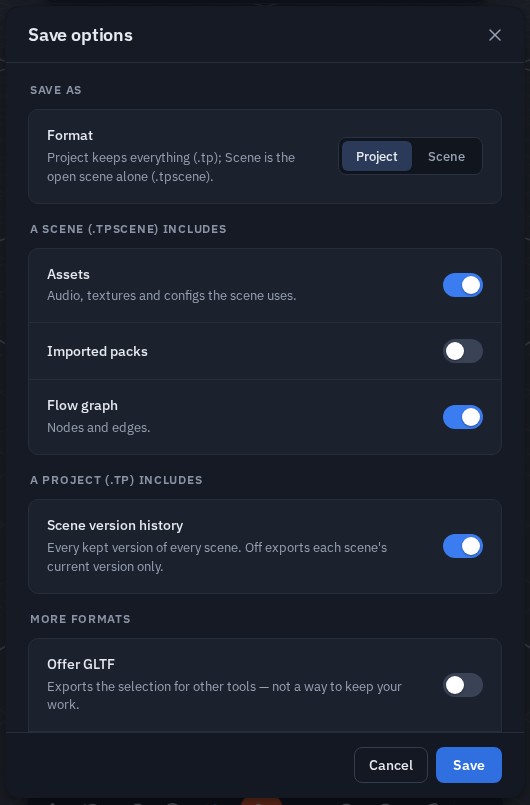
Save options puts every save setting in one dialog:
- Save as — Project (
.tp) or Scene (.tpscene), plus GLTF and JSON once you offer them. - A scene (.tpscene) includes — Assets, Imported packs, Flow graph (see below).
- A project (.tp) includes — Scene version history.
- More formats — Offer GLTF and Offer JSON (both off by default) add those formats.
- Optimize for — Full quality or For Quest / web (1.37): compressed textures and LOD chains in a GLTF or Scene export — see Publish & Export.
Its Save remembers the options and saves; Cancel forgets the changes. On a folded phone the dialog opens full screen.
Ctrl+S saves the open scene as a new version in the Explorer; a scene that has never been named asks for a name first.
Where you left off
Restoring a session — from the Restore previous session? dialog, from auto-restore in Settings ▸ Scene, or by loading a scene file — brings back more than the objects:
- the panels and windows you had open, and which dock tab was in front,
- what you had selected, and
- an open Edit Mesh or Sculpt session, with the faces, edges or vertices you had picked.
A plain page reload starts clean, with everything closed. The workspace comes back when you ask for your scene back, not every time you refresh — and a scene whose author had nothing open will not close the panels you have open.
Starting from a template
Menu ▸ Templates (New from template… in the Compact layout) opens a picker of ready-made scenes, in four tabs:
- General — starting points and walkable kit levels, including a Blank card that clears the scene (it asks first).
- Examples — worked showcases to pull apart and learn from. 1.22 adds five: Aquarium, Pool party and Island ocean (Water), Jelly room and Fluid tank toy (Fluid Tank & Jiggle).
- Games — playable scenes. A game is a scene plus, sometimes, a module: a card wears a Needs … badge when it depends on one, and loading it offers to install it — every player needs their own copy. If you have the module but an older version than the scene asks for, the load prompt offers to update it (an installed module never updates by itself). The Games tab describes each one.
- Community — scenes other people published from the app; see Community.
Templates load through the same path as a .tpscene file, so with peers connected everyone gets the usual Accept/Decline proposal and your current scene is stashed as a backup first. The Welcome overlay has a shortcut into the same picker.
Each card also has a small save to Library button in its corner (Save "Towers" to your Library as a new scene). It files the starter as a new scene in your Explorer without loading it — the scene you have open stays as it is — so you can collect a few and open them later.
Opening another scene, and modules
A game usually brings a module with it (Waves brings Waves and Health). When you open another scene that does not need them, the app asks: Unload (the default — the modules are switched off and the new scene starts clean), Keep (they stay loaded; their music, menus, levels and spawn stop counting until you go back to their scene), or Cancel. Tick Remember my choice, or set it in Settings ▸ Scene ▸ When opening another scene (Ask / Keep modules / Unload modules). Modules you installed as tools and no scene uses are never asked about. Opening a scene that needs a module you unloaded offers to turn it back on.
Clear scene asks what to clear: Clear objects (the default), or tick Also reset the game setup and unload its modules to Clear everything — the game's menu, HUD, flow nodes, play and physics settings, sky and look go too, so no leftover Menu or Play button stays behind.
Big scenes load without freezing the app: pieces stream in, and since 1.25 a scene draws its shapes first and its water a moment later.
The scene you open last is the one you get. Open Island Ocean and then, while it is still downloading, another level: Island Ocean is abandoned at once and never replaces the level later. From the moment you click, a bar at the top says what is happening — Loading scene — downloading…, then getting ready…, then N / M objects. There is no Cancel button: to stop a load, open something else (or Clear scene once it is in).
Scene (.tpscene) — recommended
A .tpscene file is a zip bundle containing everything a scene needs:
- the scene snapshot — objects, transforms, materials, camera, annotations,
- assets — the audio files, textures and config scripts the scene uses (stored by content hash),
- imported packs (optional),
- the flow graph — nodes and edges (optional).
Save options control what the bundle includes:
| Switch | Default |
|---|---|
| Assets (audio, textures, configs) | on |
| Imported packs | off |
| Flow graph (nodes + edges) | on |
| Project (.tp) includes: Scene version history | on — off exports each scene's current version only |
Animated models are carried as their original file bytes rather than as exported geometry: an animation clip lives beside the scene, not on the object, and no exporter can carry it. That means an imported rig comes back animated instead of as a dead static mesh, and animations you authored in the Animation window are stored too. There's a size cap per model, with a toast if one is skipped.
Loading a .tpscene restores the bundle in the right order: assets are put back into your Explorer library first (deduplicated by hash, landing in Shared), packs are re-registered, then the scene and flow graph load — sound nodes and textures resolve immediately instead of waiting for a peer to push bytes. One file moves a whole project between machines.
GLTF
Turn it on first with Save options ▸ Offer GLTF. Exports the selected objects as standard GLTF — use this to take your work into other 3D tools. With nothing selected it asks first and offers Export all for the whole scene. Loading accepts .gltf back. Animated flow effects are parked at their base pose during export so the file stores clean transforms.
JSON (legacy)
A legacy scene format, hidden by default. Enable it via Save options ▸ Offer JSON if you need it; otherwise prefer Scene.
Sessions manager
Menu ▸ Sessions manages named in-browser save slots:
- 💾 Save current scene stores a named snapshot with a thumbnail. (Ctrl+S no longer does this — it saves the open scene to the Explorer.)
- Load restores a slot. With peers connected, loading is a proposal — everyone gets an Accept/Decline toast and the load only applies when all peers accept.
- ⤵ Import objects… cherry-picks individual objects out of a session into the current scene.
- ⬇ .json / ⬇ .zip downloads a session — the
.zipvariant bundles the scene's assets, like a.tpscene. - Import session file accepts
.jsonand.zip; a zip restores its assets into the Explorer first. - Rename and delete slots inline.
Autosave
A snapshot of the scene, node graph and camera is written to your browser automatically — 30 seconds after a change, plus every 3 minutes. On a heavy scene a snapshot takes longer to prepare, so the delay stretches (up to 5 minutes) to keep saving from stuttering the app; the Storage panel (the Explorer's storage chip, or Settings ▸ Explorer ▸ Storage used ▸ Show breakdown) shows the current cadence and what the last snapshot cost. If a snapshot cannot be written — the disk is full, say — a toast stays up with Manage storage, and the Storage panel says Autosave is failing. Autosave can be turned off in Settings.
If a snapshot exists when you open the app, a Restore previous session? dialog offers to bring it back. If the last attempt to restore it never finished a frame, the prompt warns you — that snapshot may be what stopped the app, so think before pressing Restore.
Auto-restore on load (Settings ▸ Scene, off by default) skips the prompt: your last scene is simply there when the app opens, and a notice tells you it was restored so an empty canvas is still one click away.
To go back further than the last snapshot, autosave can also keep automatic checkpoints every few minutes, beside the ones you save by name — see Checkpoints.
Tip
Autosave protects against crashes; checkpoints and sessions are for milestones; .tpscene files are for backups and sharing outside the browser. Use them all.