Colliders
Physics never collides your triangles. It collides a simple stand-in — a collider — that is fast to test and forgiving: a box, a sphere, a capsule, a convex skin, a handful of convex pieces you build yourself — or, for scenery that never moves, the object's own triangles. Picking the right one is the difference between a ball that rolls and a ball that slides like a crate. This page covers every collider setting; for running a simulation, gravity, joints and grabbing see Physics & Simulation.
Where the settings are
Select an object and open Properties ▸ Physics:
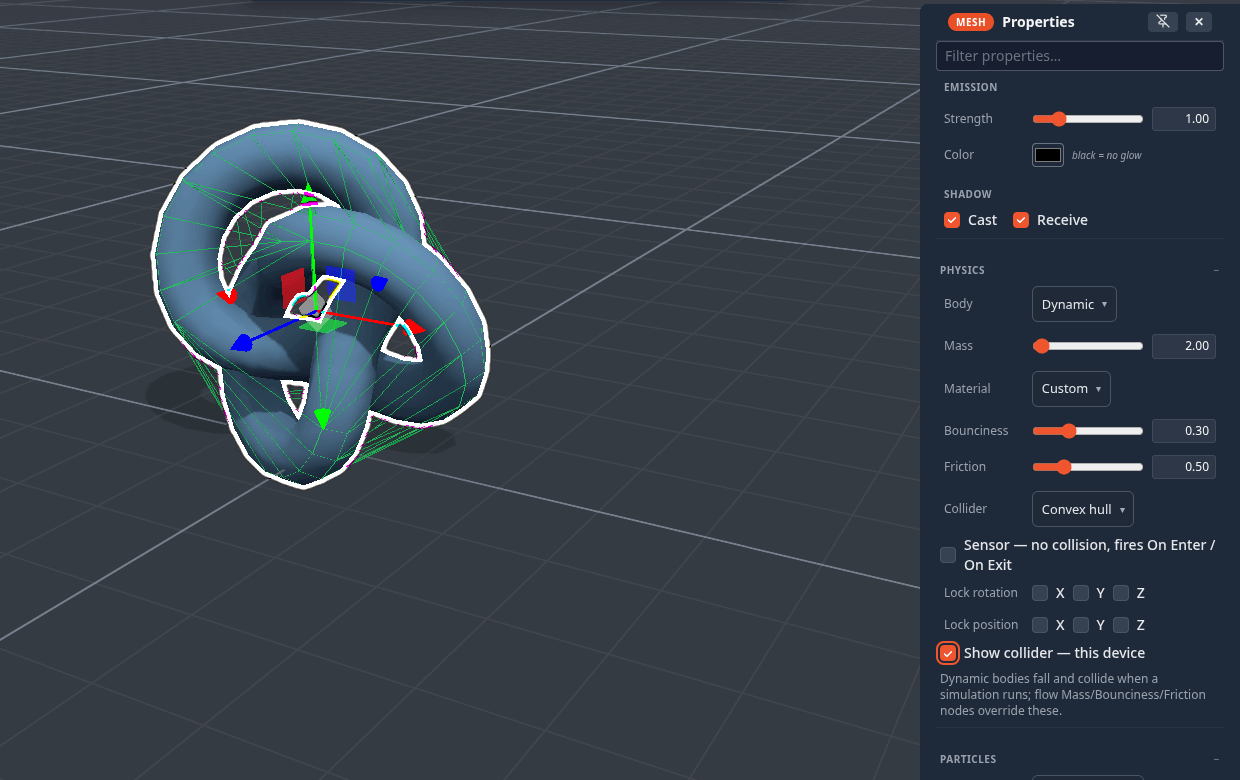
| Row | Options / range | Default |
|---|---|---|
| Body | Auto (scenery) · Static · Dynamic | Auto (scenery) |
| Mass (Dynamic only) | 0.1 – 100 kg | 1 |
| Material | Custom · Ice · Rubber · Wood · Metal | Custom |
| Bounciness | 0 – 1 | 0.3 |
| Friction | 0 – 2 | 0.5 |
| Collider | Box · Sphere · Capsule · Cylinder · Cone · Convex hull · Exact mesh (static) · Custom (edit…) | inferred from the shape (below) |
| Decompose | max pieces 2 – 16 · Run | — see Decompose |
| Group | Default · A · B · C · D · Water | Default — see Collision groups |
| Collides with | the same groups + Player | all |
| Sensor | no collision, fires On Enter / On Exit | off |
| Lock rotation (Dynamic only) | X · Y · Z | off |
| Lock position (Dynamic only) | X · Y · Z | off |
| Floats (Dynamic only) | Auto · Foam · Cork · Wood · Ice · Rubber · Stone · Metal · From mass ÷ volume · Off | Auto — see Things float |
| Show collider — this device | draws the collider as a wireframe | off |
With several objects selected, every change applies to all of them as one undo step. Everything here replicates and saves with the scene — except Show collider, which is only for you.
Body: Auto (scenery) and Static never move — things land on them and bounce off them. Dynamic falls and collides. An Auto or Static object that the flow graph animates (a Path Patrol platform, a Spin paddle) becomes a moving platform automatically: it pushes dynamic bodies, and a player standing on it is carried along.
Collider shapes
| Shape | Best for |
|---|---|
| Box | crates, walls, floors, anything boxy — the fastest, and the fallback for everything |
| Sphere | balls; they roll |
| Capsule | characters and posts — rounded ends slide off edges instead of catching |
| Cylinder | barrels, columns, wheels |
| Cone | cones and spikes |
| Convex hull | irregular shapes: a skin shrink-wrapped around the mesh. Exact for ramps, gems and rocks; it seals over any opening (a bowl becomes a lump) |
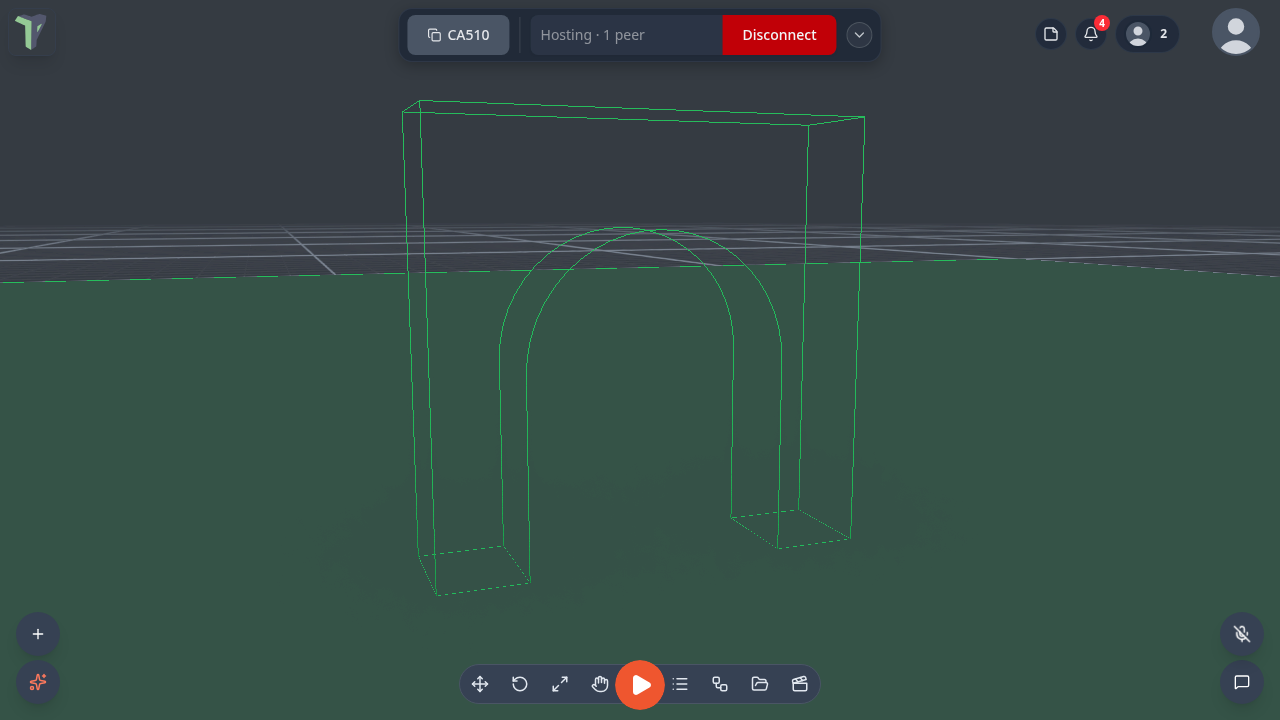
| Exact mesh (static) | concave scenery — an arch, a pool, a tunnel: the object's own triangles (below) |
| Custom | anything concave that moves — an L-shape, a frame, a chair: several convex pieces you build or decompose (below) |
Primitive colliders are sized from the object's own extents and follow its rotation — a tilted box collides as a tilted box, a rotated ramp is really a ramp.
The default is inferred from the object, so most objects need no choice at all:
| Object | Default collider |
|---|---|
| Sphere · Cylinder · Capsule · Cone | the matching shape |
| Arch, Corner (Auto or Static body) | Exact mesh |
| Torus, Torus knot, the polyhedra, Lathe, Tube, Wedge, Stairs, and a Dynamic Arch or Corner | Convex hull |
| everything else (cubes, imported models, groups) | Box |
Stairs keep the ramp-like hull, so things slide up them smoothly; pick Exact mesh for real steps.
Limits. A convex hull works on a single mesh of up to 5000 vertices; a denser mesh — and any group — falls back to a box. When a collider looks wrong, turn on Show collider first: a fallback box is nearly always the answer.
Exact mesh colliders
Collider ▸ Exact mesh (static) makes the object's own triangles its collider, so concave scenery behaves as it looks: a ball rolls through an arch's opening, falls into a pool or a tank, drives through a tunnel. The choice is shown only while Body is Auto (scenery) or Static. A group (an imported model) is merged into one mesh. Static Arch and Corner blocks use it automatically.
Limits.
- Static and kinematic bodies only. A Dynamic body that asks for it gets its convex hull instead, and a toast says why — use Decompose for a concave object that moves.
- Up to 20 000 triangles. A denser mesh falls back to a box, and the toast gives the reason.
- Contacts against a mesh are one-sided, so a very fast, thin body can pass through a thin wall. Turn on Configure Scene ▸ Physics ▸ Defaults (advanced) ▸ Continuous collision if that happens.
- The Collider node (
trimesh), the AI assistant and a pack item's collider hint accept it too.
Decompose: concave dynamic bodies
A dynamic object can't use an exact mesh, and its convex hull seals every opening. Decompose splits the mesh into convex pieces for it:
- Select the object and open Properties ▸ Physics ▸ Decompose.
- Set the maximum pieces (2 – 16; remembered on this device) and press Run.
- After about a second (it runs in the background) the pieces are saved as the object's Custom collider.
A dynamic arch, cup or U-shaped crate now keeps its openings. One undo restores the previous collider, and the result replicates to everyone. Fine-tune it afterwards with Edit collider… (below). In VR it is Decompose (auto) in the collider editor.
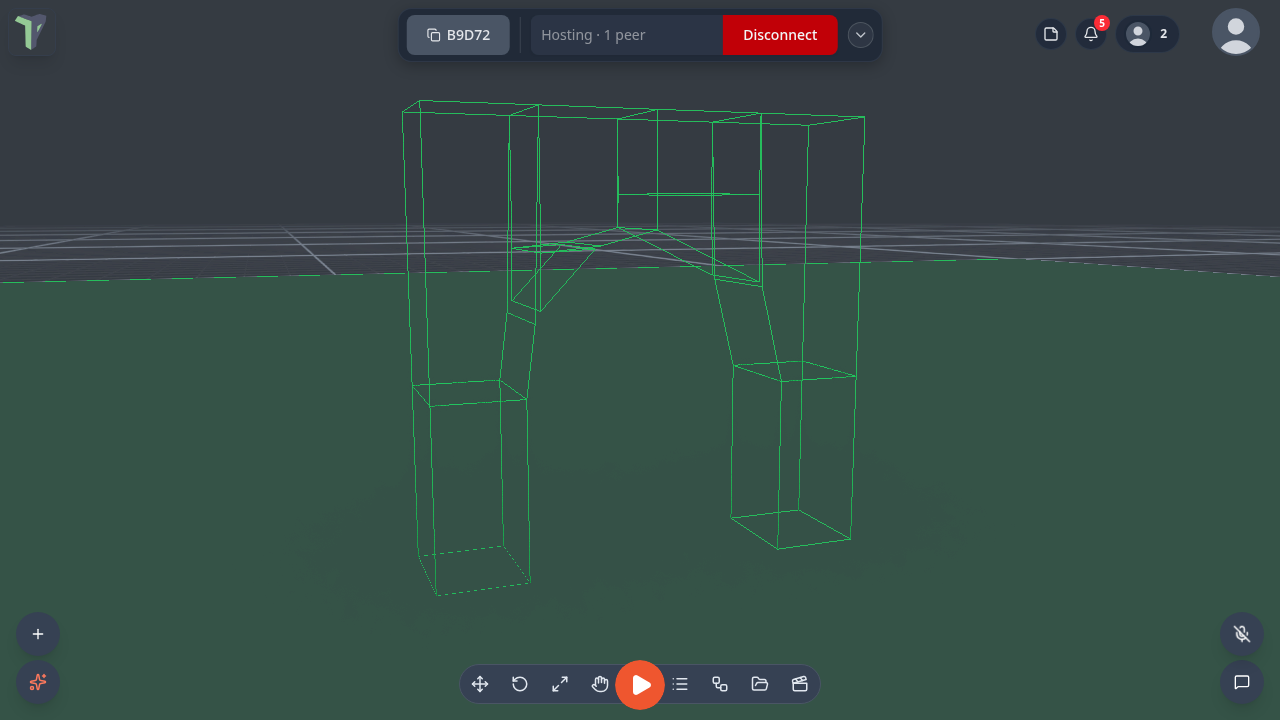
The result has to fit the custom-collider budget (about 400 points). Pieces past it are dropped, and the toast says so.
Collision groups
Properties ▸ Physics ▸ Group puts an object in Default, A, B, C, D or Water. Collides with ticks which groups, and whether the Player, it collides with. Everything starts in Default and collides with everything, so existing scenes behave exactly as before.
Recipes:
- Ghost wall — Group A, untick Player: the player walks through it, crates do not.
- Projectile barrier — Group B, collides with B only. Put your projectiles in B too: they stop at the barrier, and everything else passes through it.
- Water / trigger — anything in the Water group is a pass-through trigger that still fires On Enter and On Exit. Water volumes are in it by default, so bodies fall into water instead of landing on it; the floating comes from the water itself (Things float).
The Collider node has a group parameter; inherit keeps the Properties choice.
Materials: bounciness and friction
Material sets bounciness and friction together, so you pick a feel instead of two numbers:
| Material | Friction | Bounciness | Feels like |
|---|---|---|---|
| Ice | 0.02 | 0.05 | slides forever, dead on landing |
| Rubber | 0.9 | 0.85 | grippy and bouncy |
| Wood | 0.55 | 0.25 | the everyday default feel |
| Metal | 0.3 | 0.1 | slick and heavy |
Move either slider afterwards and the dropdown reads Custom. Configure Scene ▸ Physics ▸ Defaults (advanced) ▸ Material sets the material of every object that does not set its own — the fastest way to make a whole scene icy.
Sensors: trigger volumes
Tick Sensor and the object stops colliding: things pass straight through it — players included. Instead, every overlap fires On Enter when something comes in and On Exit when it leaves, once per entry, on every peer. Use it for a doorway that opens as you approach, a lava pit, a scoring zone, a checkpoint, a finish line.
A sensor is still a visible mesh, so give it a transparent material (or hide it) once it works. With Show collider on, a sensor draws amber instead of green.
Locking axes
A Dynamic body can be pinned per axis:
- Lock rotation X / Y / Z stops it tipping — a character capsule that must stay upright, a spinning top that only turns around Y.
- Lock position X / Y / Z keeps it on rails — a lift that only goes up and down, a puck that stays on the table.
Gravity and damping
Gravity is a scene setting: Configure Scene ▸ Physics ▸ World ▸ Gravity, from −20 to 5 (positive falls up), shared by every object. There is no per-object gravity scale; to make one object float, put it in water, lock its Y position, or push it with an Impulse or Set Velocity node.
Drag and spin drag (linear and angular damping) and Continuous collision are scene-wide too, under Defaults (advanced). A body thrown or knocked faster than about 5 m/s switches continuous collision on for itself until it settles, so a hard throw does not pass through a thin wall.
Seeing the collider
Show collider — this device draws the collision shape as a wireframe over the object: green for a solid collider, amber for a sensor. It is local to you — peers do not see your debug wireframes — and it is hidden in the Wireframe render mode and in Interact and Play. Configure Scene ▸ View ▸ Show colliders shows every object's at once, and draws the ground plane as a translucent sheet.
Turn it on when something rests oddly, hovers above the floor or falls through it.
Custom compound colliders
For a shape no single convex piece can represent, pick Collider ▸ Custom (edit…) — later, Edit collider… re-opens it. The mesh editor opens on a stand-in copy of the object, where you build the collision shape with the ordinary mesh tools.
- Each separate piece becomes its own convex hull, so an L-shape is two boxes, a hollow frame four, a chair five or six.
- The Collider section of the toolbox has add box and add sphere buttons to drop a primitive piece straight in; the status bar shows how many shells (pieces) you have.
- ✓ stores it; ✕ or Esc cancels — the visible mesh is never touched either way.
- A custom collider holds up to about 400 vertices in all; a larger one is refused with a toast. Mass is shared evenly between its pieces.
Keep it rough
A collider only has to be right where things touch. Three boxes that cover a sofa's seat, back and arms collide better — and faster — than a hull of every cushion.
Changing colliders while it runs
Collider settings apply live: change a shape, a material, a sensor flag, a locked axis or the mass while a simulation is running and the body is rebuilt in place — joints, velocity and momentum survive — so you can tune a contraption without restarting it. The one exception is Body: switching between Auto, Static and Dynamic takes effect the next time the simulation starts.
From the flow graph
The Collider node overrides the shape (and can make it a sensor, scale it, or borrow another object's geometry); Mass, Bounciness and Friction override those rows. A node wired to an object wins over its Properties settings. A wired Mass node also makes its object dynamic.
Contact filters: only with, and other
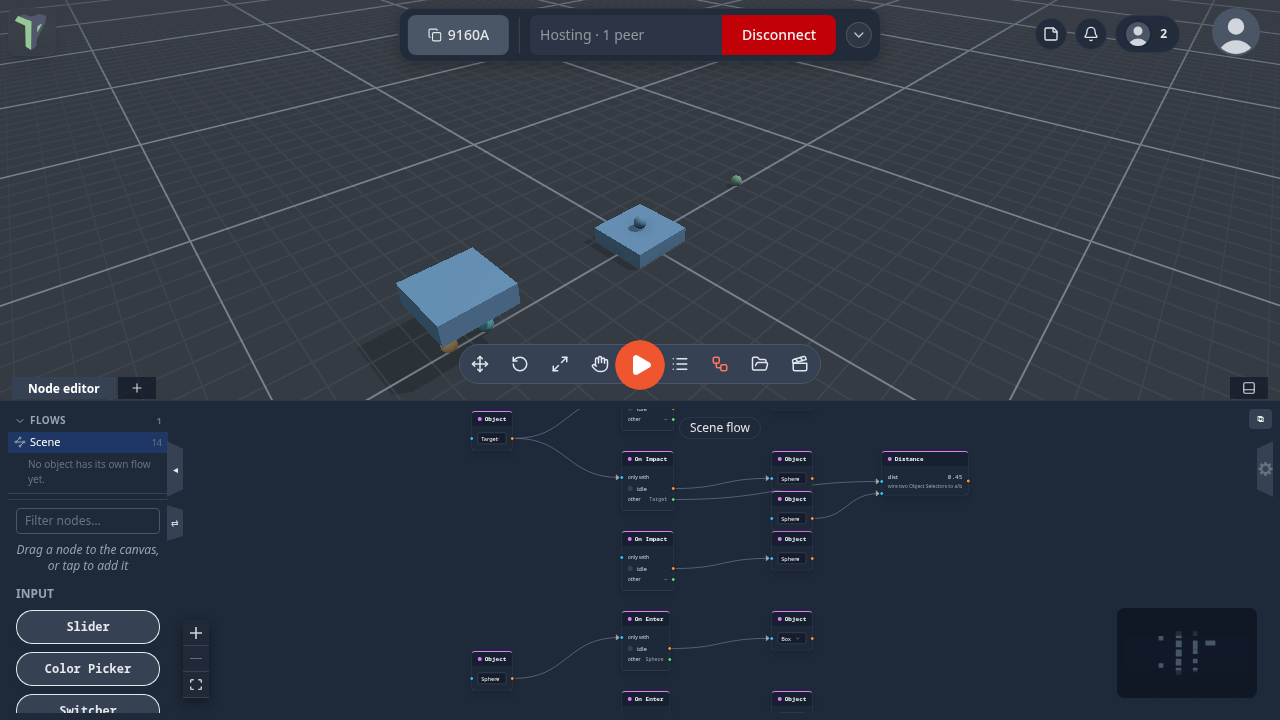
On Impact, On Enter and On Exit are in the palette's Physics group. Each can be limited to one other body, and each tells you what it touched:
- Wire an Object Selector into only with and the node fires only when the other body is that object, or a spawned copy of it.
- The other output carries the body it touched. Wire it into Look At, Distance and the like.
The other body travels with the trigger, so every peer reads the same object. A contact with the ground plane reports an empty other.
Editing a collider in VR
Select an object, open the radial menu's Selected ring and pick Edit collider. The edit side-menu opens, titled Edit Collider:
- Vertices and Faces tabs edit the collider shape, never the object.
- + Box piece and + Sphere piece add a primitive piece.
- Decompose (auto) runs Decompose.
- Done — save collider stores it; Cancel (or ✕) throws the edit away.
Grip a face of the green collider to pull it. See the VR Guide.
Doors and other moving pack items
The functional pack items — doors, gates, lids, trapdoors — come with colliders that do the right thing on their own. A
door's frame becomes solid slabs with the doorway left open, and the moving leaf follows its animation while a
simulation runs, so you can walk through an open door and not through a shut one. (Pack authors: this is the item's
collider: 'follow' behaviour, the default for a door — see Packs.)