Connection
How peers find each other, how to invite someone into your scene, and how to point the app at a signaling server you trust.
ThePrototype is peer-to-peer: once two browsers connect they talk directly over WebRTC, and the whole scene replicates between them. The only shared infrastructure is a small signaling server (PeerJS) used to introduce peers to each other — it never sees your scene data.
The Connect panel
The Connect panel is the bar at the top of the screen. Since 1.35 it is either pinned — a full-width bar along the top edge, the default on a touch screen — or floating — the centred pill, the default with a mouse; switch with the Pinned / Float button in its drawer's header (see The Connect bar). A floating bar with no room on the top row shrinks to a compact dot and chevron, and grows back when room returns. You can move it anywhere and hide it in Edit positions or by unticking Connect bar in Customize toolbar…; on a folded phone the Connect chip stays.
It has two halves:
- 📋 Your ID — the button on the left shows your own peer ID. Click it to copy your invite link (your app URL with your ID attached, e.g.
https://theprototype.app/#AB12CD) to the clipboard. Until the connection to the signaling server is ready it reads Generating…. - Connect field — paste a peer's ID into Enter peer ID to connect and press Connect to request a connection.
Since 1.30, once you are connected the bar collapses to a compact chip — the status dot, the avatars of who is here and your mic; click it to open the full bar again (its collapse button folds it back). On a phone the bar is always the chip — tap it for your ID, the join field, Info and Toasts. The signaling link's attempt count is in the drawer's Info tab.
The status dot
Since 1.32 the connection status is a coloured dot. On a computer the full bar keeps your invite ID and the peer-ID field, with the dot at its left end. On a phone the chip at the top of the screen says the state beside the dot — Connected, Connecting… or Offline — whenever the top bar has room. When the bar is crowded (people are connected and you are in a call, so the peers button and the microphone take the space) it shrinks back to the dot and a ▾ (and the microphone while you are in a call).
| Dot | Means |
|---|---|
| grey | not connected |
| yellow, pulsing | connecting, waiting for someone to approve, or reconnecting to the peer server |
| green | connected |
| red | the peer server cannot be reached (the app keeps retrying) |
Point at the dot — or press and hold it on a touch screen — for the full sentence, such as Connected to 2 peers; while the signaling link is down it also says how long it has been trying. On a phone a tap on the chip opens the full connection details.

Who is here: the peers panel
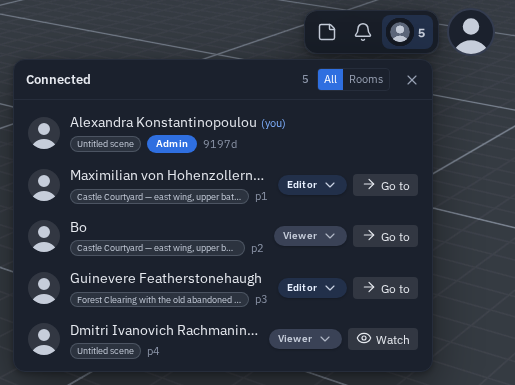
The peers button in the top bar (beside the bell, with the number of people) opens the Connected panel. Its header matches the notification centre's, and each person is one row: their avatar, their name (shortened with … — point at it for the full name), a second line with where they are and their role, and their actions on the right — Watch, Go to or the role list. On a computer the panel is 320–420 px wide and grows with long names, so nothing wraps or breaks. On a phone it opens as a sheet like the notifications: a grab bar on top, and a swipe down closes it.
Inviting someone
- Copy your invite link (the 📋 button) and send it to a friend.
- When they open the link, their app automatically sends you a connection request.
- You get a Connection request toast — press Approve and you are connected.
Or do it by ID: they paste your ID into their Connect field and press Connect; the same approval toast appears on your side.
A link in a tab that is already open
You do not have to reload to follow an invite. Paste the link into the address bar of the tab that is already running the app and press Enter: the app dials that session on the spot, with your scene and your session id intact. (The Connect field takes a bare ID, not a link.)
A few cases ask first, or refuse with a message:
- Already in a session — You're in a session with Ada (75F41). Leave it and join 3B0C2? with Leave & join and Stay.
- Your own link — That's your own invite link — send it to somebody else to have them join you.
- Someone you are already with — Already connected to Ada (75F41).
- A link that names another signaling server — Join 3B0C2 on peerjs.example.com? with Join and Cancel; joining switches server without a reload, exactly like Apply below. If that server cannot be reached you are back online on your previous server within a second, with the same session id, so the invite link you shared keeps working.
The request, and how it ends
A connection request waits for the host. Three things can end it, and each one says so on both sides:
- Approve — you are connected. The card offers View only and Editor access where roles are in use, and a plain Approve where they are not.
- Reject — the request ends and the person is told: AB12CD declined your connection request. At the session's ceiling the card also offers Tell them it's full, which answers with AB12CD's session is full (16 people). Try again when someone leaves. and a Try again button.
- Nobody answers — after 90 seconds the request cancels itself on both sides and offers Try again, instead of sitting on Requesting for ever.
While it is open the requester sees a countdown beside Requesting, and your card says how long that person has been waiting (asked 34s ago). An expired card can still be approved — approving simply dials them back. Dialling somebody who is not online ends the request too, rather than leaving it up beside a toast saying they are unreachable. If a connection is stuck, the panel offers a Retry that closes the stale link and reconnects.
Waiting requests are capped
A rush of joiners folds into the Connect drawer rather than burying the screen, and when the queue is full the expired cards are dropped before the live ones.
Once connected, everything replicates automatically — objects, transforms, materials, the node graph, chat, pings, notes and voice.
Selection locks
Selecting an object locks it so two people can't fight over the same thing:
- Your current selection is your lock — one lock per person, and picking a new object releases the old one.
- A locked object shows who holds it, tinted with that peer's color.
- To take over, open the object's right-click menu and choose Request control; the holder gets an Approve/Deny prompt.
If a peer disconnects, their locks are released and their avatar, cursor and hands are cleaned up automatically — only their locks; everyone else keeps theirs.
Rooms: one session, several scenes
A session is the connection — the people you are linked to, and the project you share. A room is simply everyone standing in the same scene, and the peer list shows which scene each person is in.
Because a peer in another scene is looking at a different world:
- you will not see their avatar in your viewport,
- Watch is disabled for them, with the reason on the button ("In Arena — open that scene to watch them"),
- and if they travel away while you are watching them, watching stops and says so.
Open the same scene and all of it comes back. Nothing is lost by being apart — their work is in the project, and travelling to their scene picks it up.
Before anyone names a scene
A fresh session has no named scene, so everybody is in one Untitled scene and none of the above applies. The same goes for someone who has just joined: they are standing in your content without knowing its name yet, so they are never hidden on a guess.
Public rooms (theprototype.app)
On theprototype.app, the Rooms button in the top bar lists public rooms — sessions their hosts chose to list — and lets you list your own. Browsing is open to everyone; listing a room needs you to be signed in (profile menu).
Your room's panel has a Room name, a Short description and these switches:
| Switch | What it does |
|---|---|
| List this room publicly | shows the room in everyone's Rooms list while you are online (a room whose host goes away drops off within about a minute and a half) |
| Require approval to join | Join becomes Request to join: the request lands on your approval card as "‹name› wants to join ‹room›", and you approve or reject it as usual |
| Allow guests to join automatically (view-only) | people who are not signed in may come in to watch. Off while approval is required or the room has a code |
| Enable room screenshot | the list card shows a picture of your scene instead of a coloured initial |
| Room code | list the room first, then type a code and Set it: someone who knows it gets in as a viewer without waiting for approval. A listed room with a code shows 🔒 |
Joining a coded room asks for the code ("🔒 ‹room› needs a code"). The right code goes straight in; a wrong one is refused, and five wrong codes lock that person out for ten minutes. If the room also requires approval, Ask the host instead sends an ordinary request. The code itself is never stored on the server or sent in the clear — only your device can check it, so a code set on another device of yours has to be set again here.
Bigger sessions
Everyone in a session connects to everyone else, directly. A room of ten is the tested target: joining takes roughly a third of a second, and every peer really does end up linked to every other peer.
A momentary network blip no longer throws you out, either. A peer that drops for a few seconds is given a window to come back and rejoin the same session; only when that window closes are they treated as gone.
Session size
Settings ▸ Connection ▸ Session size is how many people you expect. It is a number you type; the default is 8, and 16 is the ceiling you cannot type past.
- Below your number, nothing changes.
- Past it, an approval still works but the card warns you first.
- At 16 the Approve buttons are disabled and the card reads this session is full (16) — beyond that point the mesh degrades for everyone rather than only for whoever joined last.
Note
How many peers work for you depends on your uplink, since each one sends to every other. Voice chat and live gestures are the bandwidth-hungry parts — a large scene is sent once per joiner, not continuously.
When the signaling link drops
The link to the signaling server is not the link to your peers — losing it does not end a session you are already in, it only stops new people finding you. When it drops the app reconnects on its own, backing off a little further between tries and never giving up, and the status dot pulses yellow while it is retrying so a dead link does not read as a dead app. Coming back online, or returning to the tab, retries immediately instead of waiting out the backoff — and since 1.32 it does so silently: switching apps on a phone and coming back no longer toasts. If the server stays unreachable for about a minute, the dot turns red and one entry appears in the notification centre; the retries carry on. A peer connection that closed is rebuilt rather than abandoned.
Diagnostics you can copy
Settings ▸ About ▸ Copy diagnostics puts a bundle on your clipboard: the version, this session's peer and scene counts, the scene's budget numbers, the last uncaught error and the last 300 log lines. A toast confirms Diagnostics copied to the clipboard.
Since 1.35 a line that repeats back-to-back is written once with a count — WARN [console] … (×180, last 10:42:07.311) — so a burst of one warning can no longer push the useful lines out of the log.
It goes to your clipboard and nowhere else — paste it into a bug report, so a problem arrives with something in it.
Choosing a signaling server
Which signaling server you use decides which world you can meet people in — two people must be on the same server for their invite links to connect. Set this in Settings ▸ Connection.
| Mode | What it does |
|---|---|
| Default | Uses the server the app was built with, and falls back to the public PeerJS cloud if that server is unreachable. If no server was baked in, Default simply is the public cloud. |
| Public PeerJS cloud | Always the free public PeerJS cloud. No fallback. Fine for quick tests; not recommended for real sessions. |
| Custom server | Pin your own PeerJS server. No fallback. |
Custom server reveals these fields:
- Host — your PeerJS host, no
https://and no path (e.g.peer.example.com). - Port and Path — TLS defaults are
443and/peerjs. - Secure (wss) — leave on unless you're testing a plain-
wsserver. - TURN URLs / username / credential — a TURN relay for peers behind strict NATs. Blank means STUN-only (direct connections only).
- STUN URLs — optional extra STUN servers.
Press Apply (the Apply changes row) to switch now: the app leaves any open session, reconnects to the server you chose and keeps your session id, so an invite link you already sent stays valid. A toast confirms Connected to … — your session id is unchanged. If the new server cannot be reached within a few seconds you are put back on the previous one and told so; the Reload link beside the button is the fallback if anything looks stuck.
The fallback
In Default mode, if your self-hosted server can't be reached the app switches to the public cloud on its own and tells you: "Your peer server is unreachable — switching to the public PeerJS server." Custom and Public modes never fall back.
Running a local build
If you run a local or self-built copy of the app, the first time you open it you'll see a one-time notice:
It looks like you are running a local build of theprototype. Configure a peer signaling server in Settings for reliable connections — the public PeerJS cloud is not recommended for real use.
It carries an Open Settings button that jumps straight to Settings ▸ Connection, and it appears only once per browser. The default public cloud keeps a fresh install working with zero configuration, but for anything real you'll want your own server — the app repository ships Terraform + a PeerJS + Caddy + coturn setup for exactly this.
When things go wrong
| Symptom | Meaning |
|---|---|
| Peer is unreachable | The ID is wrong or that person is offline — check the ID and ask them to stay open. |
| Your session ID is already in use | Reload the page to claim a fresh ID. |
| AB12 did not answer in 90s | Nobody approved your request in time, so it ended itself — press Try again to ask again. |
| AB12 declined your connection request | The host pressed Reject. Ask them before dialling again. |
| AB12's session is full (16 people) | Everyone connects to everyone, so a session has a ceiling. Someone has to leave before another person can join — Try again on the toast re-asks. |
| Could not reach … — back on your previous peer server. | Apply (or an invite link that names another server) could not open that server, so nothing changed: you are back online on your previous server with the same session id, and your invite link still works — check the host, port and path. |
| A red status dot, and one Can't reach the peer server — still retrying. entry in the notification centre | The link to the signaling server has been down for about a minute; the app keeps retrying on its own and never gives up, and the dot turns green or grey again once it is back. Shorter drops — a tab switch, a moment offline — reconnect silently. Your open session keeps going meanwhile. |
| Cannot reach the signaling server - the connection request was not sent. | You pressed Connect while the signaling link is down. Wait for the status dot to stop pulsing, or switch servers in Settings ▸ Connection. |
The status page
status.theprototype.app answers is the service up? It is checked from outside every five minutes:
| Check | What it covers |
|---|---|
| The app | theprototype.app itself |
| Accounts, saves and community | sign-in, cloud saves, community scenes |
| Signaling | connecting people to each other |
| TURN relay | the relay used on networks that block direct connections |
| Community pages and error reports | the community pages and the error reports (since 1.39) |
Most of the app is peer-to-peer and keeps working while a service is down — a session you are in carries on. Sign-in, cloud saves and the community need the service. An outage opens an issue in github.com/theprototype-app/status and closes it on recovery. The checks never count as visits or errors.