Image Editor
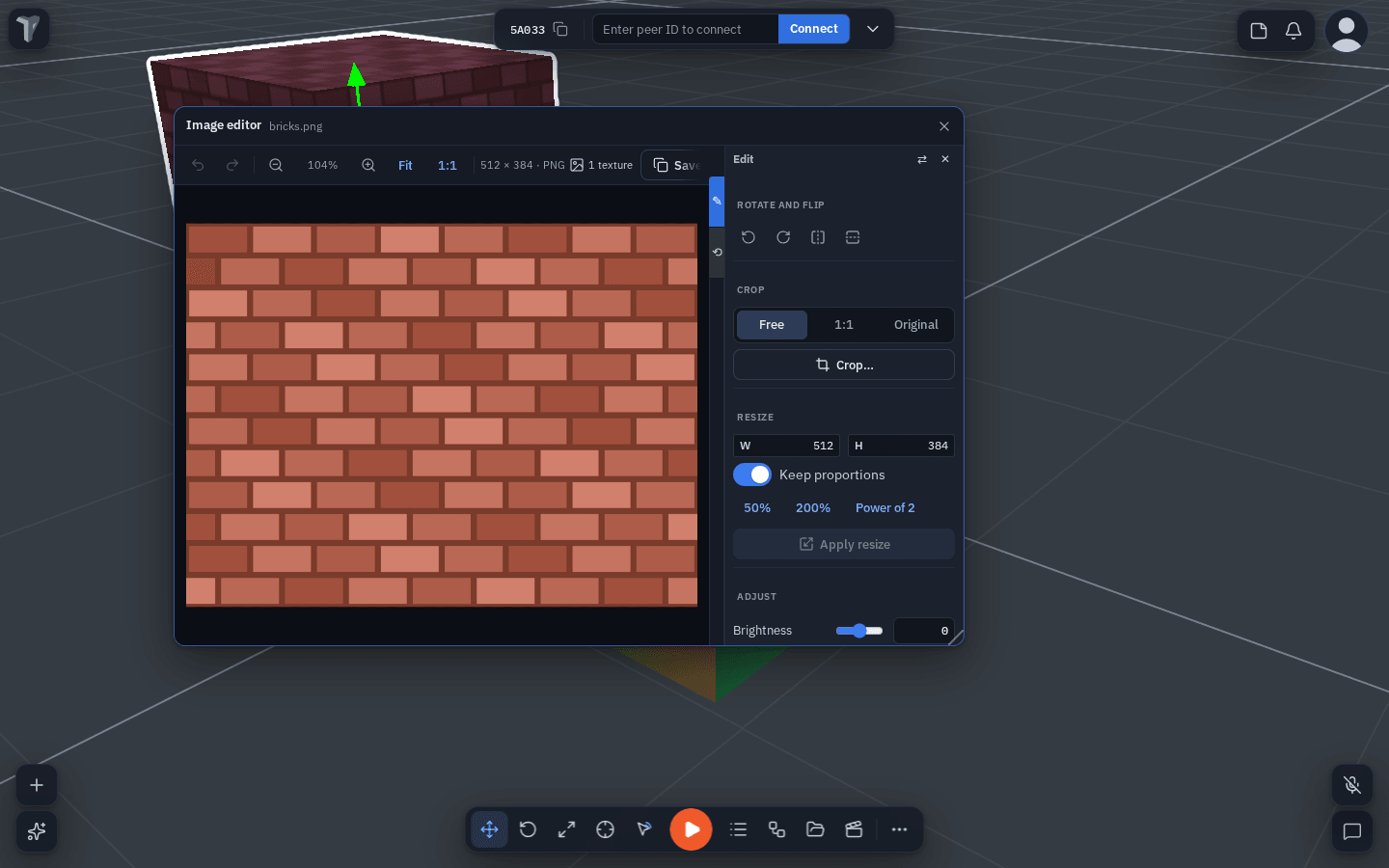
New in 1.32: the Image editor crops, rotates, flips, resizes and adjusts a picture in your Explorer library. When you save, every texture made from that picture updates for everyone in the session.
Opening it
- Right-click an image in the Explorer ▸ Edit image…
- The pencil button in an image's preview window.
- Edit beside a texture in the Inspector (Material ▸ Texture).
- The dock's + ▸ Image editor opens it as a dock tab — see In the dock.
Looking at the picture
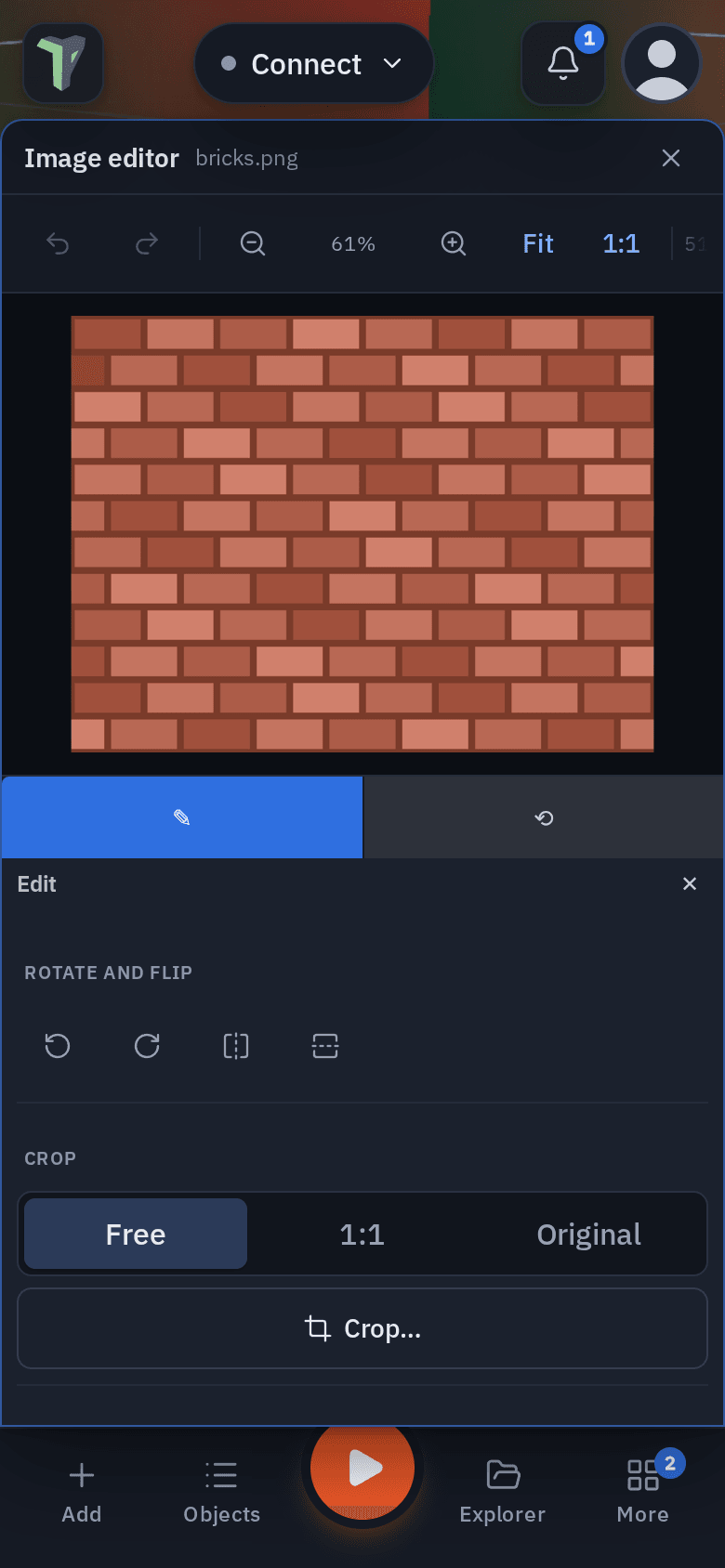
The picture fills the canvas. Scroll or pinch to zoom, drag to pan, and use Fit or 1:1 in the toolbar. The toolbar also shows the picture's size and format, and how many textures were made from it.
The sidebar on the right has two pages: Edit and Versions.
Edit
- Rotate and flip: 90° left and right, mirror horizontally and vertically.
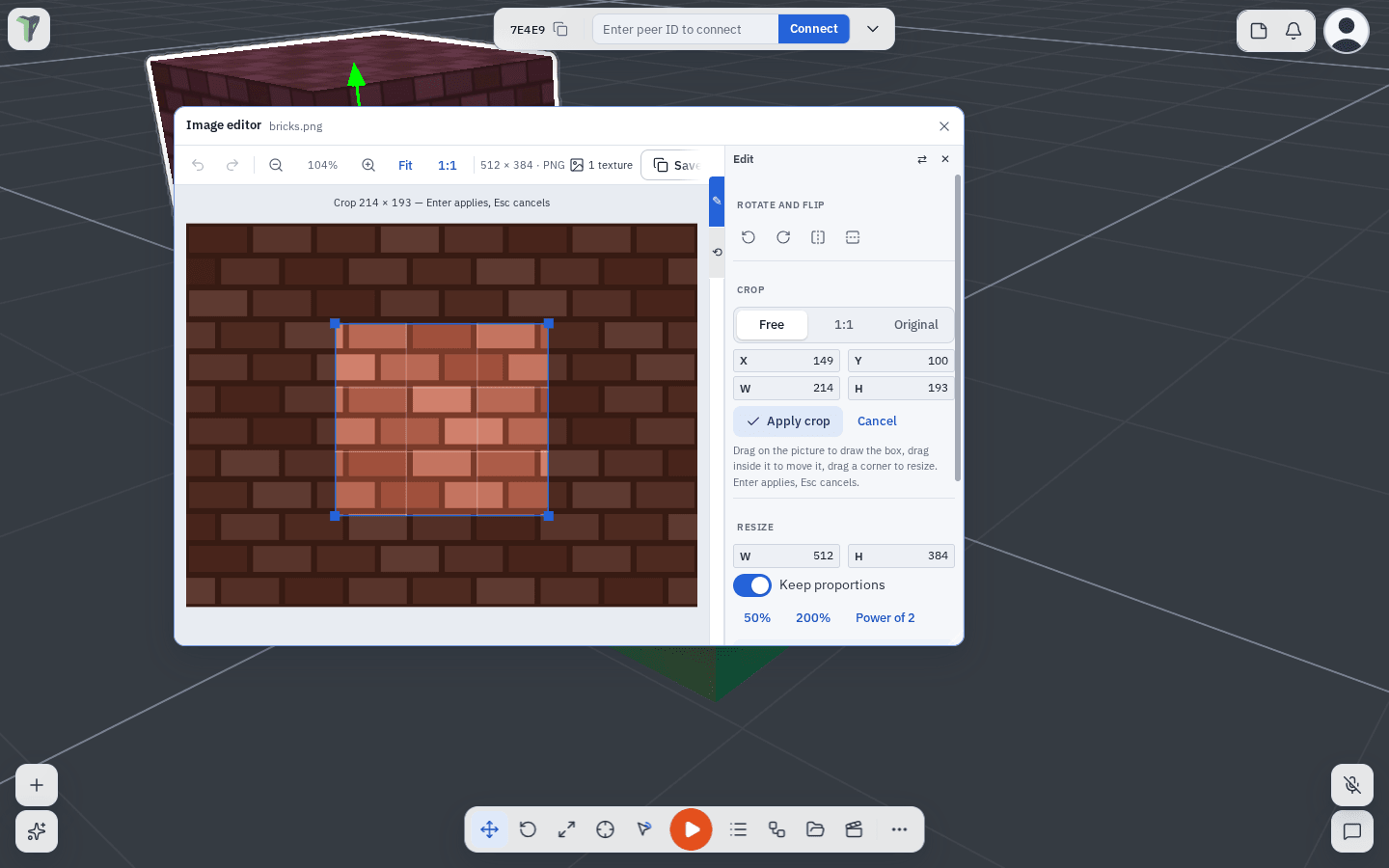
- Crop: press Crop…, then drag on the picture to draw the box. Drag inside the box to move it, or drag a corner to resize it. The shape can be Free, 1:1 or Original, and X, Y, W and H take typed values. Enter or Apply crop applies it; Esc or Cancel cancels.
- Resize: width and height, with Keep proportions. Quick buttons for 50%, 200% and Power of 2 (the size graphics cards handle best for textures), then Apply resize.
- Adjust: Brightness, Contrast and Saturation sliders, applied live. Reset adjustments puts them back.
Saving
- Save (Ctrl+S) writes over the same Explorer file: same name, same folder, shared with the same people. Every material whose texture was made from this image updates, for everyone in the session, as one undo step in the scene. The toolbar says how many textures that is.
- Save as copy writes name copy.png beside it. The original and its textures stay as they were, and the editor carries on with the copy.
- The editor has its own Undo and Redo (Ctrl+Z / Ctrl+Shift+Z) for edits you have not saved yet. They never touch the scene's undo. Closing with unsaved edits asks first.
Versions
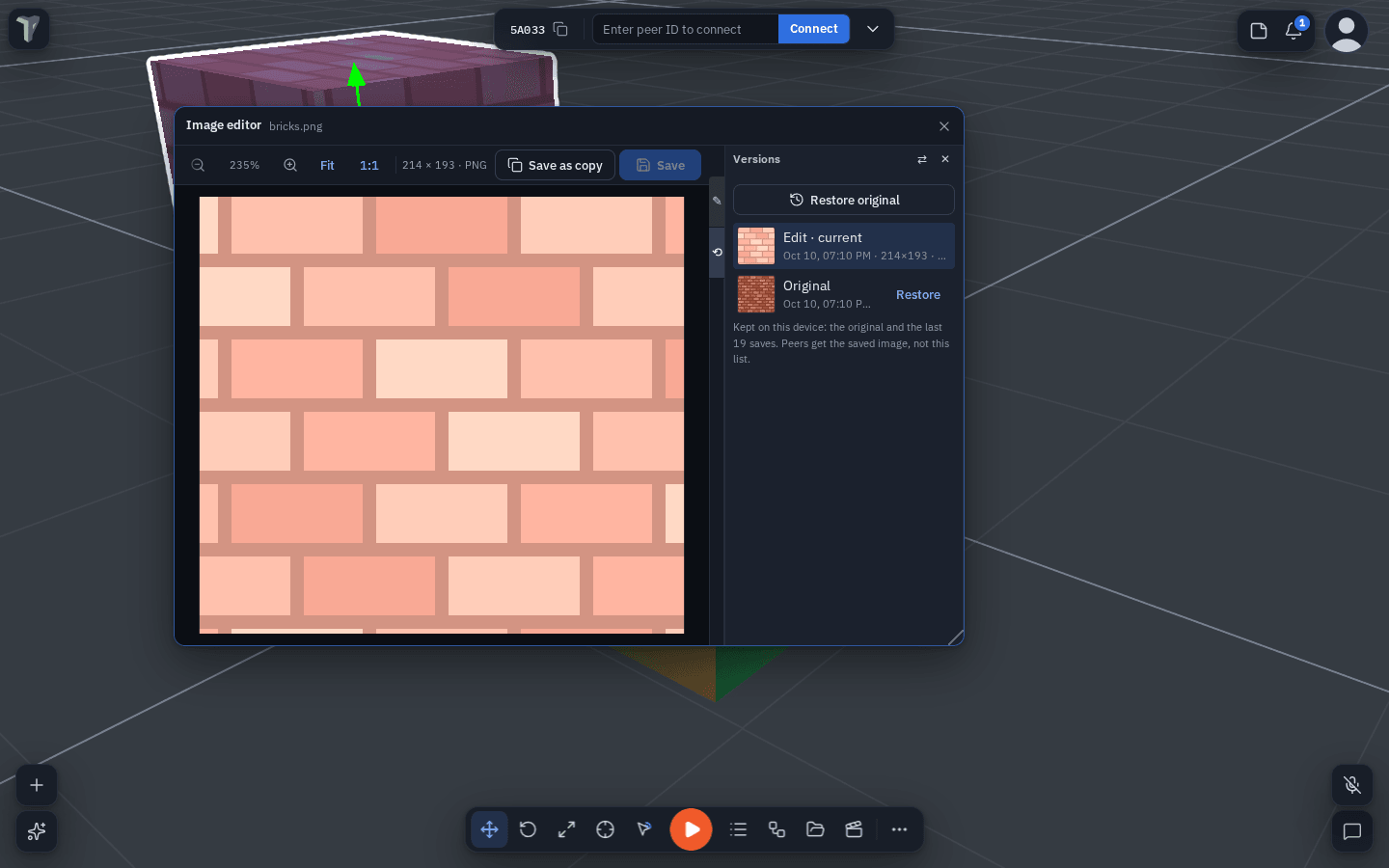
The Versions page lists every saved state of this image with a thumbnail, date and size, and Restore on each. Restore original at the top goes back to the picture as it first came in.
Textures and their images
A texture remembers the library image it was made from when you apply it from the Explorer. Edit in the Inspector on any other texture — one picked from disk, or one that came with an imported model — first puts it into the library as ‹object› texture.webp, then opens it, so it updates on Save the same way.
Painting over a texture in the UV editor breaks the link: a later save of the image will not paint over your strokes.
Big photos as textures
Pick any photo as a texture — Inspector ▸ Material ▸ Texture ▸ Set texture…, or drop an Explorer image on the object — and it is scaled down to fit 1024 px on its longest side and applied. Since 1.32 nothing is refused for being large. Only a file over 64 MB is turned away, because a phone cannot decode it.
In the dock
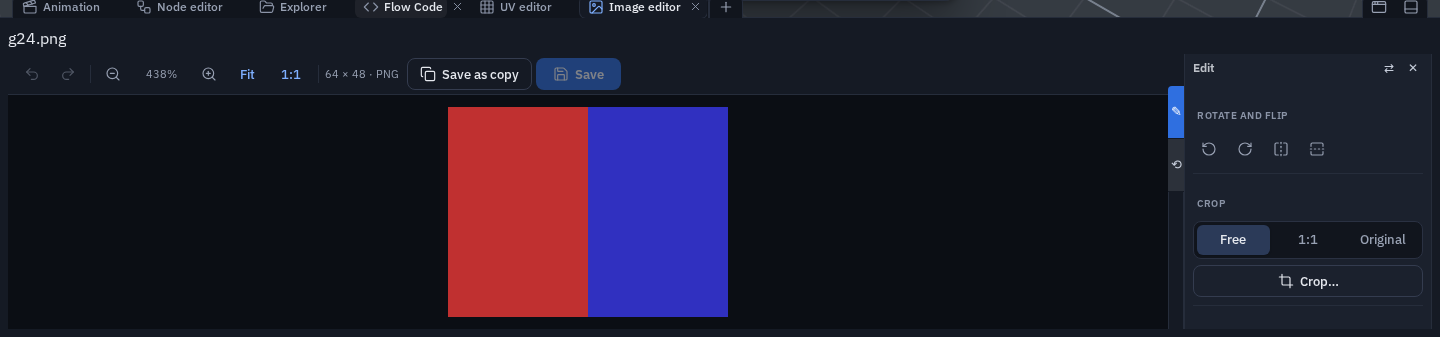
The Image editor can live in the bottom dock like the other editors: pick Image editor from the dock's + menu while it is closed (on a phone, the Windows sheet), press its header's Dock button, or drag it onto the dock's tab bar. The dock's Undock button floats it again; floating stays the default.
- Opened from the + with no image, it tells you to open one from the Explorer (right-click an image ▸ Edit image…). Opening an image while it is docked brings the dock tab forward.
- Closing the tab with unsaved edits asks first, as the window does.
On a phone
The editor is a full-width sheet between the top bar and the bottom bar, so Play stays tappable. The Edit and Versions pages sit under the picture instead of beside it, and Crop… scrolls its Apply crop button into view. Since 1.32 they start closed, so the picture gets the screen: tap ✎ (Edit) or ⟲ (Versions) under the picture to open one, and it stays open next time.
Limits
- Versions are kept on this device: the original plus the last 19 saves per image. Peers receive the saved image, not its history.
- PNG, JPEG and WebP save in their own format. GIF and BMP save as PNG.
- The largest side the editor produces is 8192 px.
- A texture is stored at up to 1024 px, whatever the size of the image.