Levels and progress
New in 1.64. A game with more than one level needs four things: a list of the levels, a way from one to the next, a place to come back to after a fall, and a memory of how far the player got. All four read the same Levels table.
The Levels table
Open Configure Scene ▸ Levels. Each row is a level:
- Name: what the player reads on the way in.
- Scene: a project scene, when the level is its own scene. Leave it empty for a level inside this scene.
- Start at: the object the player arrives at (a Checkpoint, a Portal, or any object by name).
- Goal: one line shown as the level starts.
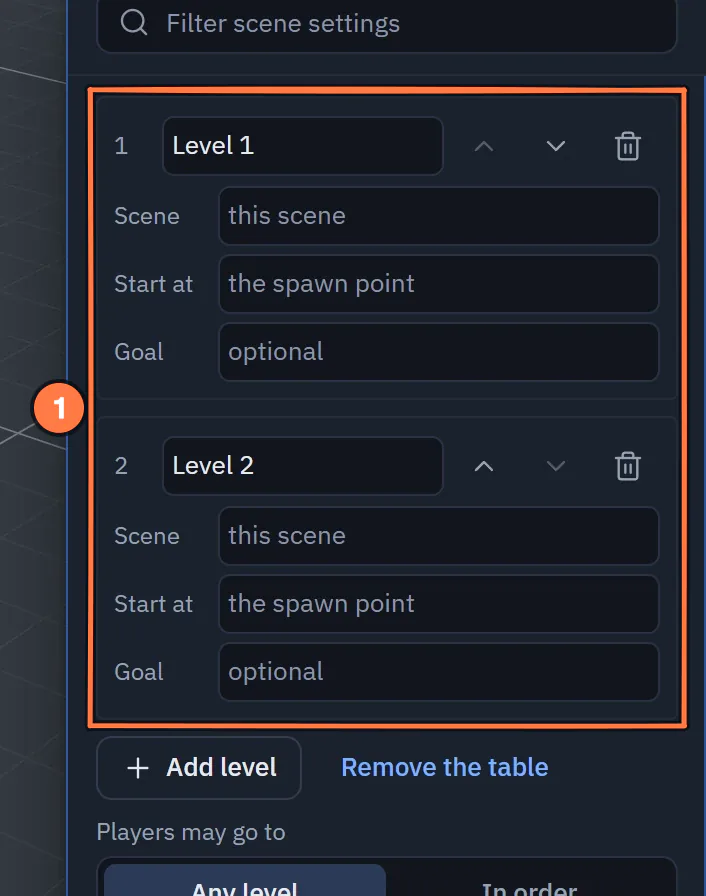
The Levels table in Configure Scene.
- One row per level, in play order: its scene, where players start and an optional goal.
A row's up and down arrows change the order; Next level follows it. Players may go to: Any level (any level can be reached) or In order (a level opens when the one before it is finished).
The table is saved with the scene and shared with everyone in the session. The Kit: Levels nodes (Go to level, Next level, Finish level — see Game kit) and every portal use this table, so there is only ever one list.
Keep across levels
Under the table, choose what the player carries from level to level: Score, Inventory, Health, or any named variable. Anything not on the list starts fresh in each level. With no list at all, everything carries (the old behaviour). New game resets what the list keeps.
Portals
Add ▸ Game ▸ Portal places a doorway. In Properties ▸ Portal choose where it goes:
- a level from the table,
- a scene and, optionally, the object to arrive at,
- or Back where the player came from.
A portal moves only the player who walks into it; other players stay where they are. (Go to level and Next level move everyone together.) Choose the transition: Fade, Iris, Card (the level name and goal) or None. In VR it is always a fade. With reduced motion turned on, the iris becomes a fade.
Players arrive in front of the target and face its arrow. While a player stands near a portal, its target scene starts loading in the background, so walking through is quick.
Turn off Show the doorway in Play to make the portal invisible while playing: it still works, so you can put it inside an arch or a cave mouth you built yourself.
Checkpoints
Add ▸ Game ▸ Checkpoint places a pad. Stepping on it saves that player's place. After a fall out of the world, a Back to checkpoint node, or a reload of an exported game, the player comes back to their last checkpoint (or the last portal they came through). Each player has their own.
In the editor a checkpoint lasts until you reload; in an exported game it is saved on the player's device.
Note
These game checkpoints are not the editor's Checkpoints, which are saved copies of the whole scene for you to go back to while building.
Loading screens
When a level change has to load a scene, a loading screen covers it. It appears only when the load takes a moment, stays at least 0.4 seconds once shown (no flicker), and its bar follows the real load: the scene file, the objects being built and the models they use. A scene that is already loaded shows no screen at all.
In Configure Scene ▸ Levels ▸ Loading screen pick a style: Fade only, Bar, Logo and spinner, Image and tips or Item. Set the background colour or image, a logo, the text colour, the bar (thin or thick, any colour), a title and tips (short lines that rotate). A portal can have its own loading screen.
Screen readers hear the progress in 25 % steps.
Exported games
An exported game opens on your loading screen, not ours. Progress is saved on the player's device: the level, the last checkpoint and what the game keeps. When the player comes back, the game resumes there. New game forgets it.
If you change the game later, old saves still load: a level you removed sends the player to the first level, and anything the game no longer keeps is dropped. Each game may keep up to 256 KB on a device; if the kept variables grow past that, the save is skipped. While you test in the editor, each checkpoint measures the save, and Configure Scene ▸ Levels shows a warning under Keep across levels until it fits again.
Ask Claude
In a connected session, Claude can build all of this for you, for example "make three levels, keep the score, and put a
portal at the end of each one". It uses the game_setup actions levels, portal, checkpoint and loading — see
HUD, sky and play with an agent.
Start from a template
Templates ▸ Two levels and a portal is a small game with a courtyard, a tower top, a portal each way, a checkpoint and a score that carries across.