Film with your phone
Your phone becomes the viewfinder of a camera in the scene. Hold it up and turn it to look around, use the stick to move, and press ● to record. The shot is added to the Timeline while the Timeline plays, so you can film moving scenes.
Opening Film mode
- Phone: More ▸ Film with phone.
- Any device: right-click a camera ▸ Film with this camera, or press Film beside Preview in the camera's Inspector section.
Opened from More, Film asks which camera to film through. Pick one, or press New camera here to place a camera where you are looking.
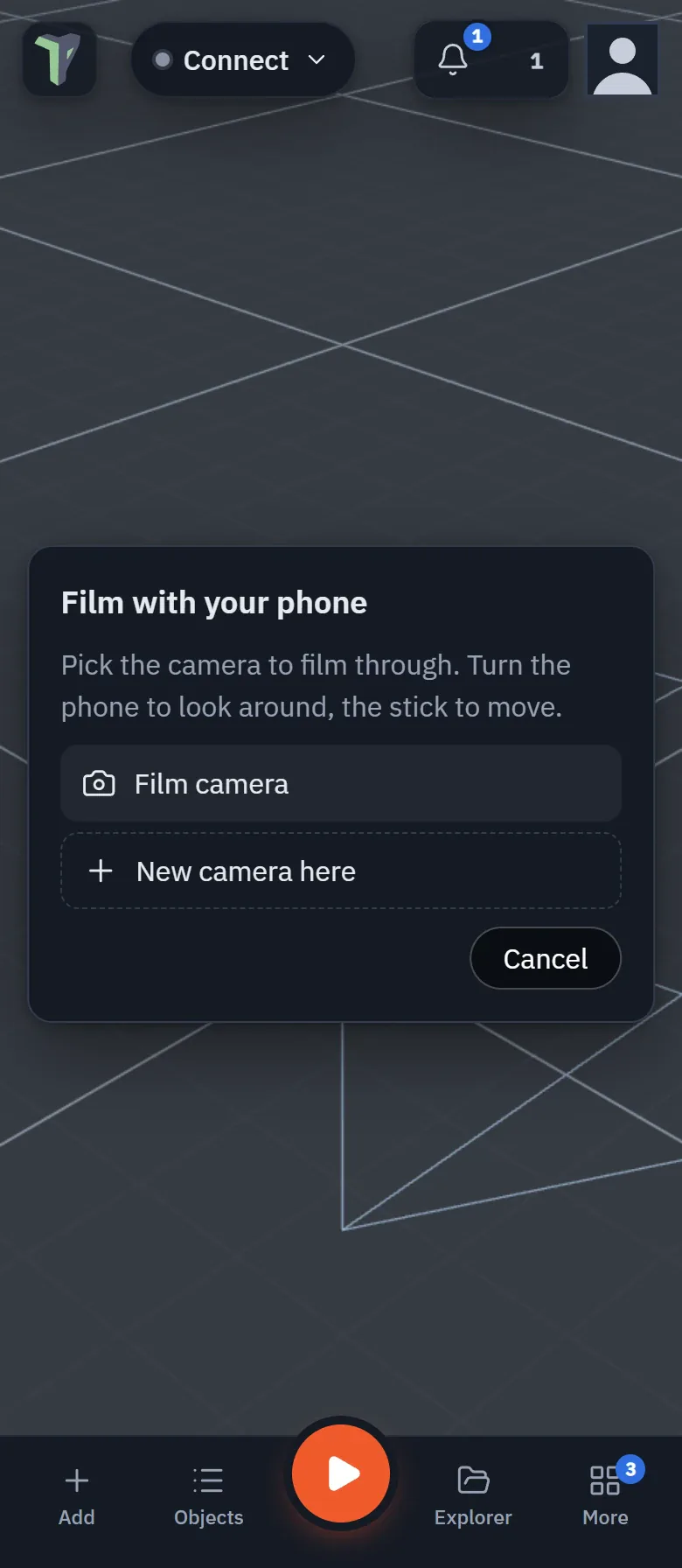
The camera picker on a folded OPPO Find N6.
The first time you open Film, three short cards show how to film: Look, Move and Record and cut. Step through them with Next and Done, or press Don't show again. To see them later, open the settings (the sliders button) and press How to film.
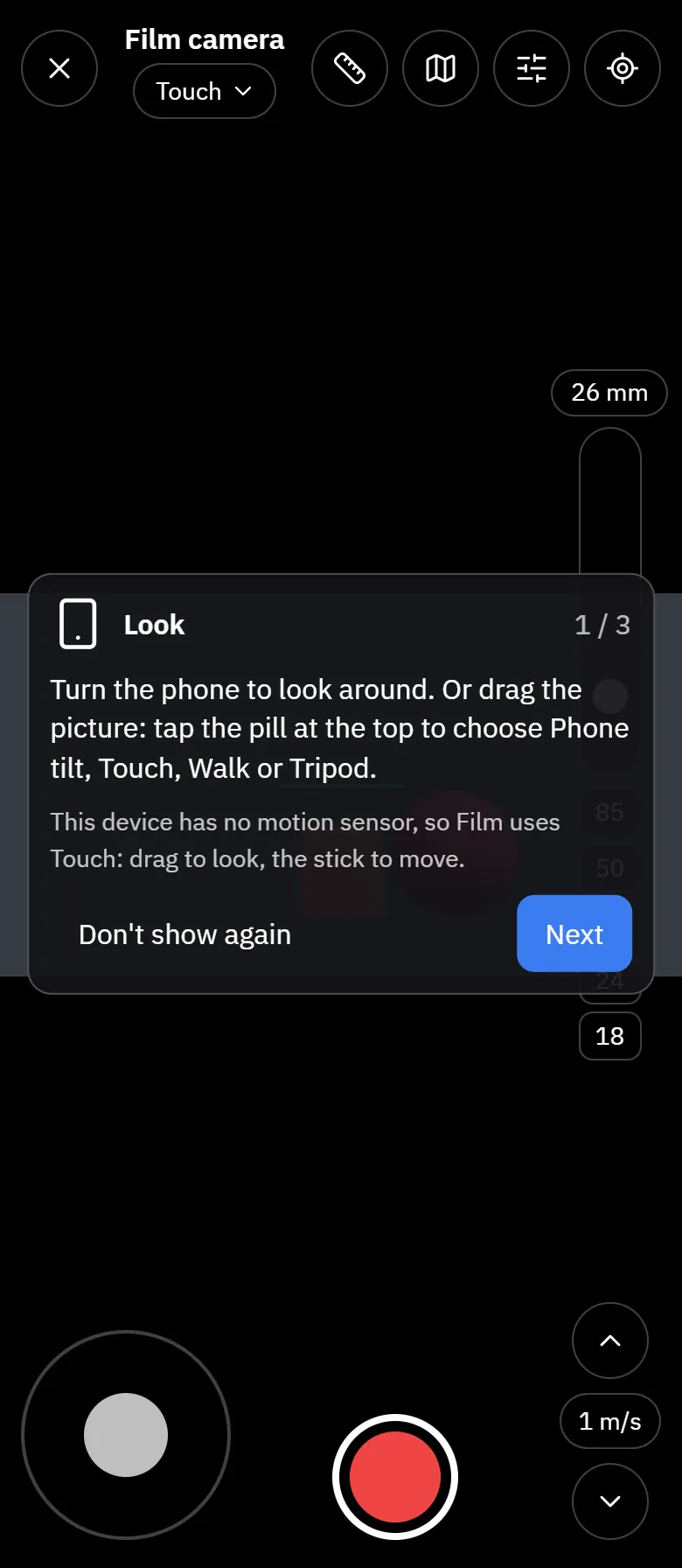
Filming through the Film camera, with the first-use card.
While you film, the rest of the editor is hidden, and so is every headset menu and panel, in any session. The 3D view is cropped to the camera's aspect ratio, so the picture on screen is exactly what gets recorded. Press ✕ (or Esc on a keyboard) to leave. Leaving does not move the camera object.
How the camera moves
The pill at the top, beside the camera's name, always says how the camera moves. Tap it to choose:
| Choice | What it does |
|---|---|
| Phone tilt | Turn and tilt the phone to look around. It works in portrait and in landscape. |
| Touch | Drag the picture to look, and use the stick to move. |
| Walk | Your real steps move the camera (Android with AR, below). |
| Tripod | The camera stays in place and only turns. The stick is hidden; the Tripod ✕ chip goes back to handheld. |
| Keyboard + mouse | On a computer: W A S D to move, drag to look. |
The choice is remembered on this device. A phone without a gyroscope gets Touch: Phone tilt is greyed out with the reason. On an iPhone, Phone tilt shows Use phone motion beside the pill the first time: press it and allow motion access (if you decline, Touch still works).
Whichever you choose:
| Control | What it does |
|---|---|
| Recentre (⌖, or R) | Makes the direction the phone points right now "straight ahead" for this camera. |
| Horizon lock | Keeps the picture level however the phone leans. |
Moving
- Stick (bottom left): moves along the floor in the direction you are looking.
- ▲ / ▼: rise and sink. m/s cycles the speed (0.5 to 8 metres per second).
- On a keyboard: W A S D to move, E / Q to rise and sink.
- Mini-map: a top-down map of the scene. Tap a spot to move the camera there.
Walk
On an Android phone with Chrome and Google Play Services for AR, choose Walk in the pill. Your real steps now move the camera, and the chip at the top says Walking ×1 (the scale). If Walk was your last choice, the pill says Walk · tap to start when you open Film: tap it, then Walk, to start (the phone has to be asked each time).
The pill's sheet has a While walking part:
- Passthrough — what you see behind the scene: Off (the scene's own sky, the default), On (the scene over your room) or Dimmed (the room faint behind it). Only the live view changes, never the recorded take or its export.
- Walking scale — how far the camera moves for each metre you walk: ×0.5, ×1, ×2 or ×5, and Fine scale from ×0.1 (a miniature set) to ×20 (a city in a few steps). Tap the Walking chip at the top to change it quickly while you walk.
The stick, Recentre and the mini-map keep working while you walk. Press ✕ beside the Walking chip to stop.
Note
While you walk, the phone's AR view shows the scene at the phone camera's own lens. Zoom and dutch angle are still recorded, and you see them when you play the take back.
If tracking is lost
If Walk cannot start (AR was not allowed, or could not start) or the phone loses track of the room while you film, Film does not leave you with a frozen view. The take pauses at a mark, a short message says why — for example Tracking was lost — the take paused at a mark. Filming with the thumbstick now. — and Film carries on with the stick and phone tilt. The message has a Recentre button. Your choice stays Walk, so you can start it again from the pill.
The lens
- Zoom: pinch the picture, or drag the rail on the right edge. The lens buttons 18 / 24 / 35 / 50 / 85 mm jump straight to those lenses, and a pinch or drag that ends close to one snaps to it.
- Settings ▸ Smoothing: steadies a shaky hand. The recording keeps the steadied movement, and the raw movement is saved alongside it.
- Settings ▸ Dutch: tilts the picture on purpose. Double-click the slider to reset it.
- Settings ▸ Depth of field: turns on focus and aperture. Tap something in the picture to pull focus to it, and use Aperture to set how blurry the background gets (f/1.4 is very blurry, f/16 keeps almost everything sharp). If the camera's look has no Depth of field effect yet, Film offers to add one.
Rigs
Choose a rig in Settings ▸ Rig:
- Handheld: the default.
- Tripod: the camera stays in place and only turns (the same as Tripod in the pill).
- Track: tap an object and the camera keeps it framed the way it was when you tapped, even as you move.
Guides
Settings ▸ Guides draws a rule-of-thirds grid, a safe area, and a level line that turns green when the picture is level. Mask shows a 16:9, 9:16 or 2.39:1 frame inside the shot. Guides are never recorded.
Recording
- Press ●. With 3-2-1 countdown turned on, the phone counts down and buzzes first. The Timeline plays from its playhead while you film.
- Press ❚❚ to pause. The shot so far is added to the Timeline as a single undo step.
-
Press ● again and choose how to continue:
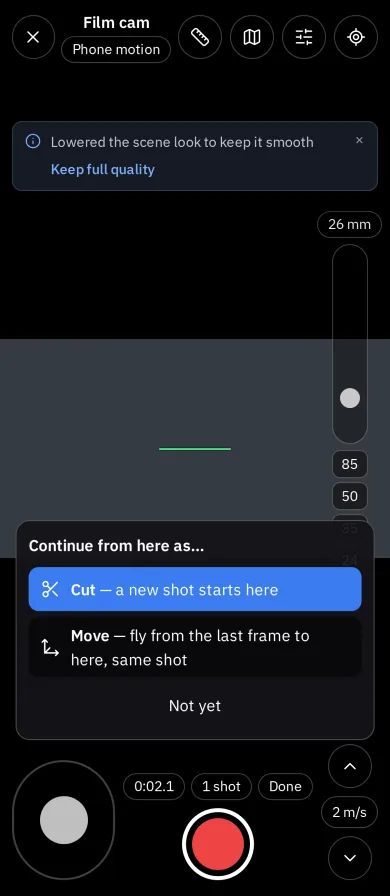
- Cut (the default) starts a new shot from where you are now.
- Move flies the camera from the last frame to where you are, then keeps recording as the same shot.
- Press Done to finish. Your shots stay in the Timeline.
While recording, press Mark (or M) to drop a marker on the Timeline.
From the first shot on, a shots pill (1 shot, 3 shots) sits beside the record button: see Your shots.
What gets recorded
The camera's position and rotation are saved as Timeline keys. They are thinned out but stay within 1 cm and 0.5° of what you filmed. Zoom, dutch angle, focus and aperture each get their own track, but only if you changed them. The full-detail movement is kept as a hidden file in your Library.
Your shots
Press the shots pill to open Shots on this camera. Each row has a thumbnail, the shot's name (Shot 1 until you rename it), its length, and how it was cut: Cut, or Cut + 2 moves when you resumed it with Move.
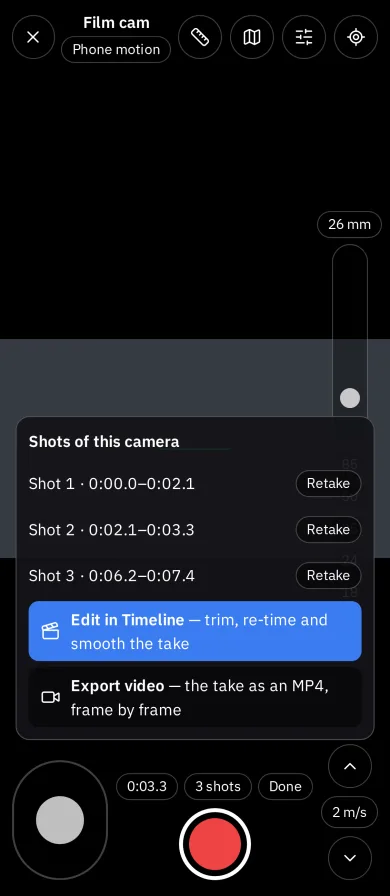
The shots sheet (shown here as it looked in 1.58).
- Tap a row to preview the shot, with play / pause and a scrub bar. Done goes back to the list.
- ⋯ on a row opens its actions:
- Preview — the same as tapping the row.
- Trim — the preview with In and Out handles. They stop at the shot as it was recorded, so trimming back out brings the cut part back.
- Rename — type a name and press Enter.
- Retake — records the shot again. A retake that runs long trims the start of the next shot.
- Delete — removes the shot; the message that confirms it has Undo.
- Edit in timeline — closes Film and opens the take in the Timeline at that shot, where you can trim it and Smooth keys (the track menu ⋯ of a property track) to take the handheld shake out.
- At the bottom: Edit in timeline for the whole take, and Export all (N). Tick shots in the list and it becomes Export K selected.
- With more than one shot to export, Film asks how: One video (the shots joined in the order you recorded them) or One file per shot (each goes to Explorer ▸ Recordings, one after another). It opens Export a video or GIF, set to MP4.
Preview, Trim, Retake and Delete wait while you are recording.
Filming with others
When you film in a shared session, everyone else sees the camera move as you film. They get a Watch the shot button that opens your live view in their camera preview window. Only editors can record; a view-only guest can film and be watched, but the ● button is off for them.
Others see your camera move, but nothing is saved until you record. When you stop filming, the camera goes back to where it stands.
On a phone without motion sensors, and on a computer
Film works everywhere: where there is no gyroscope (or you decline motion access), it uses Touch — drag the picture to look. On a computer it starts on Keyboard + mouse: W A S D and E / Q move the camera.
Limits
- A phone exports at most 20 seconds of video at a time (see Export a video or GIF).
- Walk needs Android with Chrome and AR support; Quest's browser is not a target. Where AR is not available, Walk is not in the pill.
- Walking drifts slowly over long takes: recentre now and then.