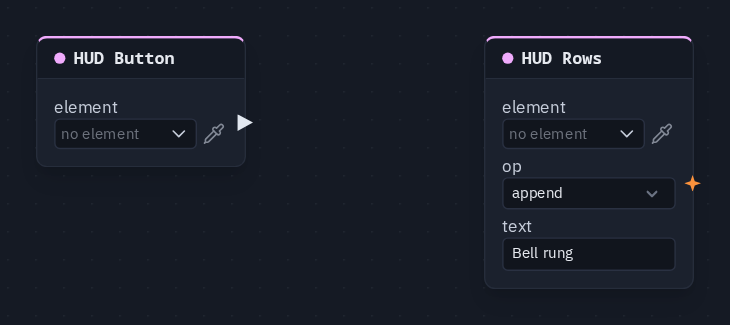
HUD Rows
Appends, replaces or clears rows in a HUD List element on a pulse — a log, a chat, a scoreboard feed.
Output: none (it writes into its element)
Inputs
| Handle | Type | Meaning |
|---|---|---|
| trigger | event | each pulse applies op once |
| text | number | the row to write — a number, or text from a source that gives text (a player's name). Unwired, the card's text is used |
Parameters
| Parameter | Default | Options |
|---|---|---|
| element | (none) | the List element to write into — see below |
| op | append | append (add the row at the end), set (replace every row with this one), clear (empty the list) |
| text | (empty) | the row when nothing is wired into text — a fixed line such as GAME OVER |
Known problem in 1.42
The card does not draw its trigger and text sockets yet, so this node cannot be wired in the node editor. For a list that fills itself from per-player numbers, use a Leaderboard; for fixed rows, type them on the List element in the HUD editor.
How the rows behave
- Once per pulse. The node acts when a new pulse arrives, never every frame, so
appendadds one row per press. - Everyone holds the same rows with nothing extra sent: every player's machine runs the same pulses in the same order.
- Late joiners do not see rows appended before they arrived — they start from the rows typed on the element. A
list that must be right for a joiner should be rebuilt with
set, or be a Leaderboard. - The list shows its first rows. It holds up to 64, but shows only as many as its row limit (the
HUD List node's rows, else the element's max rows). Once the list is full, newer appends are
kept but not shown —
clearorsetto start over. clearempties the pushed rows, so an element with rows typed on it in the HUD editor shows those again.
Picking the element
The List element is made, placed and styled in the HUD editor. On the card, element opens the scene HUD's elements grouped by screen; the pipette button lets you click the element on the HUD editor's stage instead, and Enter id manually... takes a typed id. A name that matches no element shows amber.
Practical example
A press log:
- In the HUD editor, add a Button and a List element.
- Add a HUD Button picking the button, and a HUD Rows picking the list, op
append, textBell rung. - Wire HUD Button → HUD Rows' trigger.
- Each press adds a Bell rung row to the list, on every player's screen.