New menus and panels
New in 1.65. Several windows and menus were rebuilt so that related things sit together: Chat and the AI assistant share one window, everyone in the session has a card, the file preview docks and edits images, the Timeline has panes, Generate 3D is a window, and your account has one page in Settings.
Layouts and window positions saved by an earlier version open the new windows: a docked or placed AI assistant opens Chat on its Assistant tab, and an Image editor tab opens the Preview.
Chat and the AI assistant
Chat and the AI assistant are one window with two tabs: Session for the people in this session, and Assistant for your own AI provider or an AI agent that joined. The Chat button (or C) opens it on Session, the AI button on Assistant. If the window is on the other tab, the button switches tabs; if its own tab is showing, it closes the window. A dot on a tab means something new arrived there. The clock button opens one History for both kinds of chat (All | People | AI, and a search), and chats come back after a reload. Your own provider's chats stay on this device. More: Chat and AI Assistant.
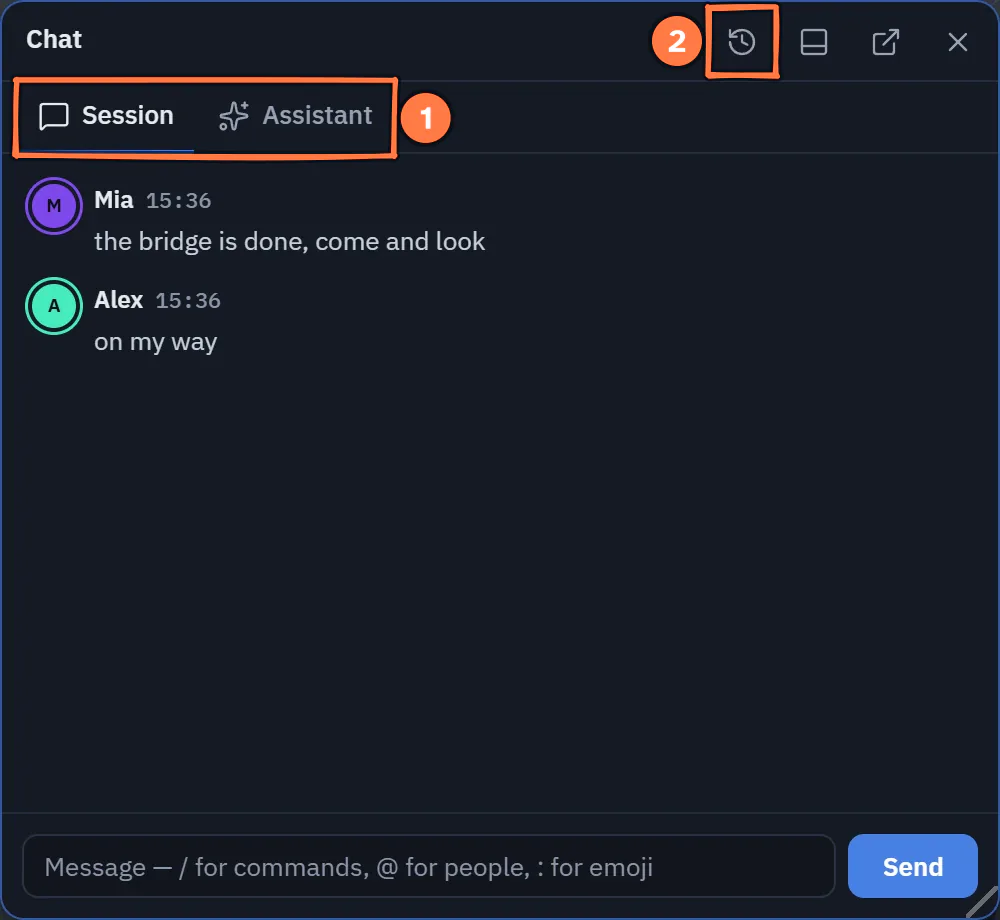
Chat and the AI assistant share one window, here on its Session tab.
- Session is the chat with the people in this session, Assistant your AI provider or an agent that joined. The Chat button (or C) opens Session, the AI button Assistant.
- The clock opens History: every chat of both kinds, kept on this device.
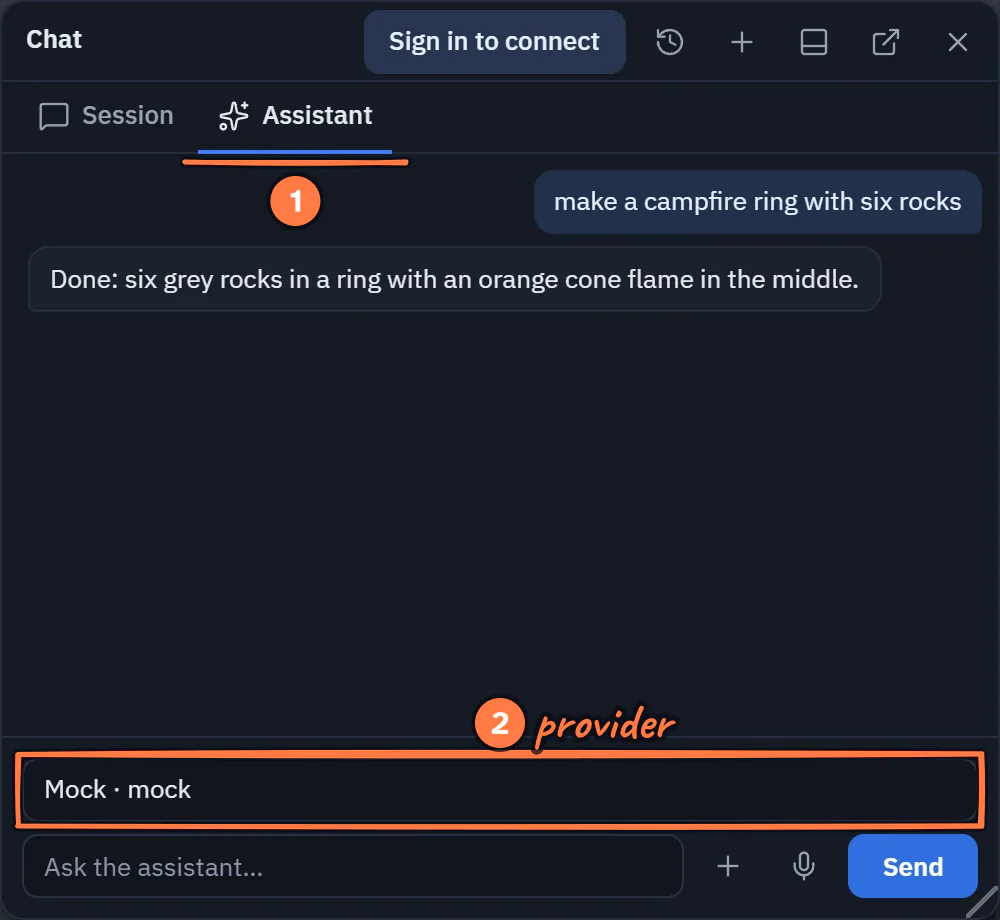
The Assistant tab of the Chat window.
- The Assistant tab: the window the AI button opens.
- Talk to: your own provider, or an AI agent in the session.
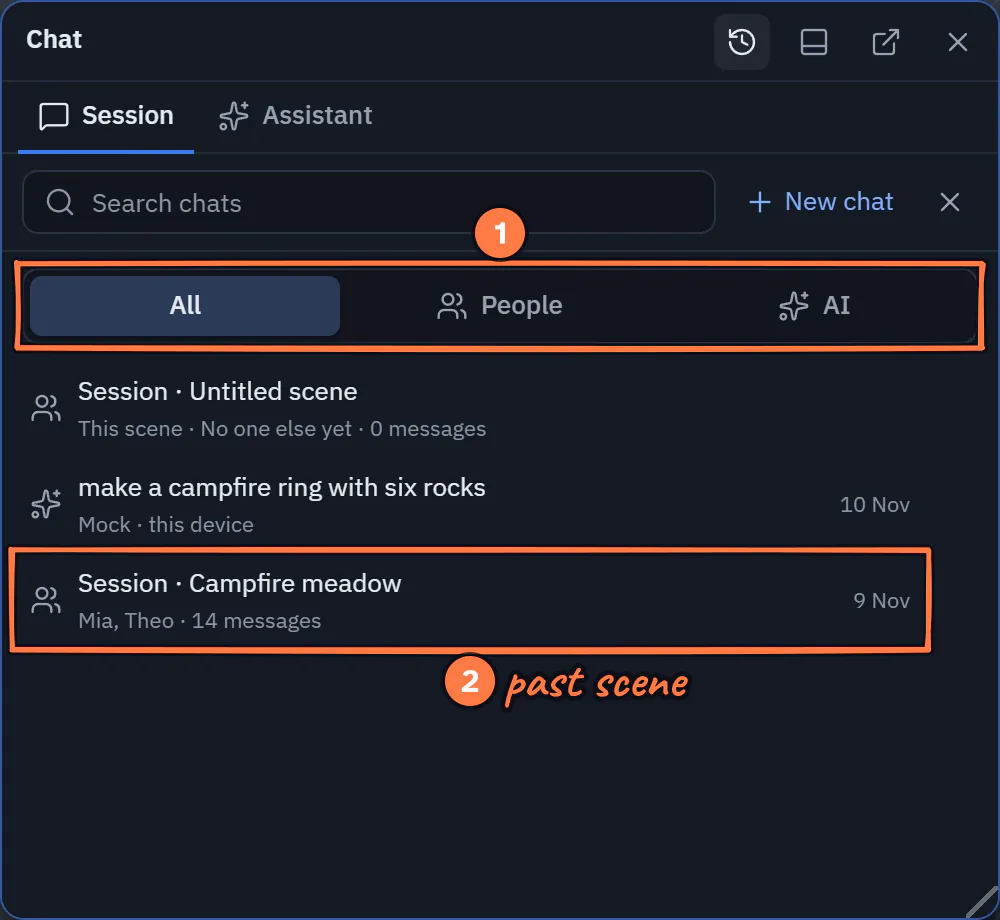
One History for both kinds of chat.
- All, People or AI; the search above looks through every chat.
- The chat of a past scene: it opens read-only on the Session tab.
People
The Person card
Press anyone in the People list for their Person card: who they are (role, status, device, how long they have been here), what they are doing now, their connection over the last minute, and every action of the peer menu as buttons. The People arrow goes back to the list. See The Person card.
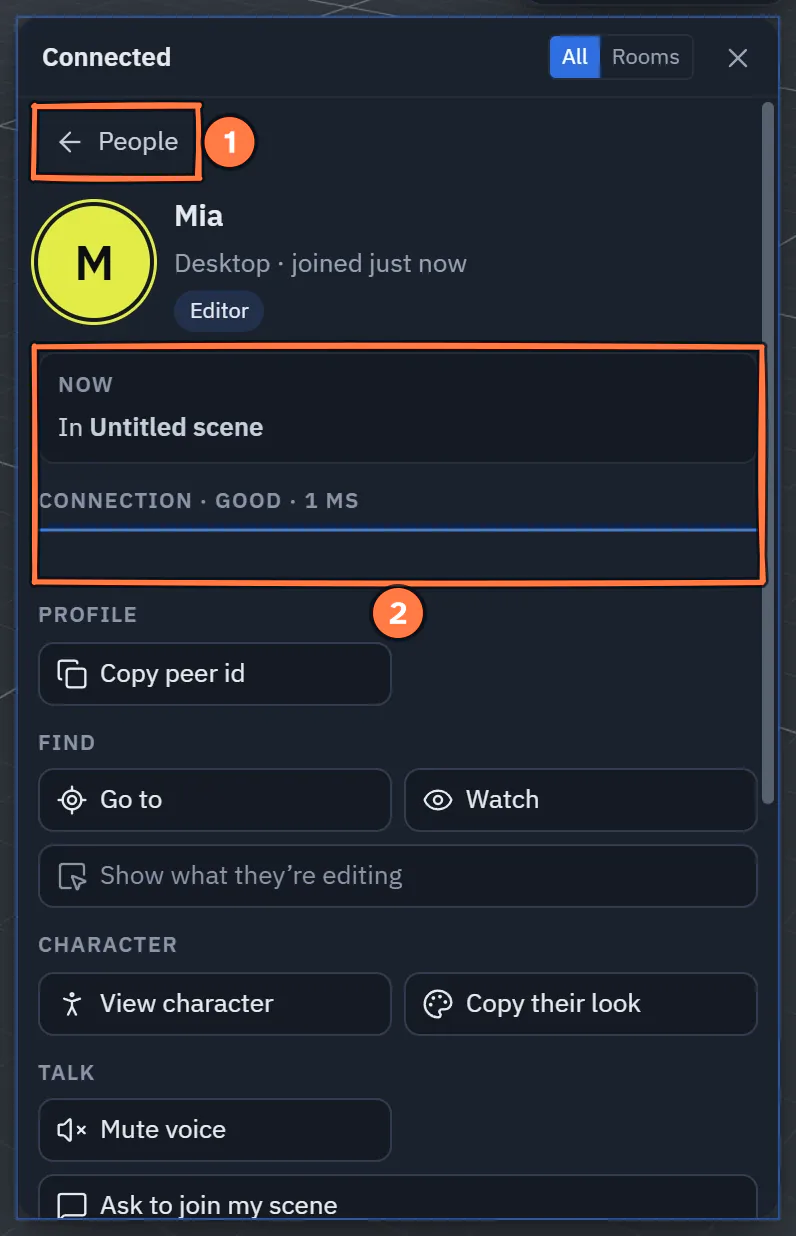
A Person card in the People popover.
- The People arrow goes back to the list.
- Now (what they hold, or where they are) and their Connection over the last minute; the action buttons follow.
Invite and Join…
The Connect bar leads with Invite and Join…. Invite opens the invite sheet on Person, with AI agent as its second tab (it replaces the Request AI button). Join… opens the field that takes a pasted invite link or a peer id. Someone who joins with your invite is announced by name (Guest 2 joined with your invite), not by an id. See The Connect panel and Invite people and agents.
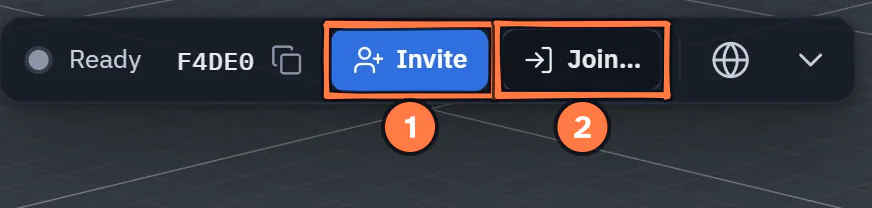
The Connect bar leads with Invite and Join….
- Invite opens the invite sheet: Person or AI agent.
- Join… opens the field for an invite link or a peer id.
Show my status
Let others see whether you are Available, Busy or Away: switch on Settings ▸ Interface ▸ Show my status (off by default), then pick your status on your own card. See Show my status.
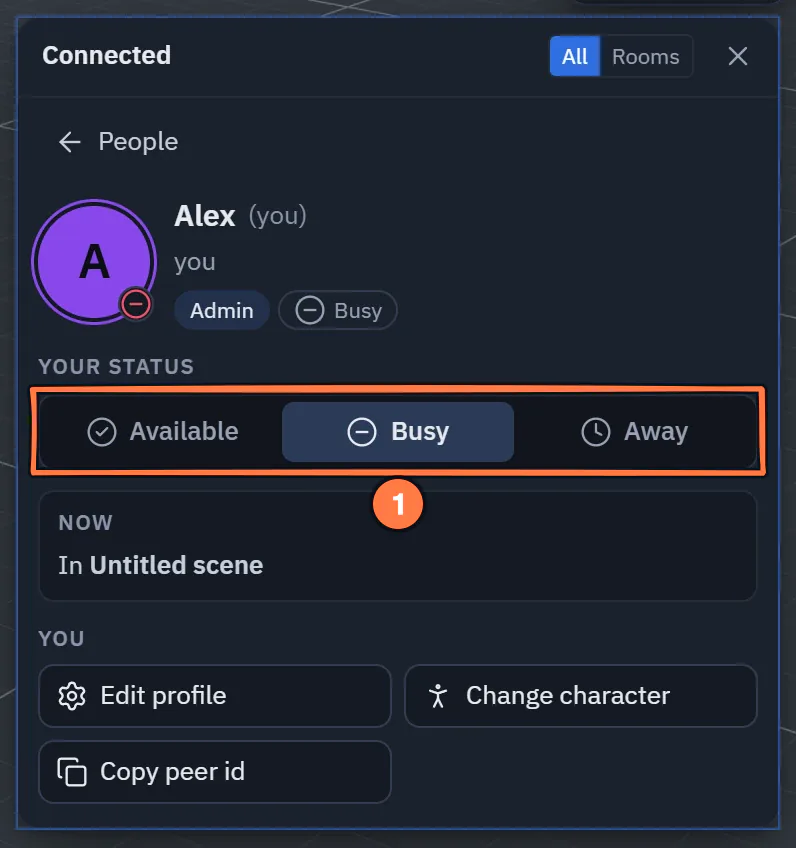
Your own card, with Show my status switched on.
- Your status: Available, Busy or Away, shown beside your name for everyone.
Preview and the image editor
The file preview can pin to the dock: the pin in its header makes it the Preview tab, which shows whatever you select in the Explorer. View | Edit in the header switches an image in your Library into the image editor, in the same window, with a filmstrip of the folder's images on the left. The separate Image editor window and its dock tab are gone. Unsaved edits are never dropped without asking. See The preview window and Image Editor.
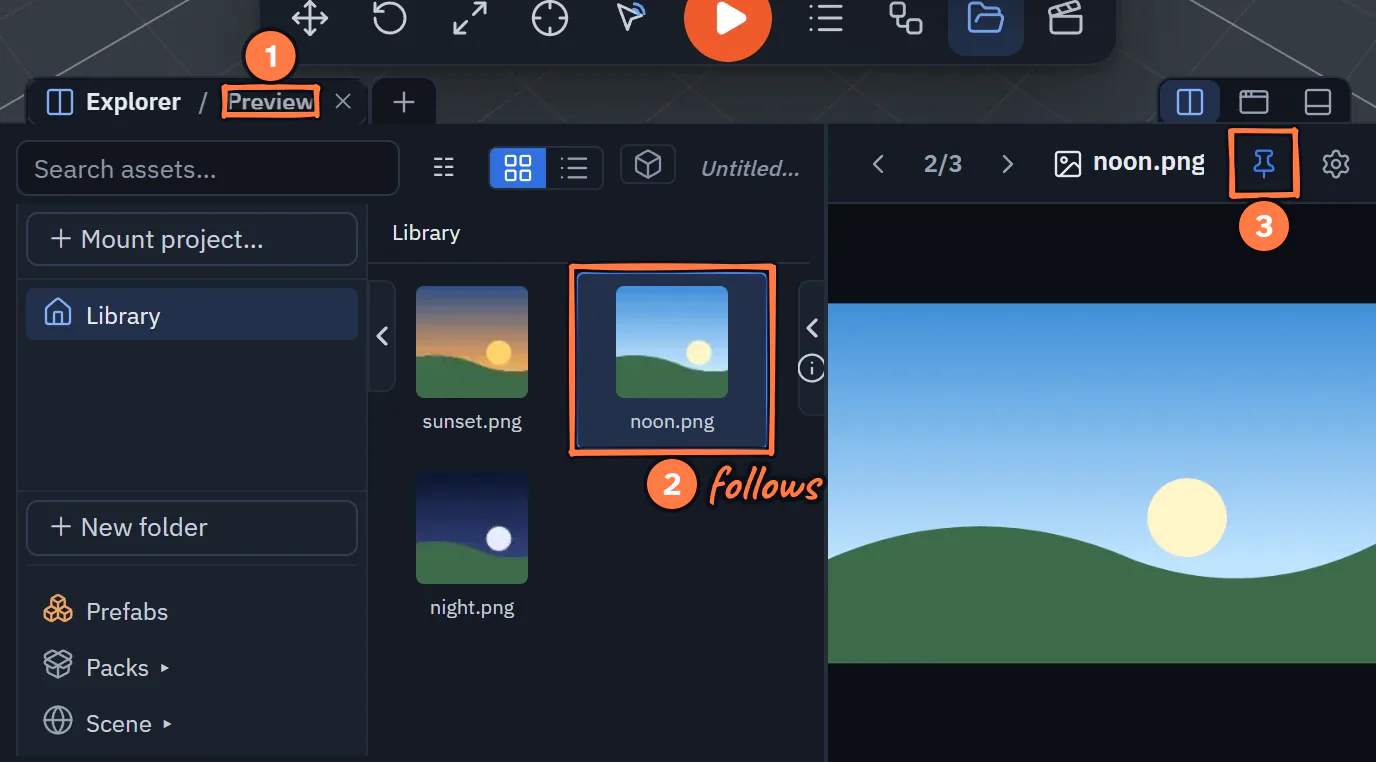
The Preview pinned to the dock beside the Explorer, in a small window.
- Pinned, the preview is the Preview tab; with the Explorer docked too, the dock splits.
- It follows the file you select in the Explorer.
- The pin again unpins it.
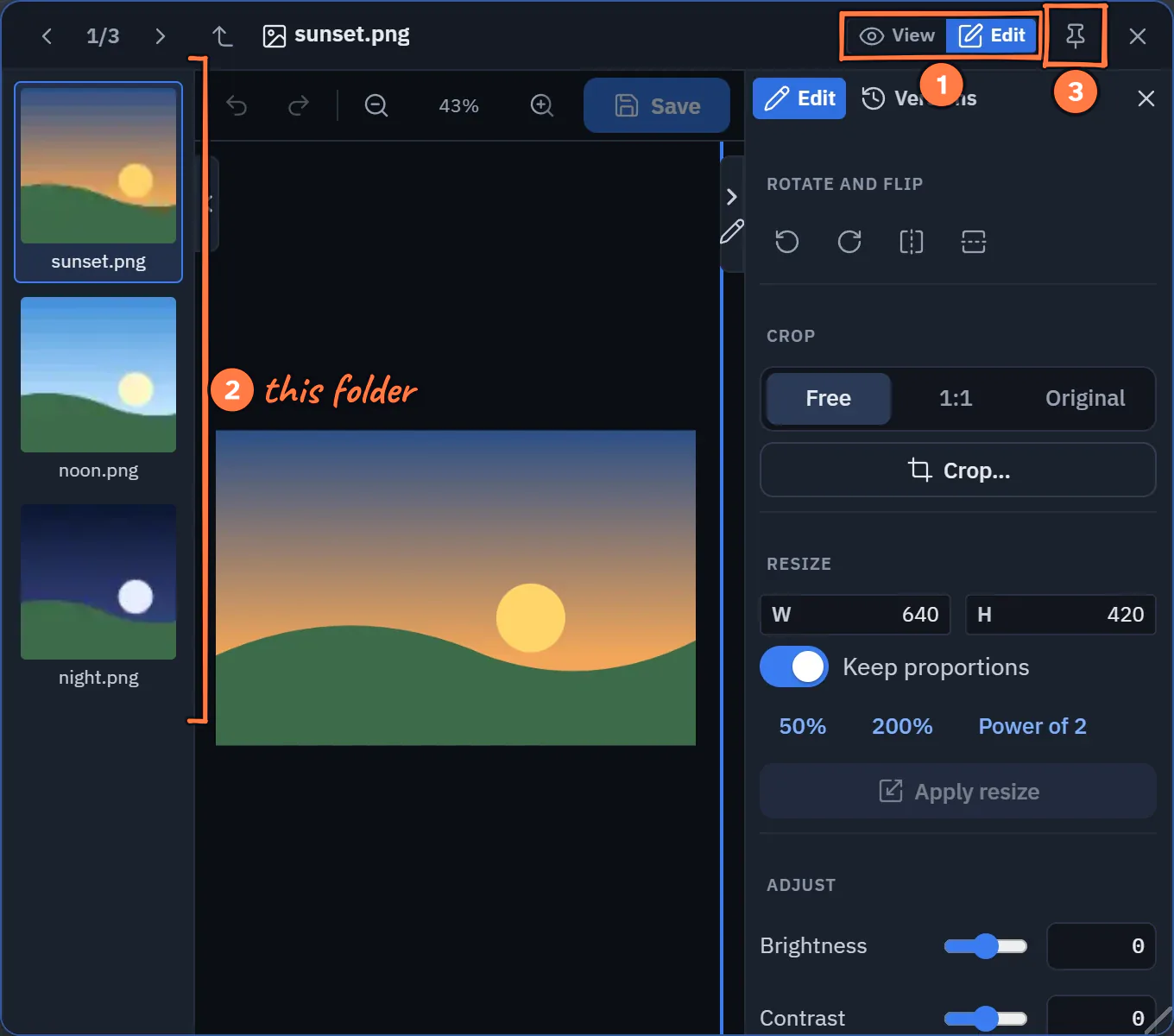
The Preview on Edit.
- View | Edit: on an image in your Library, Edit turns the preview into the image editor.
- The filmstrip: the images in this folder; press one to edit it.
- Pin to dock makes it the Preview tab.
Timeline and Generate 3D
The Timeline has three panes: Sequences on the left, the tracks in the middle, and Properties on the right with a Sequence tab (with its frame rate) and an Item tab. Each side pane hides with its edge tab.
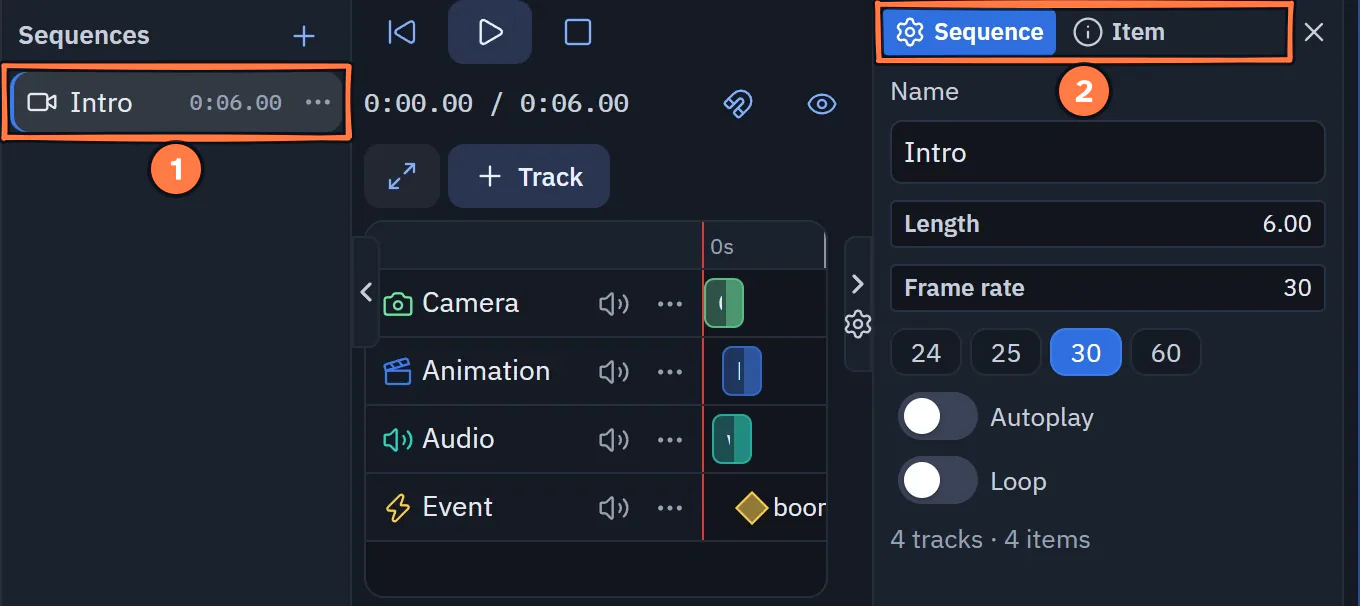
The Timeline's three panes, in a small window.
- The Sequences pane: pick, add, rename, duplicate or delete one.
- Properties: Sequence (with its frame rate) and Item, the selected item's fields. Each side pane hides with its edge tab.
Generate 3D model is a window now, not a dialog: dock it like any other. Its Jobs and History survive a reload, and a running job carries on after a reload without being sent again, so it is not charged twice. See The Generate window.
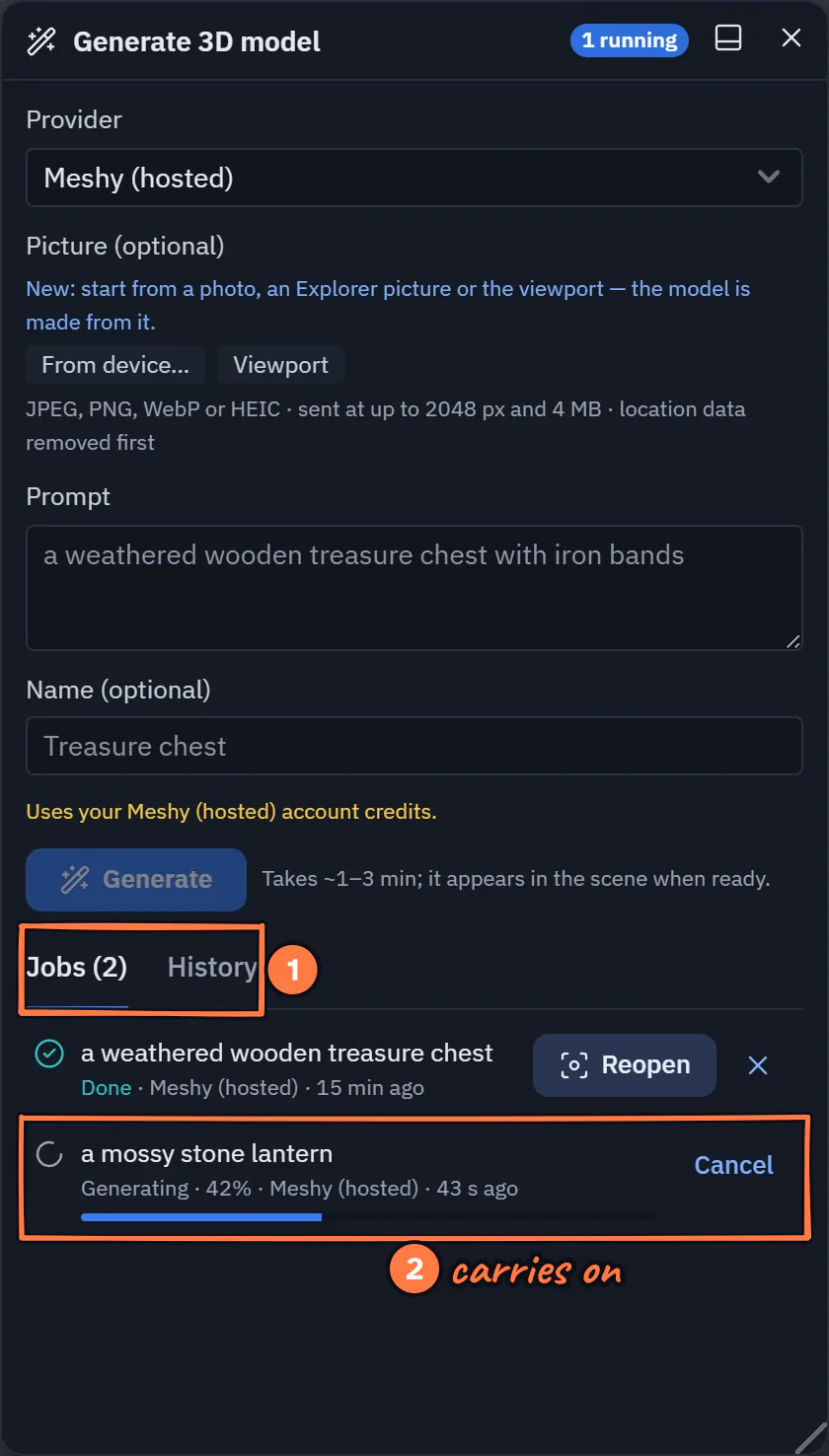
The Generate window, with a job running in Jobs.
- Jobs and History (the prompts you asked for) survive a reload.
- A running job carries on after a reload without being sent again, so it is not charged twice.
Settings ▸ Account
On theprototype.app, Sign-in methods, Devices and Connected apps moved into Settings ▸ Account, beside Email. The profile menu keeps the email-updates question and Sign out, with a Manage link to the new page. Settings search finds every row. Revoke for an AI app you connected now lives in Settings ▸ Account ▸ Connected apps. See Settings ▸ Account.
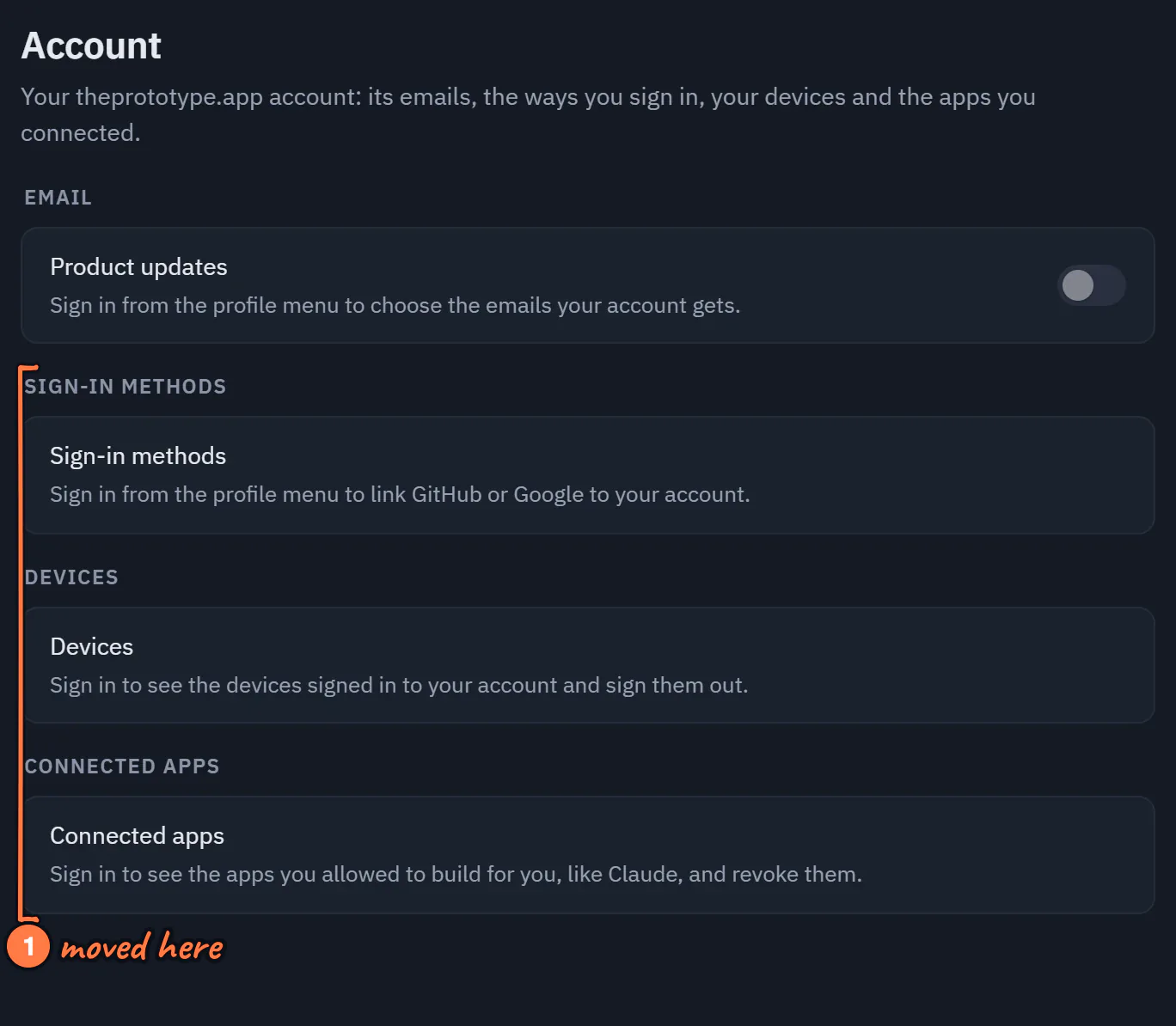
Settings ▸ Account, signed out.
- Sign-in methods, Devices and Connected apps moved here from the profile menu; signed in, each lists yours.