HUD Input
Reads a HUD input element — what the player typed, picked, dragged or switched — as a value for the graph.
Output: number (or text, when read is text)
Inputs
None — it reads its element.
Parameters
| Parameter | Default | Options |
|---|---|---|
| element | (none) | the Slider, Toggle, Dropdown, Text field or Tabs to read — see below |
| read | value | what to read from it — see the table below |
| fallback | 0 | −1000 to 1000 — what it reads while the control has no value yet |
| read | Gives |
|---|---|
value |
the control's number: a slider's position, a toggle as 1 or 0, the selected tab |
index |
a dropdown's position in its option list, counting from 0 (a Tabs element gives its selected tab); a choice that is not in the list reads fallback |
text |
the value as text: what was typed into a text field, a dropdown's chosen option |
on |
1 when on (a toggle that is on, or any number above 0), else 0 |
index is what a Switcher wants; on can feed a Gate or a Visibility node.
The fallback
The node reads fallback until the control actually holds a value — until the player first moves it, or a HUD Set Input writes it. The start value set on the element in the HUD editor is what the player sees, but it is not what this node reads before then. Set fallback to the same number as the control's start value. Loading a scene clears every control's value, so the fallback applies again.
Mine or everyone's
Each input element has a shared switch in the HUD editor:
- off (the default) — the value is each player's own. Every player's HUD Input reads their own control, so anything it drives can differ per player: a volume slider changes only your volume.
- on — one value for everyone; a change by any player reaches all of them, including players who join later. Use it for a host setting such as the difficulty.
Picking the element
The control is made, placed and styled in the HUD editor. On the card, element opens the scene HUD's elements grouped by screen; the pipette button lets you click the element on the HUD editor's stage instead, and Enter id manually... takes a typed id. A name that matches no element shows amber.
Quicker: select the control in the HUD editor and choose Actions ▸ Read its value, Read which option or Read its text — each adds this node, already pointing at it, with read set to match.
Practical example
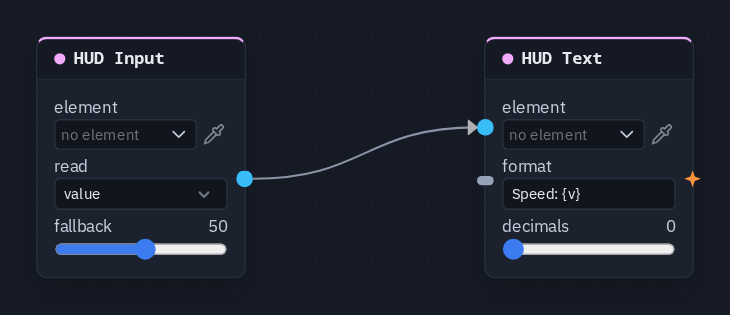
A speed slider with a readout:
- In the HUD editor, add a Slider (min 0, max 100, start value 50) and a Text element.
- Add a HUD Input picking the slider, read
value, fallback 50. - Add a HUD Text picking the text, format
Speed: {v}; wire HUD Input → HUD Text's value. - Press Play and drag the slider: the text follows — on your screen only, because the slider is not shared.
Tip
To let a press read the control at that moment, wire the HUD Input into the value of the node the press drives — a Store Value behind a Save button keeps the player's setting on their device.