Tours
Short first-run tours show you around: Welcome to ThePrototype VR mode in the headset, and the editor tour on a screen. Every tour has Skip, Back, Next and Don't show again. A tour you leave half-way — you take the headset off, or reload the page — picks up where you stopped.
Welcome to ThePrototype VR
The first time you enter VR on a device, the welcome plays on a panel in front of you, a little below eye level. Turn away and it comes back in front of you. Point at its buttons and pull the trigger.
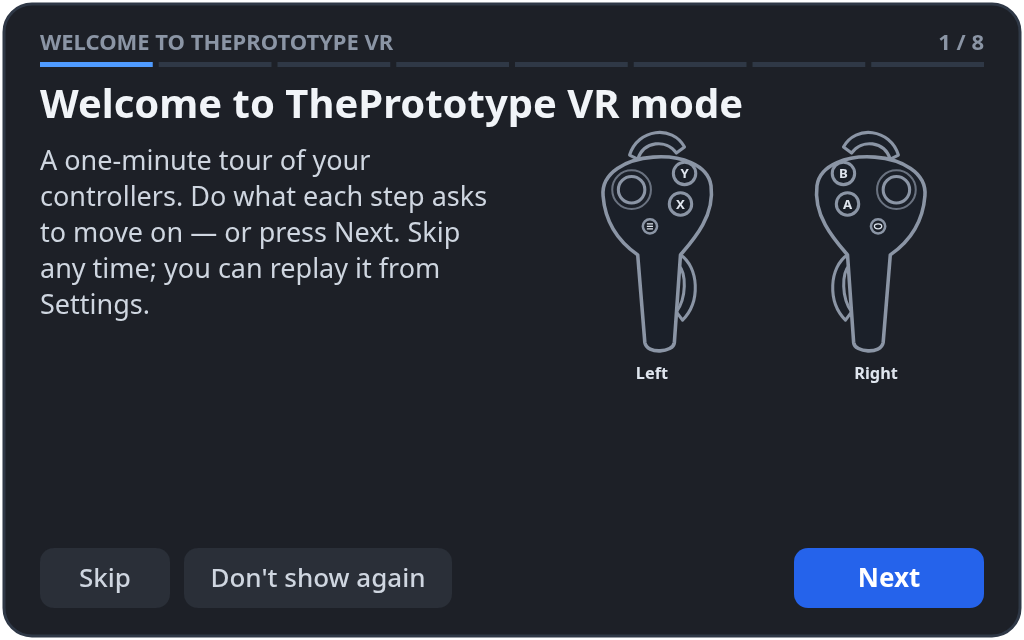
It has eight steps:
- Welcome
- Your controllers
- Move and turn
- Point and click
- Grab
- Your menu
- Play a game
- Leaving VR
Each step shows a drawing of your controllers with the button to use lit up. The step moves on when you do that thing — push a thumbstick, pull a trigger, squeeze a grip, press B… — or when you press Next.
The drawing matches your controllers: Quest 2 Touch controllers (with the ring) or Quest 3 / 3S Touch Plus. The app reads which pair you have from the browser. The text and the lit buttons follow your own button layout, so if you remapped a button, the tour names and lights the new one.
The editor tour
Six steps on the screen: adding things, looking around, your tools, Play, building together, and the logo menu. It starts after the first-visit Welcome card closes.
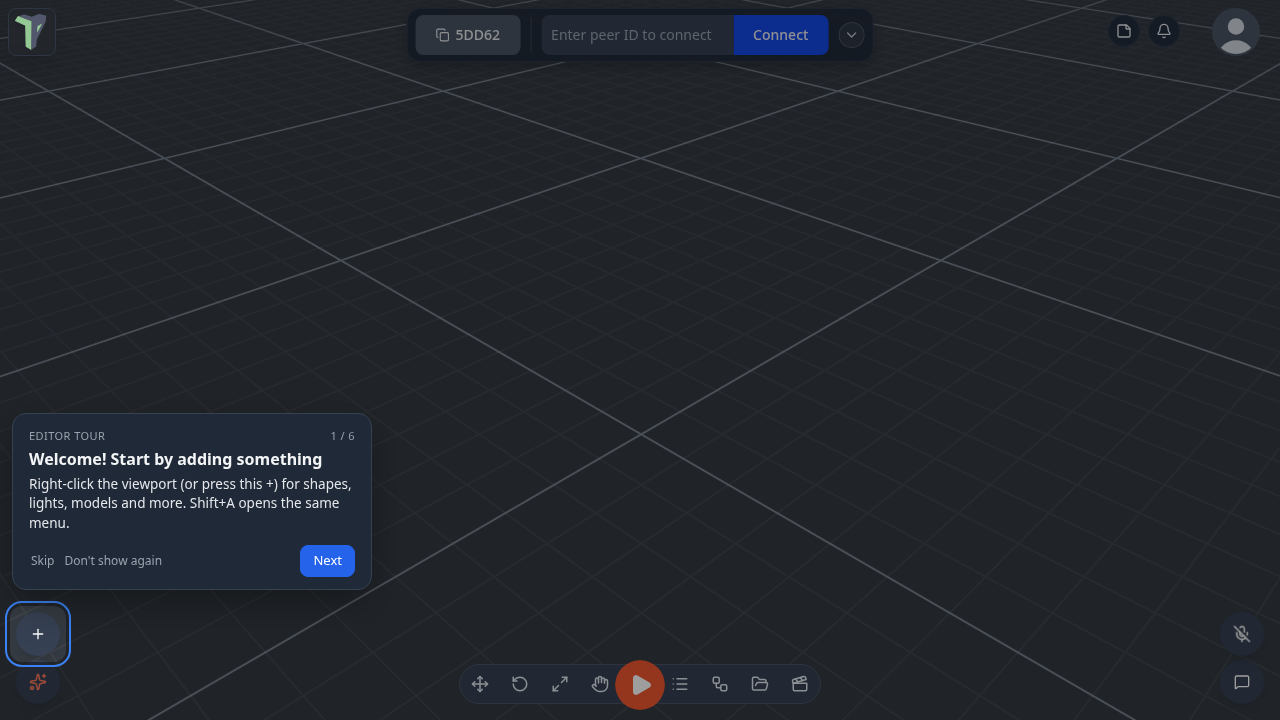
On a touch screen you get the touch version: the same steps with finger gestures, shown as a sheet at the bottom or top of the screen.
Starting a tour again
- Settings ▸ Interface ▸ Tours: Start VR welcome, Start editor tour, Reset all.
- Logo menu ▸ Tours starts the editor tour.
- In the headset: the radial menu's Settings ▸ Welcome tour (see the VR Guide).
Start VR welcome on a screen sets the welcome to play the next time you enter VR. A toast also offers Preview it here, which shows the same steps and drawings on the screen. You can switch between the Quest 2 and Quest 3 / 3S drawings, and the preview does not count as having seen the welcome.
Settings
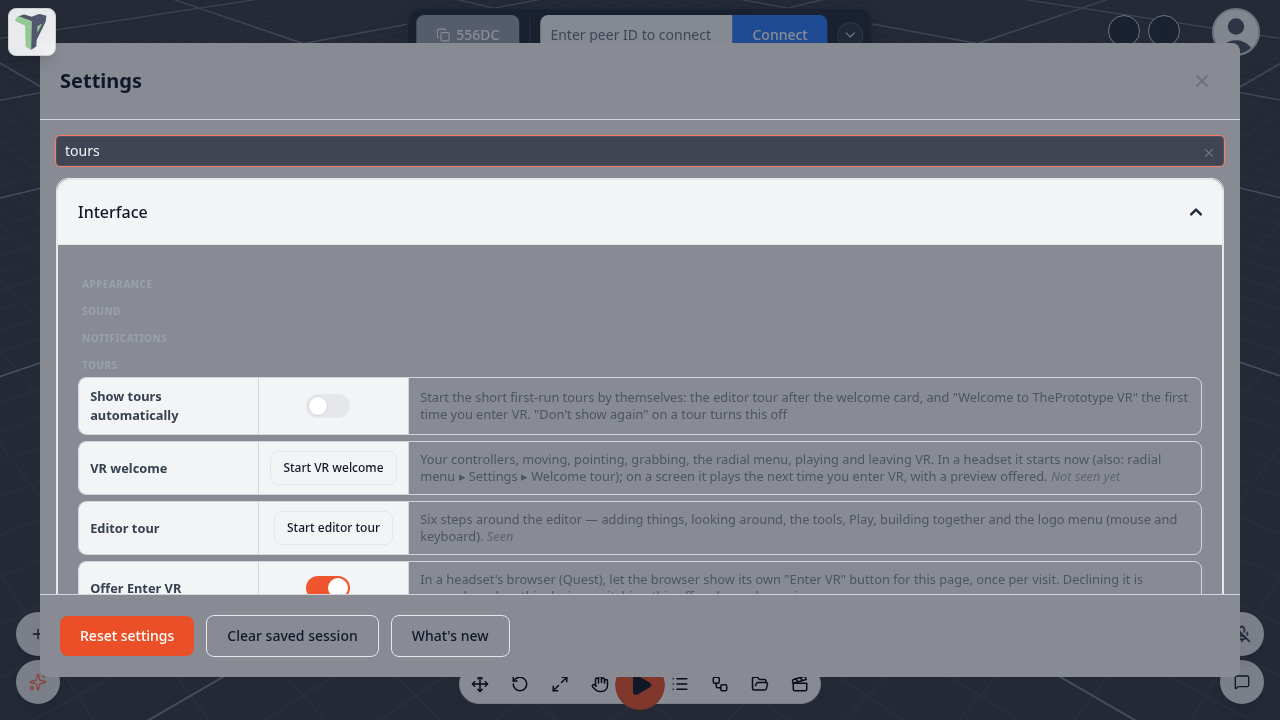
All in Settings ▸ Interface ▸ Tours:
| Setting | Default | What it does |
|---|---|---|
| Show tours automatically | on | Starts tours by themselves the first time they apply. Don't show again on any tour turns this off. |
| Offer Enter VR | on | In a headset's browser (Quest), lets the browser show its own Enter VR button for the page, once per visit. If you decline it, this device remembers that; turning the setting off and on again asks again. With passthrough on, it offers AR instead, the same as Play. |
| Reset tours ▸ Reset all | — | Forgets which tours you have seen or skipped, and turns automatic tours back on. |
Search Settings for tour, welcome, tutorial or enter vr to find these rows.
Limits
- The VR welcome starts on its own only the first time you enter VR on a device, after a short delay so your controllers can be recognised. After that, replay it from the menu.
- On a page opened from an invite or a scene link, the Welcome card does not appear, so the editor tour does not start either — you came for the session.
- The drawing cannot tell a Quest 3 from a Quest 3S: both use the same Touch Plus controllers. Hand tracking, or a headset the app does not know, gets a generic drawing.