Touch Controls
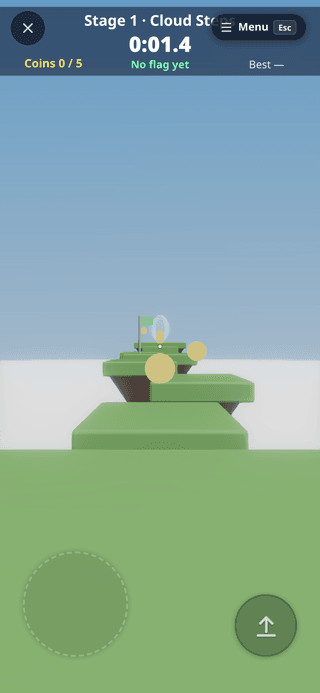
On a phone or tablet, Play shows a move stick on the left, a look drag on the right and the game's own action buttons — Jump, Throw, Grab, Use… — exactly the actions the game needs. Every control can be moved, resized and faded, and any button can wear your own pressed and released images.
For the phone layout itself — the bottom bar, the context strip and bottom sheets — see The Interface: On a phone.
When they show
Settings ▸ Touch controls ▸ Show touch controls:
- Auto (default) — on a touch screen, or as soon as you touch the screen (a touchscreen laptop, say).
- Always — on, even with a mouse.
- Never — hidden everywhere.
Show in edit also draws the action buttons while you edit (they press their keys there too); the stick and the look drag only exist in Play. Touch controls are screen controls, so they never show in VR.
Playing with them
- Several fingers at once: hold the stick and press Jump — or two buttons — at the same time.
- The stick: touch its drawn circle to steer from the circle's centre, or touch anywhere else on the left half and the stick appears under your thumb.
- A still tap on the view uses what the crosshair is on; a drag looks around. Look speed sets how far a drag turns the view.
- Haptic tick gives a short vibration on each press, on phones that support it.
Which buttons a game gets
Games that declare their actions show exactly those:
| Game | Controls |
|---|---|
| Sky Run | stick + Jump |
| Target Toss | Throw — hold to charge, let go to throw; drag anywhere to aim |
| Mini Golf | stick + look; putt by dragging back from the ball |
| Marble Maze | no stick — drag on the board to tilt it |
| Towers | Grab — hold it to carry a block |
| The Alchemist's Escape | Use + Hint |
| Race | on foot: walk controls; in a car: stick steers, Gas, Brake, Reset — see Race on a phone |
Any other scene gets buttons from what it already has: a walking Character Controller gives Jump, a flying one Up / Down (only where the scene allows flying), and every key a Key Press node listens for (other than WASD and the arrows) becomes a labelled button — up to six. The games that come as modules (Dungeon Realms, Football, Untangle, Waves) get these automatic buttons until they declare their own.
Arranging them
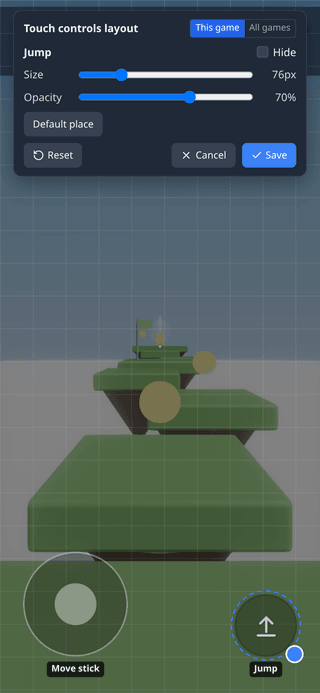
Open the layout editor from Settings ▸ Touch controls ▸ Edit layout, or during a game from the pause menu's Touch controls row:
- Drag any control to move it. Select it to change its Size and Opacity or Hide it — resize also with the round corner grip, or by pinching it with a second finger. Default place puts it back.
- This game / All games chooses where Save stores the layout; a game's own layout wins over the all-games one.
- Reset returns to the default arrangement; Cancel (or Esc) discards your changes.
Layouts are saved on this device — they never travel to other players or into the scene.
Button looks
Settings ▸ Touch controls ▸ Button looks lists every button with a preview of both states. For each button: a Released and a Pressed image (Upload a PNG or SVG of up to 160 KB, or pick an image from the Explorer), a Tint for the built-in icon, and the icon Size. Default look goes back to the themed icons. Images are kept in the browser's local storage, which is why they must stay small.
Settings
| Setting | Default | What it does |
|---|---|---|
| Show touch controls | Auto | Auto / Always / Never |
| Show in edit | off | action buttons while editing too |
| Haptic tick | on | a short vibration on each press, where supported |
| Look speed | 1× (0.25–3) | how far a drag turns the view |
| Edit layout · Reset | — | the layout editor; Reset clears every saved layout |
| Button looks | themed icons | per button: released / pressed image, tint, icon size |
Search Settings for touch, joystick, buttons or haptic to find this section.
Trackpads
In the editor viewport a laptop trackpad's two-finger swipe pans and a pinch zooms — Safari's pinch gesture on a Mac included — while a mouse wheel keeps zooming as before. Settings ▸ Controls has the pan and pinch switches; see The mouse wheel.
For module authors: declaring actions
register(api) {
  // call it when your game becomes active; keep the returned off() and call it when it ends
  const off = api.input?.actions?.(
    [
      'jump',                                    // a built-in: jump, fire, interact, grab,
                                                 // crouch, sprint, reload, up, down
      { id: 'boost', label: 'Boost', keys: ['ShiftLeft'] },             // presses a key while held
      { id: 'fire', label: 'Throw', onPress: charge, onRelease: release } // your own handlers
    ],
    { preset: 'shooter' }  // platformer | shooter | toss | golf | fly | explore | drive | custom
                           // optional: stick: false, look: false
  );
}
keyssend real key events (KeyboardEvent codes), so anything that already reads the keyboard —api.onInput,api.input().codes, Key Press nodes — works with no extra code.pointer: 'press' | 'tap'makes a button a primary click at the crosshair (held, or a single tap).onPress/onReleaserun on this peer only; send your own message if others must know.- A second call replaces your set; everything is removed when the module unloads.
preset: 'drive'(since 1.26) is the vehicle layout: the stick steers, there is no look drag, and the pedals sit under the right thumb. A stick the module declared stays live under its ownclaimInput('keys').api.input().touchreads the on-screen move stick as{x, y}from -1 to 1 (up is -y).- Feature-detect (
api.input?.actions?.(…)) to stay compatible with older cores.
See the Module SDK.