Character Controller
Sets how the player moves in Play: walking with gravity and a jump, or flying, at the speed you choose. There's nothing to trigger. The node works by being in the scene.
Output: effect (nothing to wire, because the card is a declaration and not an action)
Inputs
| Handle | Type | Meaning |
|---|---|---|
| speed | number | overrides the speed slider when wired |
| jumpHeight | number | overrides the jumpHeight slider when wired |
| eyeHeight | number | overrides the eyeHeight slider when wired |
Parameters
| Parameter | Default | Options |
|---|---|---|
| mode | fly | fly, walk |
| speed | 0.1 | 0.01 – 1: distance per frame (0.1 is about 6 m/s at 60 fps), the same number the scroll wheel changes |
| jumpHeight | 1.2 | 0 – 5 m: how high a jump goes (walk mode) |
| eyeHeight | 1.7 | 0.2 – 3 m: the eye's height above the ground (1.7 is a standing person) |
| gravity | on | off: no falling and no jump. The eye stays at eyeHeight above the floor |
With a controller, and without one
A scene that has no Character Controller node uses the built-in Play movement, unchanged. WASD move and the scroll wheel changes speed. The camera stays at eye height, and you fly with Q / E only when the scene allows flying. There's no jump and no falling.
Adding the node changes that for every player in the scene:
| No controller | walk | fly | |
|---|---|---|---|
| Moving | WASD, at the built-in speed | WASD on the ground, at speed | WASD, at speed |
| Jump | none | Space (one jump per press) | none |
| Gravity | none (pinned at eye height) | the scene's gravity, so you fall off edges and land | none |
| Flying (Q / E) | only if the scene allows it | no | yes, unless Configure Scene ▸ Play ▸ Flying is Removed |
A controller on fly at speed 0.1 moves you exactly as far as the built-in movement does, so you can rebuild the
default with nodes and then change one thing. Delete the node and Play is back to the built-in movement.
What a walker stands on
How a walker meets the world depends on what is running:
- A physics simulation is running: the player is a capsule that collides with the scene. Walls stop you, you climb slopes and steps, and you can stand on a box.
- No simulation, but a dungeon module is in the scene: you walk the dungeon's corridors and stop at its walls.
- Neither: you walk on the scene's ground plane (height 0 when the ground is off). You still fall and land, but you can't bump into objects.
A held Space gives one jump, and landing with it still held doesn't jump again. A game kit's jump height rule overrides jumpHeight while it is set. A gamepad drives the walker too (left stick moves, right stick looks; see Settings ▸ Input), and on a phone the touch controls add a Jump button.
More than one controller
Only one Character Controller is used: the newest one in the scene wins, and a message says how many there are. Every player picks the same one, so everybody moves the same way.
Multiplayer
Nothing is sent over the network. Every player's copy of the scene has the same graph, so every player gets the same controller, and it moves that player's own view.
The Player's code
Double-click the card (or right-click ▸ Open code) to steer speed, jump height, eye height, gravity or the mode every frame from the player's keys, for example to sprint while Shift is held. See The Player's code.
Practical example
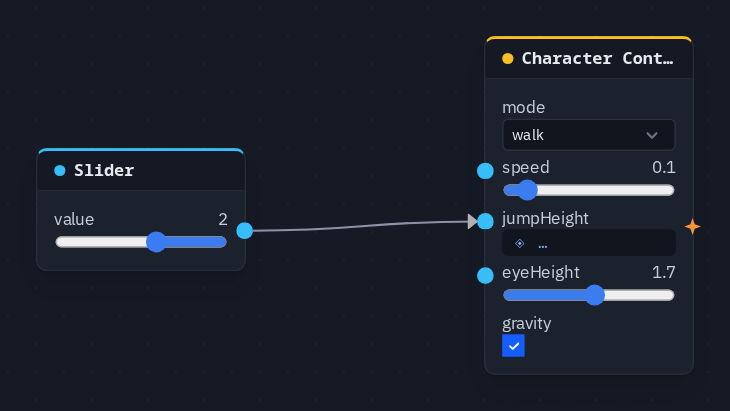
A walker whose jump you can tune while you play:
- Add Character ▸ Character Controller and set mode to
walk. - Add a Slider and set Min 0 / Max 5 in its ⓘ tab, then set it to 2.
- Wire the Slider into the controller's jumpHeight input.
- Press Play. WASD walks and Space jumps. Drag the slider to jump higher or lower.
Tip
To change speed from the graph (a sprint key, a mud patch), use a Move Speed node. To read the player's WASD as numbers, use Move Input.