Explorer
The Explorer is the session's file library — import files, organize them into folders, preview them, share them with the people you are connected to, and drag them straight into the scene.
Open it from the Explorer button in the Controls bar, or with Alt+E. It lives as a tab in the bottom dock beside the Node editor, Animation and the other editors (T shows and hides the dock), and right-clicking its button offers Open as dock tab or Open as floating window.
Local until shared
Files you import live in your browser (IndexedDB). They stay on your device until you share them — then every peer in the session has them, in the same folders. Using an asset in the scene — placing a model, assigning a sound, dropping a texture — still pushes its bytes to everyone as before.
Project scenes are the exception. The project knows every scene by name, so a scene somebody else saved appears for you as a dimmed card with a blue dot even though you hold none of its bytes — open it and it downloads from whoever has it. See Projects.
The tree
The left pane, top to bottom:
- + Mount project… and any mounted projects — see Mounting a saved project.
- Library — your own folders and files.
- Prefabs — objects you saved with Save as… (see Prefabs). Drop a 3D object or a scene file on the row to make one; it keeps its own format.
- Packs — built-in and imported asset packs (see Packs). Single-click opens the packs grid; double-click expands the pack list in the tree.
- Scene — a read-only, derived view of the assets the shared scene currently uses (audio, config scripts, textures) — identical on every peer.
- Deleted — the recycle bin, shown while it has something in it (or while you drag something over it). See Deleted.
Folder management behaves like a file manager: right-click for New folder / New subfolder (inline naming — Enter creates, Esc cancels; names can't contain * \ /), Rename inline, and Delete folder (it confirms with folder and file counts). Drag folders onto folders (or the Library root) to re-parent — moving a folder into its own subtree is refused. The tree pane has a drag-resize splitter and per-folder expand/collapse carets, all persisted.
Importing files
Drag files from your computer anywhere onto the Explorer panel:
| Kind | Extensions |
|---|---|
| Images | png, jpg, webp, heic, heif (see below) |
| Audio | mp3, wav, ogg |
| Text / config | txt, json |
| 3D objects | glb, gltf, obj, stl, fbx |
| Scenes and projects | tpscene, tp |
Items are capped at 25 MB each. Images and models get generated thumbnails; audio and text show icon cards.
Importing something you already have. A file is identified by its contents, so re-importing the same bytes is not a new file. The app tells you what it already has and lets you skip it, reveal it, or — for a scene — take a real copy. The rule lives in Settings ▸ Explorer ▸ "When importing files already in your library" (Ask / Skip them / Import as copies); see Projects.
Big models are optimized as they come in (1.37): over 50k triangles or with a texture over 2048 px, an import gets an LOD chain and compressed textures, and the original stays beside it — see Importing Big Models. A model's Properties (ⓘ) hold its own Import settings and Reimport.
HEIC / HEIF photos
New in 1.37. Photos from an iPhone or a modern Android (.heic, .heif, Canon .hif) import like any image: drop
them on the Explorer, or pick one in a texture slot (Properties ▸ Material ▸ Texture, the UV editor's material slots, a
Shader Texture node, a HUD image).
The photo is decoded once, on the device it was dropped on, into a JPEG named after it (IMG_0042.HEIC → IMG_0042.jpg). From then on it is an ordinary image: it has a thumbnail, opens in the preview window, textures objects, and peers receive the JPEG — they never need the decoder. The decoder (about 1.5 MB) downloads only the first time someone imports a HEIC, and runs off the main thread.
Limits: the longest side is capped at 8192 px; only the primary image of a burst or Live Photo is kept; a damaged file
is refused with Could not read .heic is not kept in the Library.
When a model is too heavy
A model is weighed before it lands. Once the file is parsed but before anything reaches the scene, its real cost — triangles, meshes and texture size — is measured against what the scene already holds on this device. Anything within budget arrives without a word. Anything heavy enough to hurt asks first, instead of arriving and wedging the tab:
This model is heavy — "city.glb" is 2.4M triangles in 180 meshes. Imported as it is, the scene would draw 9.1M triangles a frame (this model adds 4.8M with its shadow pass), above the 8M recommended for this device. It may be slow, and on a phone or headset the tab can be closed by the browser.
There are three answers:
| Answer | What happens |
|---|---|
| Reduce to ~400k triangles, 1024px textures | The mesh is simplified on a background worker. The label names the numbers it is aiming at before you commit to it, from the same planner that will do the work. |
| Load anyway | The model arrives at full detail, exactly as it is. |
| Cancel | Nothing is imported. The scene is byte-identical — no frame drew it, no peer was sent it, and there is no undo entry to clean up. |
Reduce runs in the background. A card says Reducing "city.glb"… you can keep working while it runs, and the window keeps drawing throughout — that is the point of running it off the main thread. When it finishes you are told what was done and by how much:
Reduced "city.glb": 2.4M → 380k triangles (−84%), no point moved more than 0.42% of its size; textures 4096px → 1024px.
If the result is still above what the device is recommended to hold, the report says so rather than pretending otherwise. A reduction that fails imports nothing at all — it never quietly falls back to the heavy original, because avoiding that original is what you chose.
Restore original model. The original file is kept for the rest of your session, so the object's right-click menu carries Restore original model — one undoable step that puts the full-detail version back in place, with the same name, the same position and the same identity, so flows, notes and joints keep pointing at it. Ctrl+Z goes back to the reduced one.
It can be unavailable, and it says why rather than being mysteriously greyed out:
- On anyone else's screen. Only the machine that did the import holds the original file; a peer sees the stamp and the reason, never a button that cannot work. The tooltip reads The original file is held only by whoever imported it, and only until they reload.
- After a reload. The file is held for the session, not saved.
- While the object is locked by another peer.
An animated model is never reduced
A rig reaches your peers as the original file's bytes, so decimating the tree would leave them reparsing something that no longer matches. The dialog says so in the same breath — It is animated, so it cannot be reduced here: its rig reaches your peers as the original file — and offers Load anyway and Cancel only.
A model the AI assistant generates goes through exactly the same gate, with the same three answers: a generated mesh is as heavy as any other.
Oversized scenes are held at the door too, with their own ask — see Performance & Budgets.
Animations and materials come along. A .glb/.gltf or .fbx keeps its animation clips — they play in the scene and are listed per object in the Animation window — and an .obj picks up its sibling .mtl so it arrives with its materials instead of plain grey. Because no exporter can carry an animation clip, an animated model is stored as its original file when you save a scene, so it comes back animated. See Saving & Sessions.
Sharing with the session
Right-click a file ▸ Share with peers, or a folder ▸ Share folder, and everyone in the session gets it — in the same place in their tree. A shared folder shares whatever you drop into it later; Unshare on one file inside it takes that one back out, and the app remembers that decision over any rule. Unsharing never deletes anybody's copy.
Every card carries a small dot that says whose it is: teal for a file you shared, sky blue for a peer's, a hollow ring for one that is no longer shared but still yours. A dot in the top corner means the file is shared but its bytes are not on your device yet — open it, or right-click ▸ Download from peers.
Ask before sharing
Add a file while you are connected and a strip appears below the Library: Share "‹name›" with the session? with Share and Keep local. Connecting with a library full of local files asks once for all of them (Share your 12 files with the session?), and there Stash mine is the third choice. Tick Apply to all my files, now and from now on to make it a rule — everything you add from now on is shared, or nothing is and you are not asked again. File settings opens the same rule in Settings.
Downloads happen by themselves
When someone shares a file or a folder your copy is fetched straight away. Switch that off for a metered connection or a very large project with Settings ▸ Explorer ▸ Download shared files automatically — shared files still appear, greyed, and download when you open them.
The pill beside the view toggle in the Explorer header is the transfer log: Downloading 3 files — 40%, Up to date, or No peers. Click it for the files in flight with their own progress, a Retry for anything that failed, and Show full log for the whole record with per-row Retry, Cancel, Show in Explorer and Remove from log.
Deleted
Deleting is never destruction. Delete on a local file, or Delete for everyone on a shared one, moves it — every peer's copy of it — into Deleted, which keeps the folder structure, so a deleted folder is still a folder there. Drag files or folders onto the Deleted row to delete them too.
- Restore on a row puts it back where it came from, on every peer; Restore folder brings a folder back whole.
- Drag a card out of Deleted onto a Library folder to restore it there instead.
- Delete permanently on a row frees that one file on this device.
- Empty Deleted (N) — under Disk in the Deleted view's right-click menu — reclaims the disk on this machine and clears the record. Peers keep their own bins. It asks first, always.
- Clear the log (N) forgets only the records whose bytes are already gone from this device; anything still restorable stays.
The view has its own View, Group (By who deleted it) and Sort options, and Show cleaned-up files lists what was already freed.
Browsing and opening
The header's Thumbnails / List toggle switches views. The list has sortable columns — Name, Type, Size, Added, Owner (in Deleted: Location, Deleted by, Deleted at) — click a header to sort, drag it sideways to reorder, drag its edge to resize, and right-click the header to choose columns or Reset widths and order. Columns and sort are remembered per view.
- Single-click selects an item and shows its details in the ⓘ Properties panel.
- Double-click opens it in a preview window (below); text files open in a floating code editor (Ctrl+S saves back to the item).
- Right-click an item for Open, Download, Share, Rename, Delete, Properties (and Copy contents for text files, Edit image… for images — see The Image editor).
- The search box filters the whole library by name; the breadcrumb path bar (toggleable) shows where you are.
Keyboard navigation in the grid: arrow keys move the selection, Enter opens, Backspace goes up a level, Esc clears the selection, Delete deletes the selection.
On a phone
- Press and hold a file or folder to open its actions as a sheet: Rename, Duplicate, Copy, Download, Share, Properties, Delete and the rest. The sheet stays open when you lift your finger (Android's own long-press signal used to close it straight away), and the browser's own long-press menu and text callout do not appear on Explorer items.
- Hold, then move to pick the item up and drop it into a folder.
- While you rename an item, the selected text is readable in every theme.
- The Explorer's toolbar scrolls sideways when it does not fit, so the project name is always reachable.
On a phone the Explorer is a tab of the bottom dock, like Properties, Objects and the other windows — see The dock on a phone. Its sidebar starts hidden so the files get the screen; open it with its edge button and it stays open next time.
Selecting several
- Ctrl+click adds or removes a card; Shift+click selects the range from the last card you clicked (Ctrl+Shift+click adds the range).
- Ctrl+A selects everything in the folder, Ctrl+I inverts the selection. With the grid focused these keys never reach the scene behind the panel.
- Drag on empty grid space to draw a marquee (with the mouse — on a touch screen a drag scrolls the grid, and holding a card, then moving, picks it up instead). Hold Ctrl to add to what is already selected.
- Right-click a selection for the batch actions: Download N files as .zip, Export N objects as GLTF, Share / Unshare N items, Copy, Cut, Duplicate and Delete.
- Drag a selection onto a folder to move all of it, or into the viewport to place every object.
The project and the scene you have open
The Explorer header shows where you are: ‹Project› ▸ ‹Scene› [file.tpscene], a save button and a ● while the scene has changes that are not in its latest version.
- Click the project name to rename the project.
- Click the scene name to find its file in the library. Double-click it — or right-click ▸ Rename scene… — to rename the scene. Every version file is renamed with it, on every peer, and Travel nodes that point at it keep working.
- The save button does what Ctrl+S does: it saves the open scene as a new version.
Who is in each scene. A scene card shows small avatars for the people standing in that scene — you included — and a count. Its right-click menu has Join ‹name› for each of them: it travels you to that scene, where they are, even if you have not downloaded it yet (you leave the scene you are in). Unsaved changes are asked about first, as below.
Opening a scene over unsaved work
Opening another scene — from its menu, by double-click, or with Join — replaces what is on screen. If the scene you have open has unsaved changes, or has never been saved at all, the app asks first: Open "Arena"? with Save and open (saves a version of the current scene, then opens) or Open anyway.
Duplicate, Copy, Cut and Paste
Right-click a file or a folder for Duplicate (Duplicate folder), Copy and Cut; right-click a folder or the grid background for Paste — the entry says what it holds (Paste 2 files + 1 folder). With the grid focused the keys are Ctrl+D / C / X / V, on one card or a whole selection (Duplicate 3 items).
- A duplicate lands beside its source as Tower copy.glb, then Tower copy 2.glb; pasted into another folder it keeps its name unless that collides.
- A cut row dims to half until you paste it, and a cut is spent by one paste; a copy can be pasted again.
- A copy is local until you share it — unless it lands in a shared folder, which shares it like anything else you drop there.
- Prefabs duplicate too (Prefab copy). Packs are read-only bundles: Duplicate is greyed out and says so.
- Duplicate folder copies everything in it under a new folder beside it.
A scene is different: its name lives inside the file, so Duplicate on a scene opens the naming card prefilled with Arena copy — type a name, Enter — and makes a scene of its own, with its own version history. Copy and Paste (Ctrl+C, Ctrl+V) on a scene pastes it straight away as Arena copy — a new scene with its own name and history, not a second card for the same file. A name that is already taken is refused with a toast. To duplicate a scene, select it on its own; in a bigger selection it is skipped and the toast says so.
A copy costs your peers no download
A shared file travels as a row with its own identity beside its content hash. When you duplicate a shared file — or a whole shared folder — peers who already hold the bytes make the copy from their own disk: ten copies, zero transfers. Deleting a copy removes only that copy; editing one gives it new bytes, which are sent once. A scene copy is the exception, because its new name makes it a new file: it transfers once.
The preview window
Images open zoomable (− / + / 1:1, drag to pan) with a pencil button that opens the Image editor, sounds open with a player, and 3D models open on a turntable with an animation transport — play, step a frame with , and ., scrub, pick a clip — and a mesh-stats line. The ← / → buttons page through the folder without closing the window, and ⌐ goes up a level.
The window's ⚙ holds two things worth knowing: Opacity fades the window so you can model against a reference picture, and Passthrough lets clicks reach the scene underneath while the header stays live to move it or switch it back. Allow multiple windows opens each file in a window of its own instead of re-pointing the one you have.
Item properties (ⓘ)
The ⓘ panel shows name, kind, size, folder path, added date and the content hash (copyable), plus per-kind details — image dimensions, audio duration and channels, text line count. For 3D objects it can embed a rotatable inline 3D preview with mesh stats (triangles / vertices / meshes) — enabled by the 3D model preview toggle in the ⚙ tab. Double-clicking an object always opens the larger preview regardless of that toggle.
The ⚙ settings tab holds local preferences: single-click opens folders, show path bar, 3D model preview, stack multiple drops on one spot, confirm before updating a prefab, hide built-in packs, and the Import pack (.zip) button.
Prefabs that are files
Right-click an object in the viewport ▸ Save as… and choose the format. Prefab is the classic snapshot; Prefab (.glb) and Prefab (.tpscene) make a prefab that is a file — the .glb carries geometry, materials and baked animation, the .tpscene also carries animation clips, object flow graphs, shader graphs and joints — so it can be dragged into the Library, shared, and exported as the exact bytes it was saved as (Export ▸ The original file). The last two entries, glTF binary (.glb) and glTF (.gltf), are plain downloads. See Prefabs.
Mounting a saved project
+ Mount project… at the top of the tree lists the projects saved in this browser (and Import project (.tp)… for a file). A mounted project appears as its own root beside your Library: browse it, open a scene from it into the viewport, edit its files and folders, then Save changes to write them back — or Refresh to re-read it and throw your edits away. Copy to Library brings one of its files into your own project. Unmount just stops showing it; the saved project is not deleted.
Storage
The chip in the Explorer header reads used / granted for everything this app keeps in your browser. Click it — or Storage used… under Disk in the right-click menu, or Settings ▸ Explorer ▸ Storage used — for the Storage breakdown: library files, old scene versions, deleted files, saved scenes and projects, autosave, prefabs, material presets, installed modules and the rest, each with a size — and, since 1.31, Pack downloads per pack with Clear all pack downloads. Tick what you want gone and press Reclaim; nothing is removed until you do, and it asks once more.
Files in and out
A session downloads as a .tpscene, a whole project as a .tp, and both import back — from the logo menu's Load, from the Sessions manager, or by dropping them on the Explorer. Right-click a scene ▸ Download (.tpscene); the Library root's menu has Export project (.tp) and a folder's has Export folder as .tp; Import project as folder (.tp)… adds a .tp file's contents to your library as one folder without opening anything. See Projects.
Placing objects
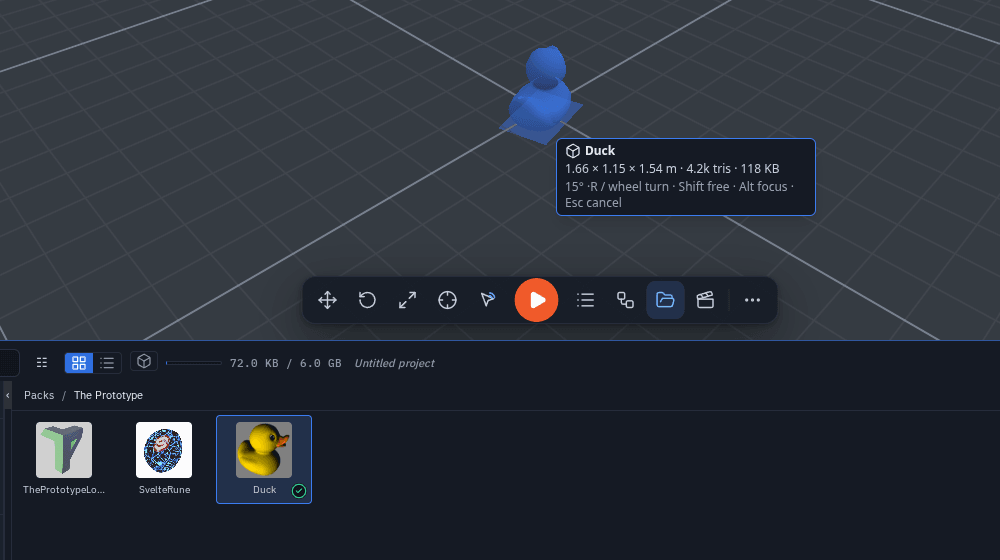
New in 1.31: drag any object — a pack item, one of your Library models, a prefab — from Explorer ▸ Packs or Explorer ▸ Library onto the viewport, and a ghost shows where it will land and how big it is before you let go.
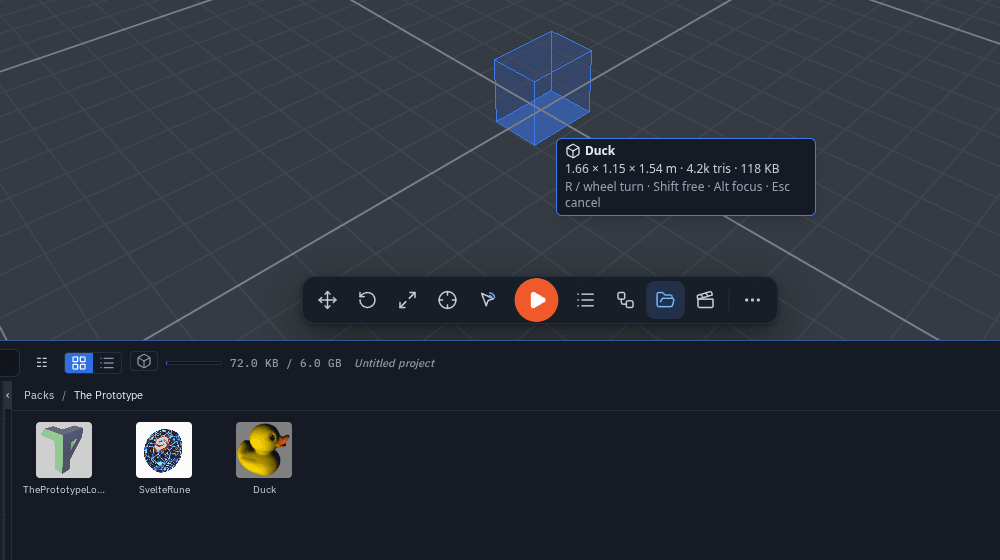
- Drag. Press on a card and drag it over the 3D view. The ghost sits on whatever is under the pointer — the floor, a table, the side of a wall — and follows the grid when grid snapping is on; hold Shift to move it freely. "Align to surface" (snapping options) tilts it onto slopes and walls.
- Turn it. R turns it 15° (Shift+R back); the mouse wheel turns it too while you drag.
- Drop. Let go and it is placed exactly where the ghost stood — one undo step, and everyone in the session sees it. Hold Alt as you let go to place it at the camera's focus point instead. Drag several selected cards at once to drop them side by side in a row. A click without a drag still places the item in front of the camera, as before.
- Cancel. Esc, dropping back on the Explorer, or letting go anywhere else places nothing and leaves nothing in the undo history.
- Colours. The ghost turns amber when it would sit mostly inside another object (you can still place it — a cup in a cabinet is fine) and red where there is nothing to place it on (letting go there does nothing).
- On a phone or tablet, press and hold a card and move your finger to drag it (holding still opens its actions instead); the Explorer tucks itself away so you can see where you are dropping. Items drop upright (or aligned to the surface) — the rotation keys need a keyboard.
Ghost tiers: the real model or its box
Beside the pointer you see the item's width × depth × height in metres, its triangle count and its download size.
- An item that is already loaded and under the preview budget shows as a see-through copy of the real model.
- Anything else — not downloaded yet, or heavier than the budget — shows as its box: a wire box with its footprint on the ground, sized from the pack's own numbers. An item whose size is not known yet (an old or imported pack) shows a 1 m box labelled "size unknown" until it has been loaded once; after that its size is remembered.
- Hovering the viewport during a drag starts the download, so the drop is quick. A placed pack item shows your Placeholder Style until its file arrives. The ghost is yours alone — nobody else sees it.
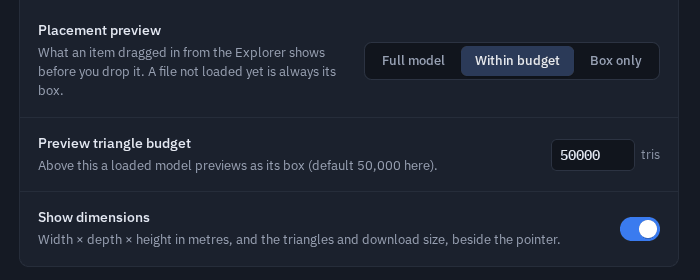
The Placement preview setting
Settings ▸ Scene ▸ Performance (this device only):
- Placement preview — Full model (always the real model once loaded), Within budget (the default) or Box only.
- Preview triangle budget — with Within budget, a loaded model above this many triangles previews as its box (50,000 on a computer, 15,000 on a phone or headset).
- Show dimensions — the size, triangles and download size beside the pointer.
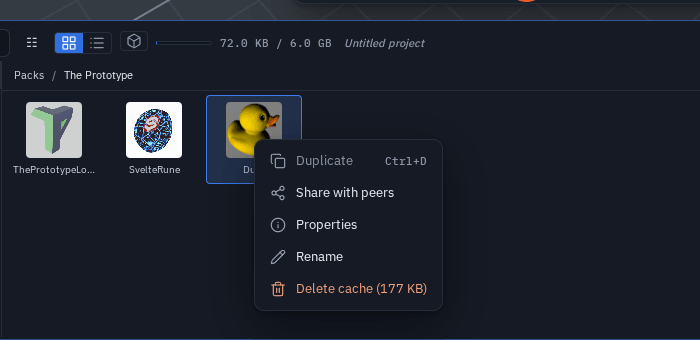
Downloaded pack items and Delete cache
Explorer ▸ Packs marks the items this device has already downloaded with a ✓ (its size in the tooltip), and the filter menu inside the Packs has Downloaded to show only those. Right-click a pack item ▸ Delete cache (size) frees its download — the item stays in the pack and downloads again the next time you place it. Right-click a pack ▸ Delete downloads frees the whole pack's, and Storage lists Pack downloads per pack with Clear all pack downloads.
Images, audio and text
- Images dropped onto an object become its texture. A big photo is scaled down to 1024 px on its longest side instead of being refused — see Big photos as textures.
- Audio and text are used where they plug in — sound nodes, scripts, and any module that claims the drop (a sample onto a pad).
Placement and texturing go through the normal replicated paths, so peers see the result immediately. In VR the radial Add menu still places in front of you; drag-to-place in VR comes later.