Scatter
New in 1.43. Scatter places many copies of a model — rocks, trees, grass, crates, barnacles — over a surface and draws them all together, so thousands cost about as much as a handful of objects. It works on a Terrain and, since 1.43, on any object.
A scatter set is its settings + a seed + your hand edits. Every computer in your session builds the same instances from those, and so does every reload — a set of thousands of instances travels as a few hundred bytes.
Add scatter to an object
Select any mesh or placed model ▸ Properties ▸ Scatter (right after the Water section's Add bubble emitter / Add pour emitter) ▸ Add scatter. 200 instances of the brush's current model fill the whole surface. The instances belong to the object: move, turn or scale it and they come along, for everyone in the session.
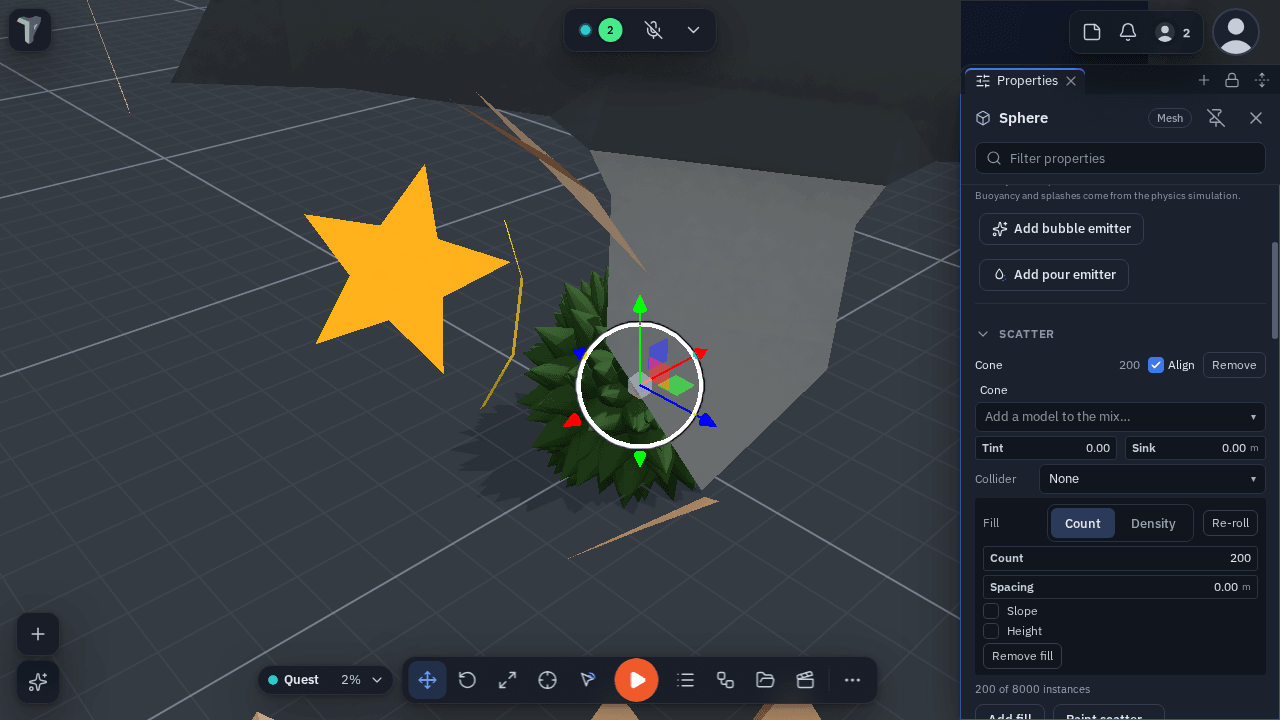
On a Terrain the Scatter section stays where it was (after Terrain paint) with the same rows. Add fill adds another set; Paint scatter… (or Scatter… on a terrain) opens the scatter brush to paint by hand.
Fill and masks
Each set's Fill block places instances over the whole surface instead of by hand:
| Row | What it does |
|---|---|
| Count / Density | Exactly N instances over the surface, or N per square metre. |
| Spacing | The minimum distance between two instances (0 = off) — nothing closer, nothing overlapping. When the surface is full, Count places what fits and stops. |
| Slope | Only where the surface is between two angles from "up": 0° flat ground, 90° a wall, 180° an overhang. 0–30° keeps instances on the flat top of a rock. |
| Height | Only between two heights, in metres, measured in the object's own frame. |
| On paint | (Terrains) only where a painted layer covers the ground, above a Coverage threshold. Repaint and the fill follows. |
| Re-roll | A new seed: a fresh layout with the same settings. Every instance you edited by hand is kept. |
| Remove fill | The fill goes; instances painted by hand stay. |
Align stands each instance on the surface (on by default on objects); switch it off to keep them upright. Masks and density are measured before the object's scale, so moving or scaling the object never reshuffles a fill.
What you can scatter
- Primitives and Library models.
- Pack items — a kit piece such as a Nature Kit rock, picked in the model list. Everyone fetches it from the pack server, so nothing extra travels.
- Prefabs — a prefab scatters as its look only (model and materials); its logic, physics and scripts are not copied, and the model's row says so. To objects brings the real prefab back, logic and all.
- Use as scatter source — right-click any object ▸ Physics & effects ▸ Use as scatter source, then paint it. A kit piece you have not edited scatters as its pack item; anything else scatters as its look.
Mix, tint and sink
- Add a model to the mix turns a set into a weighted mix — three rocks at 50/30/20. Drag a model's w to change how often it is picked; ✕ removes a model and the instances painted with it.
- Tint varies each instance's colour a little (0 = all alike).
- Sink pushes each instance into the ground, in metres at scale 1 (bigger instances sink deeper); a negative value lifts them.
Edit instances
On a terrain, the scatter brush in the Sculpt toolbox has a row of tools:
| Tool | What it does |
|---|---|
| Paint | Paints instances of the model picked above. |
| Erase | Removes instances under the brush. |
| Rotate | Turns the instances under the brush (Turn the other way reverses). |
| Scale | Grows them (Shrink to shrink). |
| Relax | Evens out the spacing under the brush — clumps spread, nothing leaves the brush. |
| Select | Pick instances and edit them directly. |
Affects (every tool but Paint) limits a tool to one model of a mix — erase only the boxes, turn only the trees.
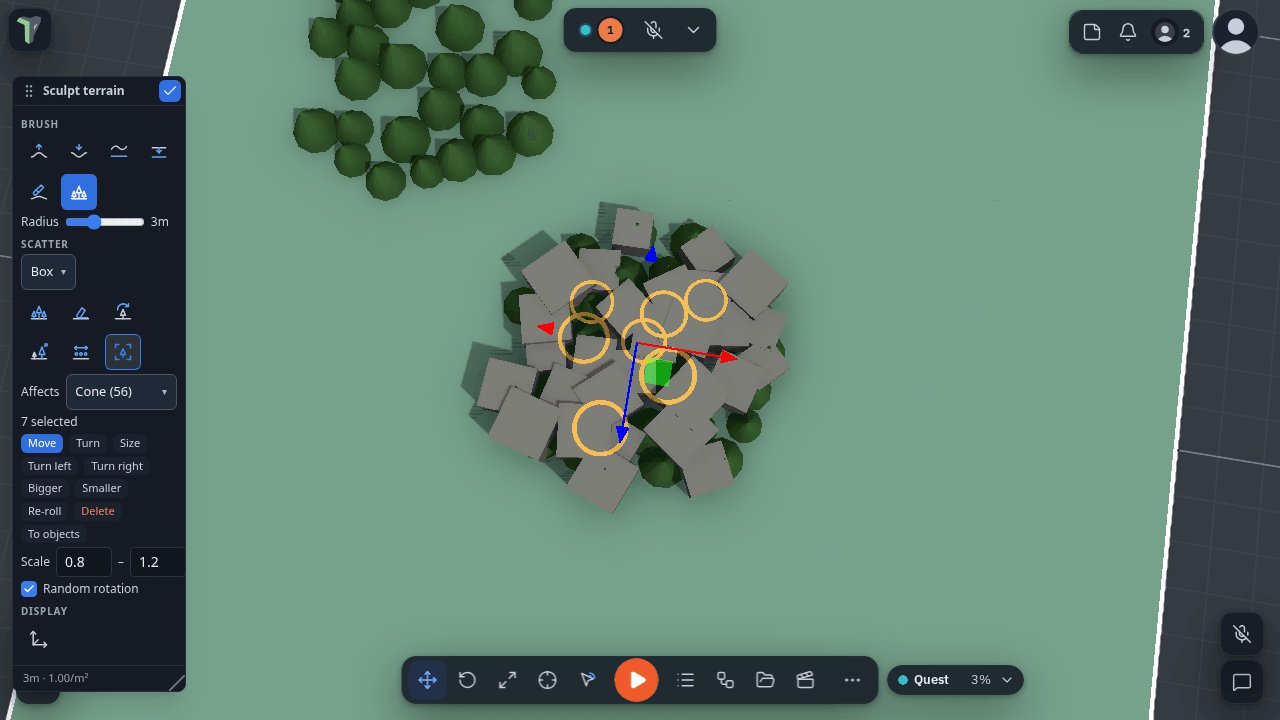
Select: click an instance; Shift/Ctrl+click adds or removes; drag a box to select everything inside it; Ctrl+A selects every instance of the Affects model. The gizmo's Move slides the selection over the ground, Turn rotates it about up, Size scales it — one drag is one undo step. The toolbox adds Turn left / Turn right (15°), Bigger / Smaller (10 %), Re-roll (a new random turn and size), Delete (or the Delete key — it deletes instances, never the terrain) and To objects. Esc drops the selection; a second Esc leaves sculpting.
On an object
On a mesh or a model (not a terrain) the scatter brush has Paint and Erase; the other tools are terrain-only for now.
Convert both ways
- Instances → objects: To objects in the Select tool (the selection) or on a model's row in Properties ▸ Scatter (every instance of it). Each instance becomes a real object exactly where it stood — on the ground, turned, tilted and sized the same. A prefab's look becomes the real prefab with its logic (when that prefab is in your library); a pack item becomes the pack piece. More than 500 asks first. One undo turns them back into instances.
- Copies → scatter: select several copies of one primitive or one Library model standing on a Terrain, right-click ▸ Make scatter. They become instances of that model's scatter on the terrain (position, turn and size kept) and the objects go. One undo turns them back.
Distant scatter (each device)
Far scattered models fade out so each device stays inside its budget — about half of its triangle line in the budget meter (Quest 150k, phone 250k, desktop 2M). The layout is the same everywhere: instances within 30 m of you, and every collider, are never thinned, so a ball hits the same rock on a phone and on a desktop.
Settings ▸ Scene ▸ Performance ▸ Distant scatter: Auto (reads the device) / Headset / Phone / Desktop / All (draws everything). This device only.
Limits
Up to 8 scatter sets and 8,000 instances per object or terrain (painted and filled together). Filling 5,000 instances on a 100,000-triangle model takes about 10 ms on a desktop (25–55 ms with spacing and a slope mask). Everything replicates, undoes in one step per stroke, drag or command, and saves with the scene.