Building in VR
Since 1.45 you can build a whole scene with the headset on: measure and line things up, paint terrain and scatter, pull models off your wrist and drop them in, and shrink the world to a miniature to work on it from above. Since the next release you can also edit the game logic — the node graph — without taking the headset off. Everything here works in Edit; the radial menu, grabbing and getting around are on the VR Guide.
Controllers do everything. With hand tracking you can browse and place; tools that need precision ask you to pick up a controller. The comfort settings — vignette, seated, one-handed — apply to every tool on this page.
Shrink the world: miniature mode
In Edit, both grips always grab the world, wherever your lasers point and whatever you stand inside.
- Pull your hands together to shrink the world, apart to grow it, twist to turn it, move them to move it.
- It sticks, with a tick in your hands, at 1:50 · 1:10 · 1:5 · 1:2 · 1:1 · 2× · 5× · 10×, and a readout between your hands shows the scale (for example 1:10). Turn the steps off with Settings ▸ VR ▸ Controls ▸ World grab snapping.
- Back to 1:1 appears on the radial's first ring while the world is scaled, turned or moved.
- The comfort vignette closes in while the world scales or turns around you.
- Only you see the miniature: it changes your view, not the scene.
To scale or turn an object with two hands, grab it with one hand and move it a little first (about 2 cm), then add the second grip. A grip that has not moved its object yet, joined by the other grip within a quarter of a second, lets the object go back where it was (no undo step) and grabs the world instead.
Grips never take the terrain, locked objects, things bigger than about 2 m, or a room you are standing inside by touch. To move one of those, select it with the trigger first, then grip it (terrain never moves by grip).
Prefer the old way? Settings ▸ VR ▸ Controls ▸ Both grips scale the world: Always (the default) or Only in empty air (two grips on an object scale that object).
Measure
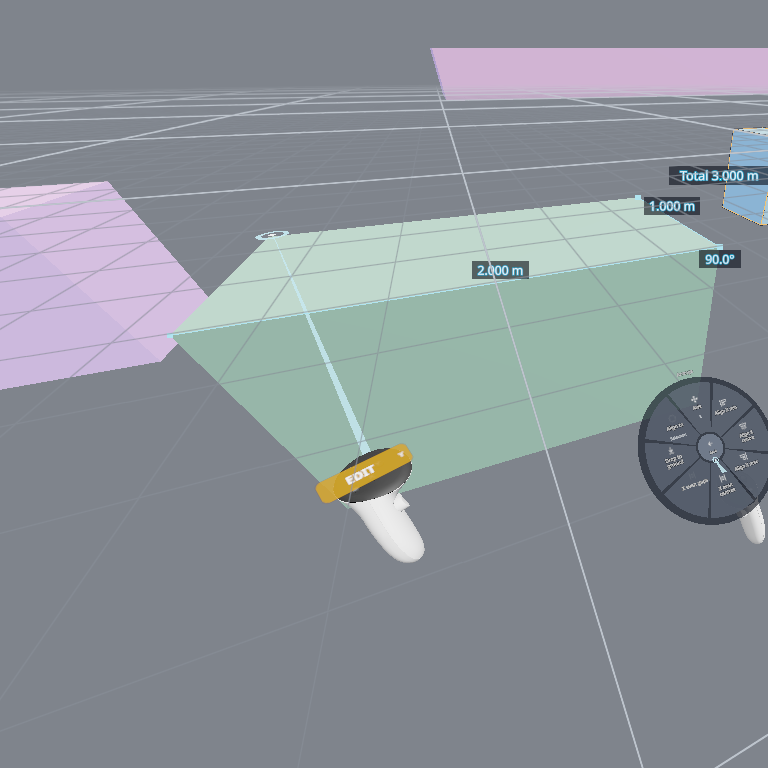
Radial menu ▸ Tools ▸ Measure — a trigger tool beside Select, Box select and Draw mode.
- Point the laser of the hand that does not hold the menu. A dashed segment and a marker show where the next point lands.
- Pull the trigger to put a point down. Points snap like the desktop Measure tool: to a corner, an edge (or its middle) or a face centre within about 3° of the laser, so a slightly shaky hand still measures corner to corner. With grid snapping on, a point on a plain surface or the floor lands on the grid. A harder click tells you a point snapped.
- Keep pulling to make a chain: each segment shows its length, each corner its angle, and a chain of two or more segments a running Total.
- Keep it: pull the trigger twice on the same spot, or use the Measure ring the radial opens on while the tool is up — Keep · Undo point · Discard · Snap · Done. A kept chain is a measurement item in the object list, saved with the scene, seen by everyone and undoable, the same as one made on the desktop.
- Edit one: select it, then Selected ▸ Edit measurement. Point at a point and pull the trigger to pick it up, pull again to put it down; pull anywhere else to add a point at the end. Done on the Measure ring ends editing.
- The labels face you wherever you stand and stay the same size to your eye at any distance. Labels that would overlap are hidden instead of stacked.
Measuring needs a controller. Switching to Interact, leaving the headset or picking another tool ends it, and a chain of two or more points is kept.
Arrange: align, distribute, drop to ground
Select two or more objects, then radial ▸ Selected ▸ Arrange:
Axis (tap to cycle X → Y → Z) · Align min / centre / max · Even centres · Even gaps · Drop to ground · Align to (Selection / Active)
- Align lines every object's edge or centre up on the chosen axis with the selection's bounds — or, with Align to: Active, with the last object you picked, which stays put.
- Even centres and Even gaps need three or more objects; the two outermost stay where they are.
- Drop to ground rests each object on the surface below it (or the floor), lowest first.
The results are the same as the desktop's Arrange, each press is one undo step for the whole set, and everyone in the session sees the objects move.
Brushes on the controller
The terrain sculpt brush now has two more tool sets on its Sculpt ring:
- Paint ▸ — terrain layers 1 – 4, the same layers as the desktop's terrain paint.
- Scatter ▸ — Paint, Erase, Rotate, Scale, Relax, and Source ▸ to choose what you scatter (the current source, the ones already in use, or a primitive). See Scatter.
Pull the trigger to paint. The pointing hand's thumbstick sets the brush: left / right the radius, up / down the strength (or the density while you scatter-paint). A ring on the surface shows the brush, a short buzz starts each stroke, and the label on your hand reads, for example, Paint 3 · 3.0 m · 50% or Sphere · 3.0 m · 0.50/m². Brushes work in a miniature too: the ring and the stroke follow your laser at the world's scale.
The Asset Browser on your wrist
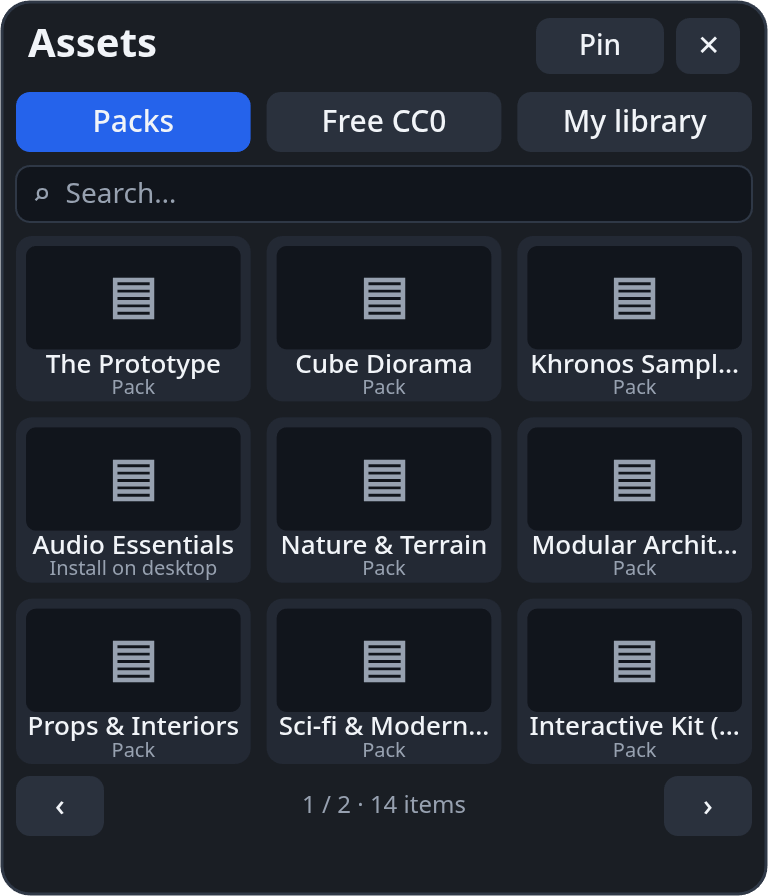
Radial menu ▸ Add ▸ Assets opens a panel on the wrist of your menu hand, facing you. Point at it with the other hand.
- Packs — the packs in your Explorer. Press a pack to open it, ‹ Packs to go back.
- Free CC0 — free models from Poly Haven. A card with ↓ downloads first (the card shows the progress) into your Library, folder Poly Haven, with its credit; ✓ means it is already in your Library.
- My library — your models and prefabs.
- Search — press the search box: the VR keyboard opens and the cards filter as you type. Page with ‹ ›, or push the stick up and down while you point at the panel.
Placing
The same drag-to-place ghost as the desktop: the item's size before it loads, its real look when it is ready, resting on whatever you point at — amber when it overlaps something, red when there is nowhere to put it.
- Trigger-drag a card out of the panel and let go where it should land: it is placed there, once.
- Click a card and it rides your laser: each trigger places one more, the stick sideways turns it 15° a flick, and the grip stops. The panel's bottom line says what the trigger does right now.
- Each placement is one undo step, and everyone sees it.
- In a miniature the object still lands at full size, at the spot under your laser.
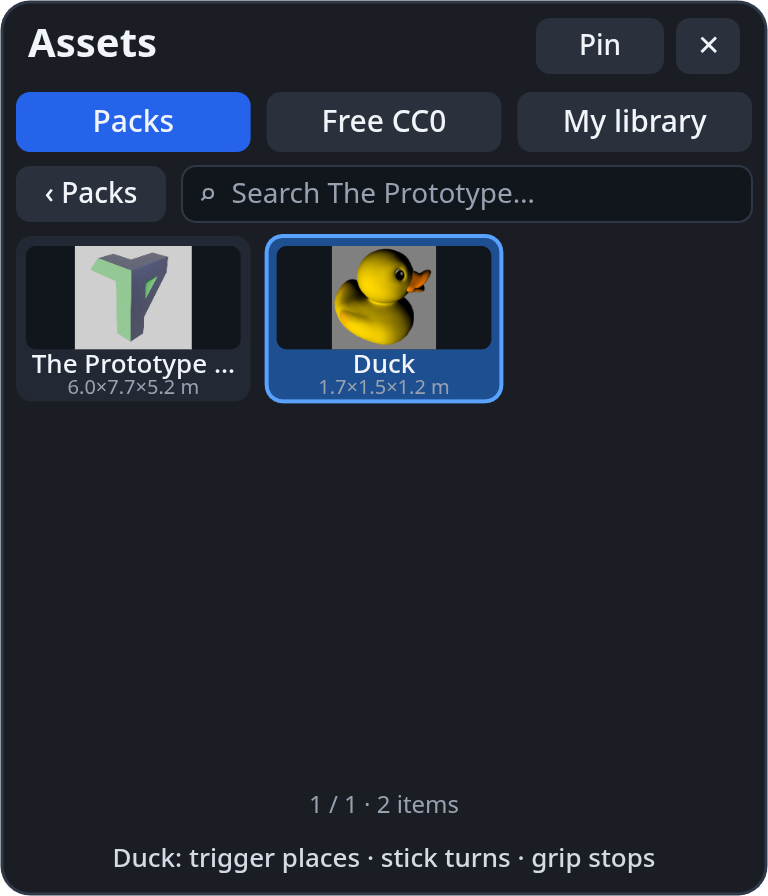
Pin it: grip the panel and let go in the air — it stays there, bigger. Grip it again and let go near your wrist to put it back (or press Pin / To wrist). In one-handed mode it opens pinned in front of you.
Add ▸ Prefabs uses the same ghost: real size, the stick turns it, it rests on surfaces and snaps.
Logic in the headset
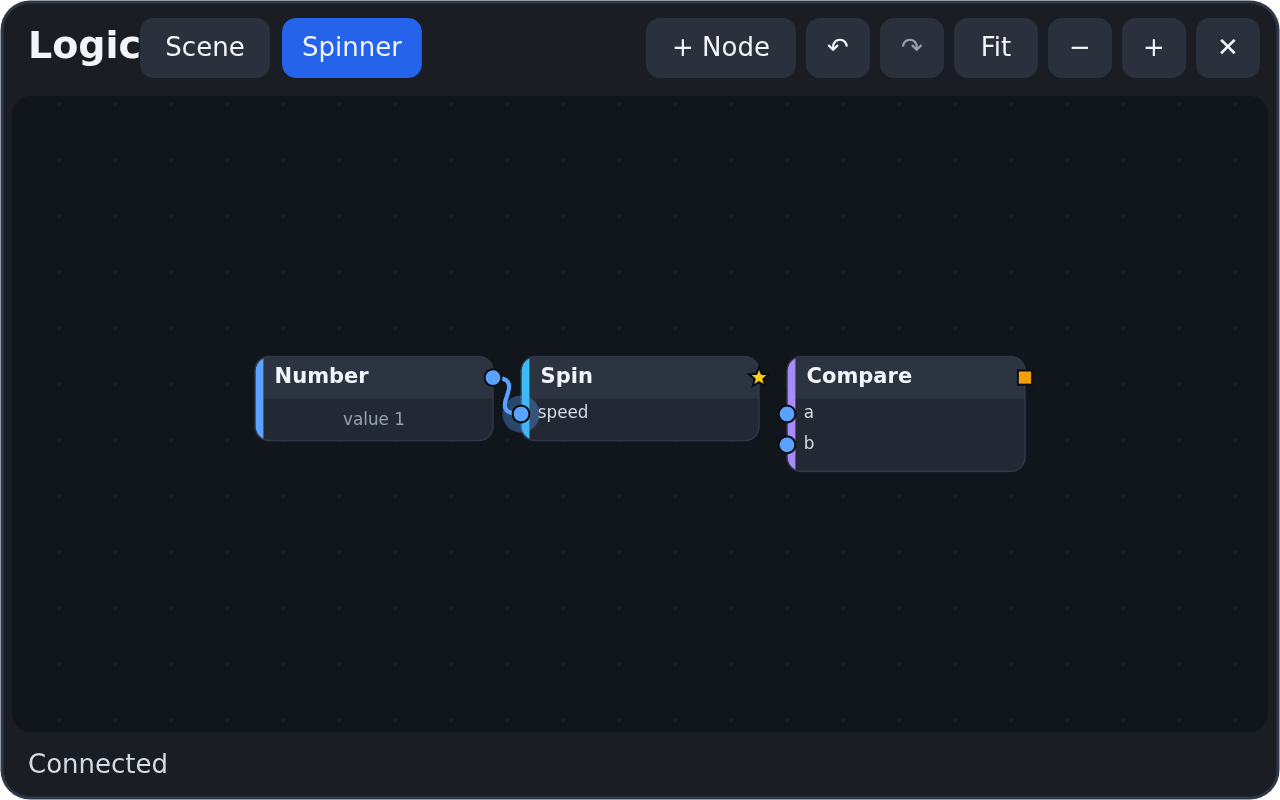
Radial menu ▸ Tools ▸ Logic opens the scene's node graph as a panel in front of you. With one object selected, Selected ▸ Edit logic opens that object's own flow instead (tabs at the top switch between the two). It is the same graph as the desktop node editor: every change is one undo step, and everyone in the session sees it land live.
| Do this | With |
|---|---|
| Move a card | trigger-drag the card |
| Wire two sockets | trigger-drag from a socket and let go on another. The wire is green while the types fit and red when they don't; a wire into a value input that already has one replaces it |
| Move or remove a wire | trigger-drag from an input that already has a wire: drop it on another socket to move it, or on the empty graph to remove it |
| Pan | trigger-drag the empty graph |
| Zoom | push the stick up or down while your laser is on the panel (it zooms where you point) |
| Move the panel | grip it and let go where it should stay |
The buttons along the top: + Node opens a palette with the desktop's groups — pick a node and it lands in the middle of the view; ↶ / ↷ undo and redo; Fit frames every card; − / + zoom; ✕ closes the panel.
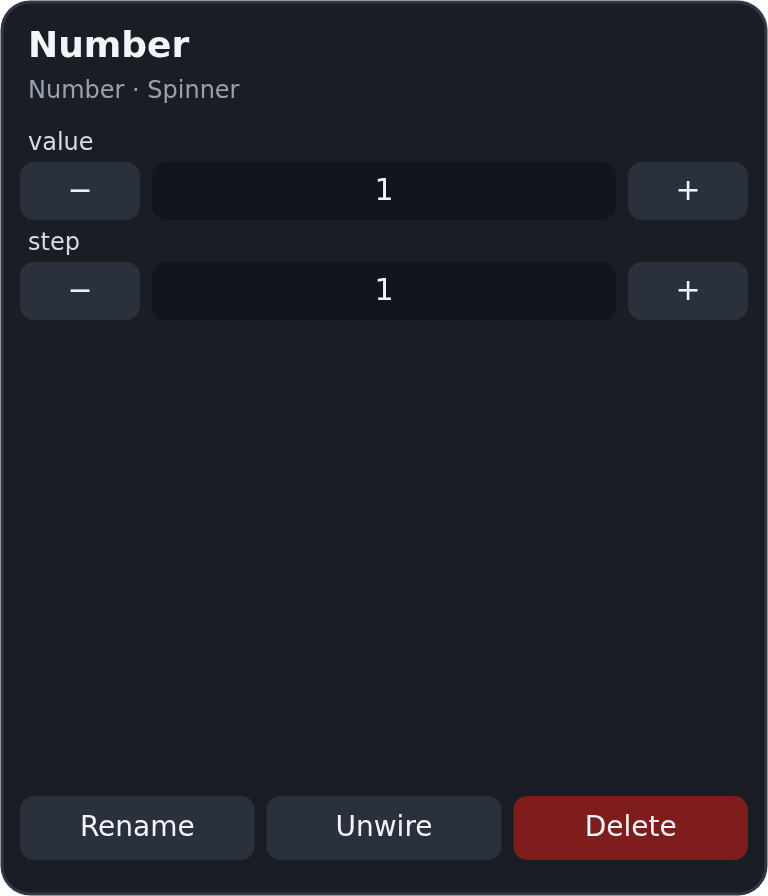
Click a card (trigger, no drag) to select it: its values open on a wrist pad on your other hand.
- − / + step a number; press the value itself to type it on the VR keyboard.
- ‹ › cycle a choice or a colour; toggles flip on a press.
- Rename, Unwire (removes its wires) and Delete act on the selected card.
- A node with more values than fit has pages: push the stick up or down while you point at the pad.
In one-handed mode the pad sits beside the panel instead of on your wrist. A viewer sees the panel read-only, and it says so.
Limits
- Groups are read-only in VR: you can move a collapsed group's card, but not wire into it or delete it. Edit groups on the desktop.
- Custom (code) nodes, Object Flow nodes and Sound nodes need desktop pickers, so the palette leaves them out — add them on the desktop, then wire and tune them here.
Hands
Without controllers, a pinch is the trigger: pinch a card to pick it, pinch-drag it out of the panel and let go to drop it, or pinch a card and pinch again to place it. Tools that need precision — the sculpt, paint and scatter brushes, measuring, moving vertices or faces — show Pick up a controller next to your hand instead.
Limits
- Hands cannot turn the ghost (there is no stick); pick up a controller for that.
- The Free CC0 tab lists Poly Haven models. Skies, textures and materials stay in the desktop Asset Browser.
- A pinned panel's place is not remembered for the next session.