Node editor: keyboard, groups and notes
Since 1.23 the node editor has its own keyboard: shortcuts go to the panel you are working in, so the same letter can mean one thing among the nodes and another in the 3D view. Nodes can be grouped into one card and opened like a folder, notes explain a graph in markdown, and right-click menus carry everything for the canvas, a node, a selection and a group.
Keys go to the panel you are using
A shortcut fires only in the panel that has focus — the one you last clicked. Click the node editor and its keys act on nodes; click the 3D view and the same letters mean what they always meant there.
- C opens the chat only from the 3D view — never while you work on nodes or type in a field.
- F frames nodes in the node editor and focuses the selected object in the 3D view.
- Delete deletes whichever you are looking at.
- W A S D Q E fly the camera only while the 3D view has focus.
- Text fields and code editors keep every key for themselves.
The node editor draws a thin accent outline while it has the keyboard. Since 1.25 every other panel and tool window owns its keys the same way — see Keys follow the panel you are in. Sliders and number fields inside a node (and the knobs in a behaviour's Open view) drag their value, never the node and never the whole graph.
The ? cheat sheet
Press ? anywhere to see every shortcut, grouped by panel, with the panel that has focus first. It is built from the live keymap, so a key you rebind in Settings ▸ Shortcuts shows up there straight away. Type to filter; Esc closes it.
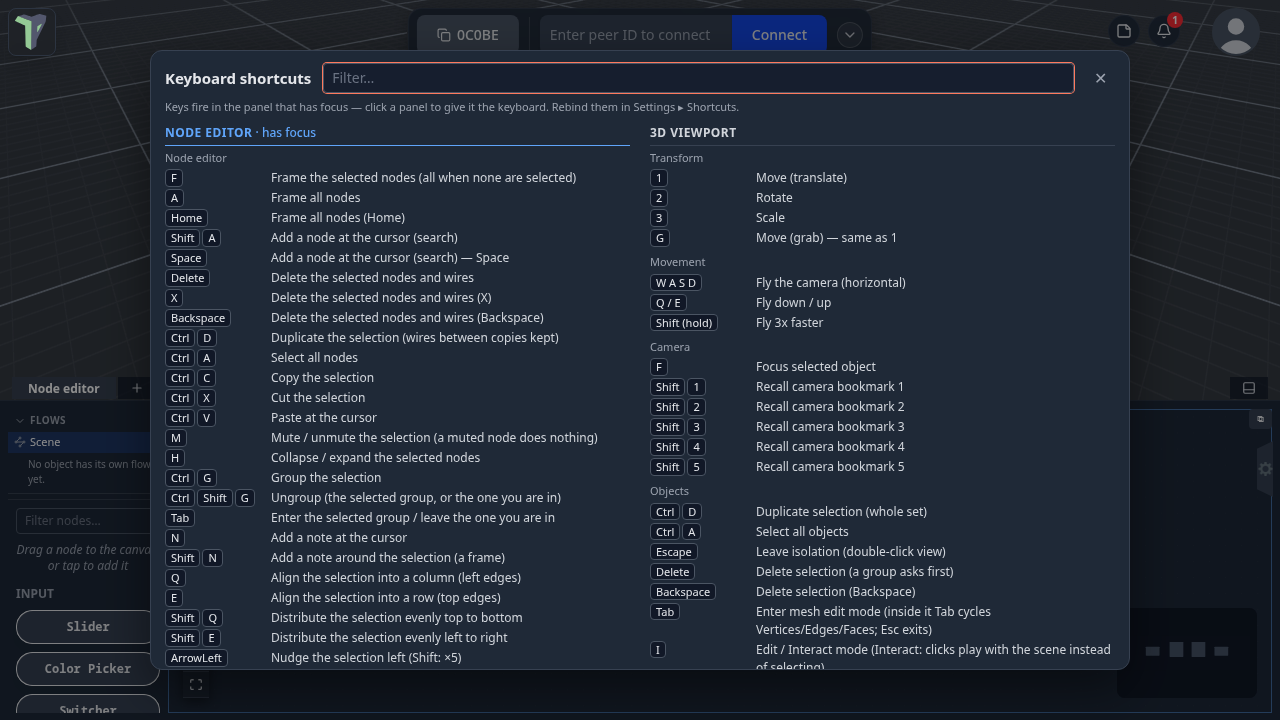
Node editor shortcuts
| Key | Does |
|---|---|
| F | Frame the selected nodes (all of them when none are selected) |
| A / Home | Frame all nodes |
| Shift+A / Space | Add a node at the cursor (opens the node search) |
| Delete / X / Backspace | Delete the selection (a group takes its contents with it) |
| Ctrl+D | Duplicate (wires between the copies are kept) |
| Ctrl+A | Select all |
| Ctrl+C / Ctrl+X / Ctrl+V | Copy / cut / paste at the cursor (works across scenes and tabs) |
| M | Mute: the node does nothing until unmuted (drawn faded) |
| H | Collapse / expand a card (a note collapses to its title) |
| Ctrl+G / Ctrl+Shift+G | Group / ungroup |
| Tab | Open the selected group, or leave the one you are in |
| Esc | Leave the group you are in |
| N / Shift+N | Add a note at the cursor / a note framing the selection |
| Q / E | Align the selection into a column / a row |
| Shift+Q / Shift+E | Distribute evenly top to bottom / left to right |
| L | Tidy graph: lay the whole graph out |
| Shift+L | Fix overlaps and crossings: move only the cards in the way |
| Arrow keys (Shift: ×5) | Nudge by one grid step |
| Ctrl+Z / Ctrl+Y | Undo / redo — every node editor edit can be undone |
All of them can be rebound in Settings ▸ Shortcuts. So can the Edit Mesh keys, which have their own Mesh edit group there since 1.23.
Where it opens
Since 1.25, opening the node editor (N) — or switching to another graph, or loading a scene while it is open — shows the whole graph framed, the same as pressing A, unless somebody left that graph at a particular view.
- Where it was left. Pan or zoom a graph by hand and that view is remembered for it. Switch to another graph and back, or close and reopen the editor: it comes back where you left it.
- Saved with the scene. The views travel inside the
.tpscene, so a scene you share opens on the view you left it at. Templates and examples carry no view, so they always open framed. - Only a pan or zoom made by hand counts: Frame all (A), Frame selection (F) and the zoom buttons do not change the remembered view.
- Views are yours: they are not sent to other players and do not mark the scene changed.
Settings ▸ Input ▸ Node editor ▸ Node editor opens chooses Where it was left (framed when new) (the default) or Framed — every node in view, which ignores saved views and always frames. Search framed in Settings to find it.
Tidy graph
The node editor can lay a graph out for you.
- Tidy graph — the button with the network icon in the editor's corner controls, the right-click menu on the canvas, or L. It lays the graph out left to right in the direction the wires flow: nothing overlaps, no wire runs through a card, notes sit above the card they describe, notes about nothing nearby and unconnected cards get a column on the left, and group cards are moved as single blocks.
- Fix overlaps and crossings — right-click menu or Shift+L. It keeps your layout and only moves the cards that overlap something or sit on a wire, the shortest distance it can.
- Both are one undo step (Ctrl+Z puts every card back), and everyone in the session sees the result.
- Inside a group (double-click a group card), Tidy arranges that group's contents.
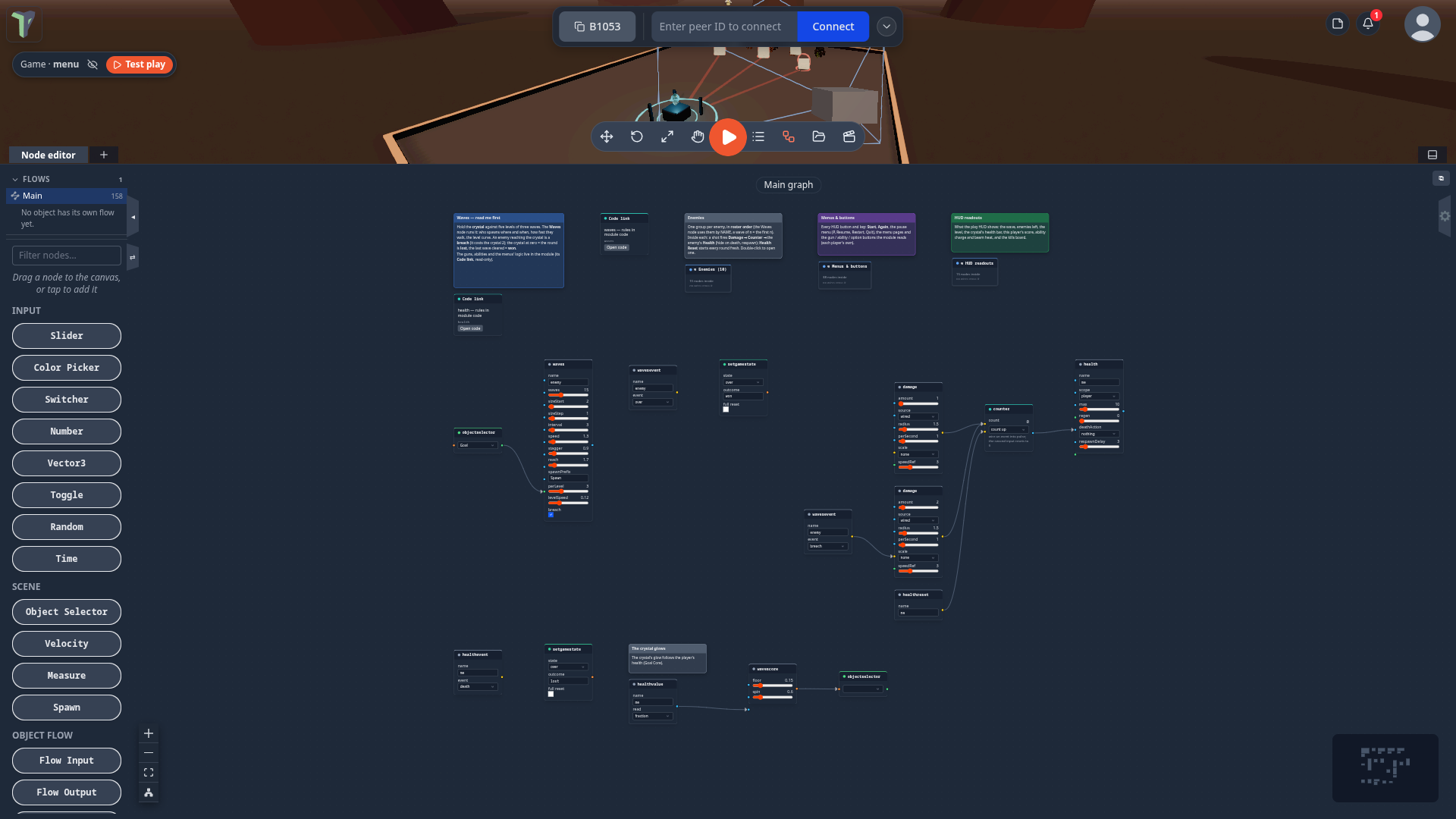
Every game's Main graph ships tidied — see The Games tab.
Groups
Select some nodes and press Ctrl+G (or right-click ▸ Group). They collapse into one card whose sockets are the wires that cross the group's edge. Nothing about what the graph does changes: the nodes inside still run exactly as before.
- Double-click the group (or press Tab) to open it. A breadcrumb at the top shows where you are; Esc, Tab or the breadcrumb take you back out.
- Inside, Group inputs and Group outputs stand for the outside. Drag an inner socket onto their + new row to expose it as a group socket.
- Draw a wire onto a group's socket from outside and it connects to the real socket inside.
- Rename the group and its sockets in the properties panel (⚙ ▸ Settings).
- Groups nest, copy and paste with their contents, and undo and redo like every other edit.
- Ctrl+Shift+G ungroups: the nodes stay exactly where they were.
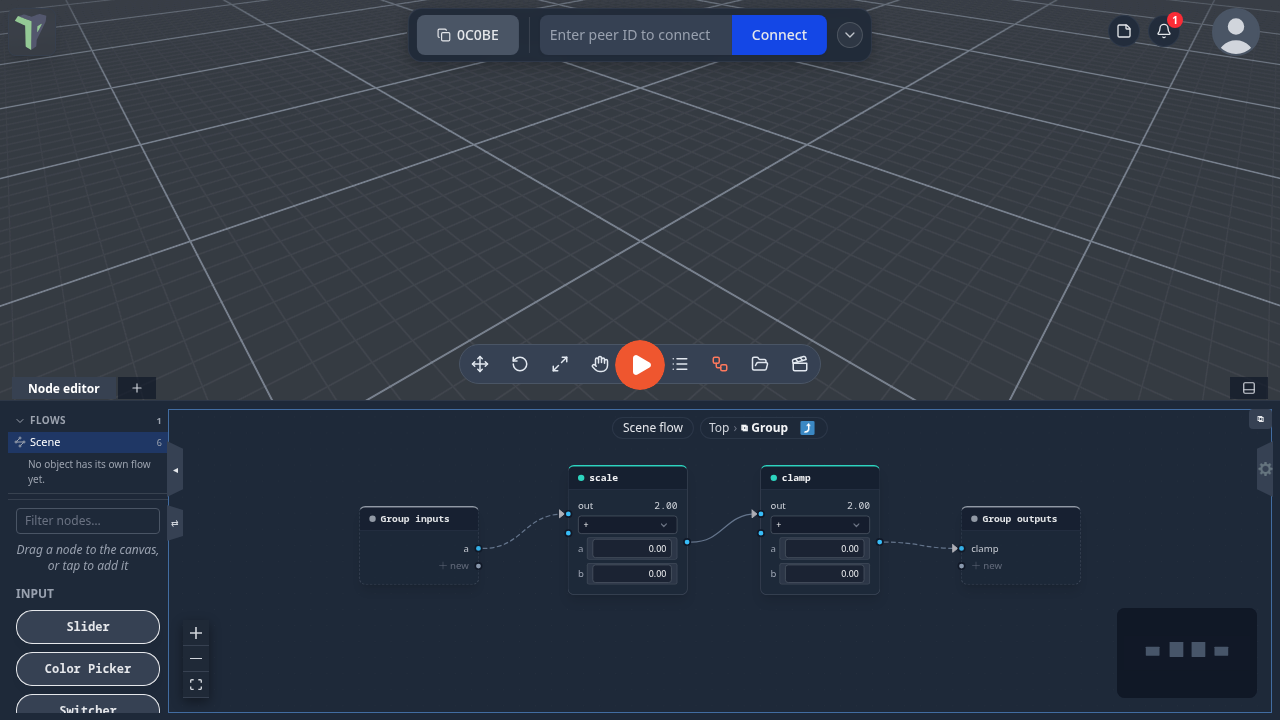
Node group files (.tpnode)
Right-click a group ▸ Export group (.tpnode)… (or any selection ▸ Export as node group (.tpnode)…) saves it as a file you can reuse in another scene or give to someone. Right-click the canvas ▸ Import node group (.tpnode)…, or drop the file on the canvas, to place it — one undo step. Wires to nodes that were not saved are not in the file.
Notes
Press N (or right-click ▸ Add note) to drop a note at the cursor. Give it a title and a description in the
properties panel — the description is markdown (headings, lists, bold, italic, code, links) and renders on the
note. Pick one of six colours, and drag a corner to resize it.
Shift+N (or right-click ▸ Add note around) draws a frame around the selected nodes: dragging the frame carries them, and moving a framed node stretches the frame to fit.
Right-click menus
- The canvas: search nodes, add a note, paste, select all, frame all, Tidy graph, Fix overlaps and crossings, import a node group — and the full Add list.
- A node: open its code (see Open code), group, add a note around, duplicate, copy, cut, paste, mute, collapse, frame, disconnect, delete.
- A selection: the same for the whole set, plus Align (column, row, distribute).
- A group: open it, ungroup, export it.
Node types you never use
Settings ▸ Node types lists every node type, module nodes included, with a switch for each and one for each group. A type you switch off leaves the palette, the add menus and the node search on this device; nodes of that type already in a graph keep working. Turn all on brings them all back.
Limits
- A group's sockets come from the wires that cross its edge. An input socket can feed several sockets inside; an output socket is wired outside the group.
- A muted node behaves as if it were not there (its value reads as unwired downstream); there is no pass-through.
- Older versions of the app draw a group's members as ordinary nodes. The logic still runs.
- Tidy judges wires as the default curved style; with the step or straight wire styles a tidied graph can still look different. Cards are measured as drawn, so tidy after you finish editing a big node's settings.