HUD Screen
Shows, hides or toggles a whole HUD screen (a named layer of elements) each time a pulse arrives — open a pause menu, a map, a results screen.
Output: none (it changes which screen the HUD shows)
Inputs
| Handle | Type | Meaning |
|---|---|---|
| trigger | event | each pulse applies the action once — wire a Key Press, a HUD Button, an On Game State |
Parameters
| Parameter | Default | Options |
|---|---|---|
| screen | (none) | the screen to show or toggle, picked on the card — not needed for hide |
| action | show | show, hide, toggle |
Picking the screen
The screens themselves are made in the HUD editor. On the card, screen opens a list of the scene HUD's screens; New screen... adds an empty one and picks it, Open HUD editor takes you there to fill it, and Enter id manually... takes a typed id or screen name.
What each action does
| action | Effect |
|---|---|
show |
that screen replaces whatever screen of the HUD is showing (a HUD shows one screen at a time) |
hide |
drops the choice a HUD Screen node made, so the HUD goes back to what it would show on its own: the screen whose while matches the game state, else the default (★) screen, else nothing. It needs no screen picked |
toggle |
shows the screen, or does a hide if that screen is already the one showing |
A screen picked by this node wins over the screens' while settings until something hides it. The choice is forgotten on Restart and Test play, and, in a game, when you leave play mode — so the next Play does not open on a stale pause screen.
Who sees it
The chosen screen is kept on each player's own machine and is never sent. But the node runs on every player's machine when its pulse arrives, and the usual triggers — Key Press, HUD Button, On Click — are shared pulses. So one player pressing P opens the pause screen for everyone in the session, and one player's Resume closes it for everyone.
A player who joins later is not moved by a press that happened before they arrived. To make sure a joiner lands on the right screen, bind the screen to a game state with its while setting in the HUD editor instead.
Practical example
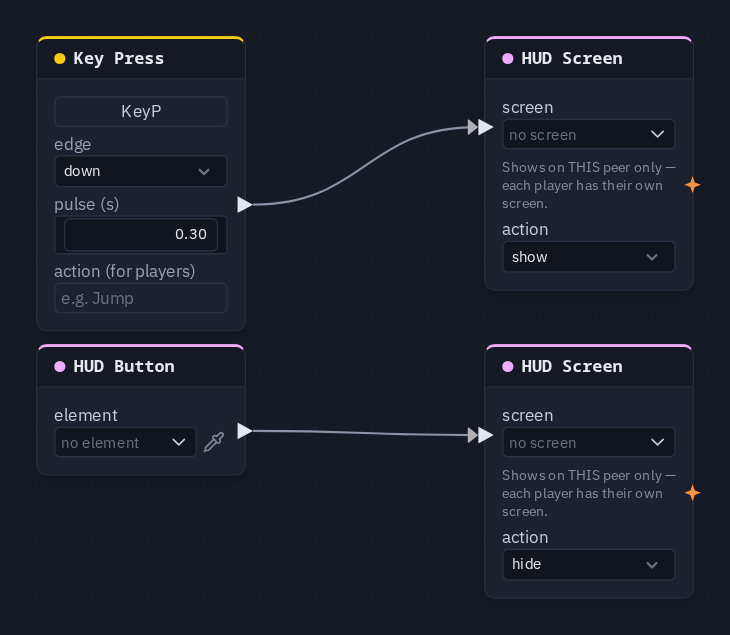
A pause screen:
- In the HUD editor, add a screen named Pause with a Button labelled Resume on it.
- Add a Key Press (capture P) and a HUD Screen (screen Pause, action
show); wire Key Press → HUD Screen's trigger. - Select the Resume button in the HUD editor and choose Actions ▸ Hide a HUD screen: that adds a HUD Button
wired into a second HUD Screen set to
hide. - Press Play and tap P: the pause screen opens; Resume puts the game's own screen back.
Tip
Set the Pause screen's input to menu in the HUD editor, so the pointer is freed and the player can click
Resume. To actually stop the round clock as well, wire the same Key Press into a
Set Game State (paused).