AI Assistant
Build and rearrange the scene by describing what you want. The assistant turns a prompt into real objects — primitives, lights and groups — placed, colored and named for you. Everything it does is a normal edit: it replicates live to everyone in the session and undoes as a single step.
You bring the model
The assistant talks to an AI provider you configure (Grok, Gemini, or any OpenAI-compatible / self-hosted endpoint). Nothing is sent anywhere until you add a provider and a key in Settings ▸ AI. See AI Providers.
Turning it on
- Open Settings ▸ AI and toggle Enable assistant.
- Add a provider (Grok, Gemini or a custom endpoint) and select it as active.
Once enabled, there are a few ways to reach it.
The quick prompt bar
Press </kbd> (backtick, top-left of most keyboards) to pop up a prompt bar at the
bottom of the viewport. Type a request, press <kbd>Enter</kbd>, and the assistant window
opens so you can watch it work. Press <kbd> again or Esc to dismiss the
bar. It stays hidden until you summon it, so it never gets in the way.
The assistant window
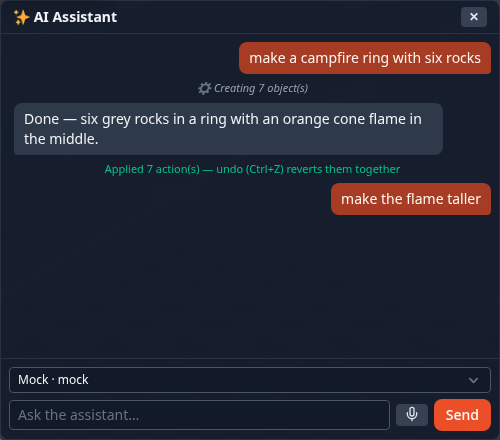
A floating, draggable window (it tabs and docks like Chat and the Explorer). It keeps the conversation, so you can refine across turns — "make them taller", "now paint the front one blue". Use Stop to cancel a run in progress.
The bottom-left button
Once the assistant is enabled and a provider is set, a round ✨ button appears at the bottom-left of the viewport (just below the + add button). Click it to open or close the assistant window — the same window the quick prompt bar opens into.
In VR
Radial menu ▸ Tools ▸ AI opens the same conversation on a panel in the headset, where you can type or hold a button and talk — see The AI assistant in VR.
Voice typing
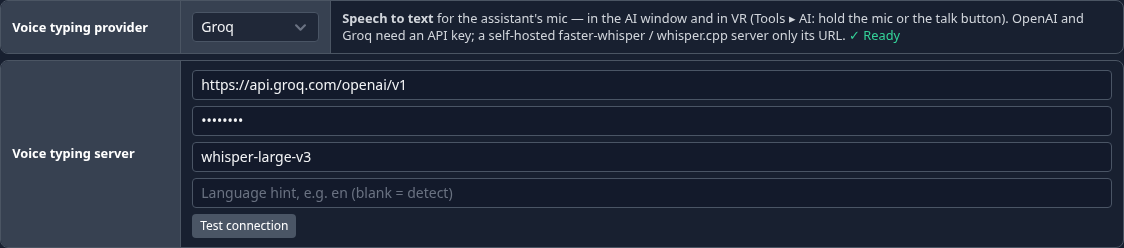
Talk to the assistant instead of typing. Set up a speech-to-text provider in Settings ▸ AI ▸ Voice typing provider (search voice, whisper or dictation):
| Setting | Default | Notes |
|---|---|---|
| Provider | OpenAI | OpenAI (whisper-1), Groq (whisper-large-v3), or Self-hosted — any OpenAI-compatible /audio/transcriptions server, such as faster-whisper |
| Base URL / API key / Model | from the preset | OpenAI and Groq need a key; a self-hosted server only its URL |
| Language hint | blank (detect) | for example en |
| Test connection | — | sends half a second of silence; Connected means the server accepted it |
The assistant window then has a mic button next to Send: click to listen, click again to stop. The words land in the input, so you can fix them before sending. (In VR they are sent as soon as you let go.)
- The voice key is stored on this device only, like the AI provider key (Where keys are stored).
- If voice chat is on, the assistant uses the same microphone without opening a second one, and voice chat keeps working.
- Voice needs a browser that can record audio and microphone permission. A recording stops itself after 60 seconds.
What you can ask for
The assistant works with the building blocks the app already has:
- Create primitives (box, sphere, cylinder, cone, capsule, torus, plane, and the building-block shapes like wedge/stairs/arch) and lights, with positions, rotations, scales, colors and names.
- Arrange — grids, rows, rings, stacks. It knows the ground is the
y=0plane and seats objects on it. - Modify existing objects — move, recolor, rescale, change material, rename, hide.
- Group objects together, or clear the scene when you want to start over.
Good prompts are concrete: "a small campfire — a ring of 6 grey rocks around an orange cone flame" works better than "make something cozy".
Behaviors and physics
The assistant can also wire up flow-node behavior — the same nodes you'd drag into the node editor. Ask for motion and it adds the node to the right object's graph: "make the crate spin", "the drone should patrol between the towers", "create a moving spider" (body + legs from primitives, grouped, patrolling with bouncing legs). Follow-ups work too — "make the spider faster" edits the existing node instead of stacking a new one. Everything replicates and undoes like any other edit.
Game rules as code. For anything bigger than a node or two — rules, waves, scoring, reach limits — the assistant can
write a behaviour instead: a small JavaScript file it creates ("make a behaviour that counts the
stars lit and ends the round at 24") or edits later by name. Before anything is applied the source is checked by the
same determinism lint you get when you write one yourself (no Math.random, no clock, no DOM, no timers, no loop without
an exit); if it fails, the errors go back to the model with line numbers and it tries again — nothing broken reaches the
scene.
The assistant reads your graphs as the same compact text Flow Code shows, which is several times shorter than JSON, and can add nodes by writing that text.
Physics (bodies, welds/hinges with motors, and starting the simulation) is a per-provider opt-in — the Physics tools (advanced) checkbox in Settings ▸ AI. It's off by default because multi-step physics is hard for small local models; see Local & Small Models for what the checkbox gates, model-size guidance and recommended vLLM flags. With it enabled, the assistant may start the simulation itself after a physics build. Note: undo does not stop a running simulation — stop or reset it first, then one undo reverts the whole prompt.
How edits behave
- Replicated. Every object the assistant creates or changes appears for all connected peers, exactly as if you had made the edit by hand.
- One undo per prompt. A whole prompt — even one that creates a dozen objects across several steps — collapses into a single Ctrl+Z. Redo restores it. The window shows an "Applied N actions" note when a prompt finishes.
- Respects locks. Objects another person currently has selected are skipped rather than fought over.
Limits (for now)
- Its scene-building composes the existing primitives and lights. With a mesh provider configured it can also kick off a custom-model generation (see 3D Generation), but it does not paint textures from a prompt.
- Behavior nodes it creates come from the built-in catalog (plus validated path points and script code); Object Flow composition and sound nodes stay editor-only.
- Results depend on the model you point it at; smaller models place things more crudely — see Local & Small Models for sizing guidance.
Troubleshooting
| Symptom | Fix |
|---|---|
| ` shows a toast about Settings | Enable the assistant and add a provider first. |
| "Invalid API key" | Re-check the key in Settings ▸ AI ▸ Edit. |
| "Network or CORS error" | A self-hosted endpoint must allow browser origins — see Providers. |
| Objects look wrong / oversized | Ask a follow-up ("half the size", "move it to the origin") — it edits in place. |