Recording a Video
Record a short video of the viewport while the recorder drives the camera: a turntable round your model, or a
flythrough of your saved views. The result is a .webm file in your Explorer, ready to download and share.
Right-click the viewport ▸ Tools ▸ Recording…
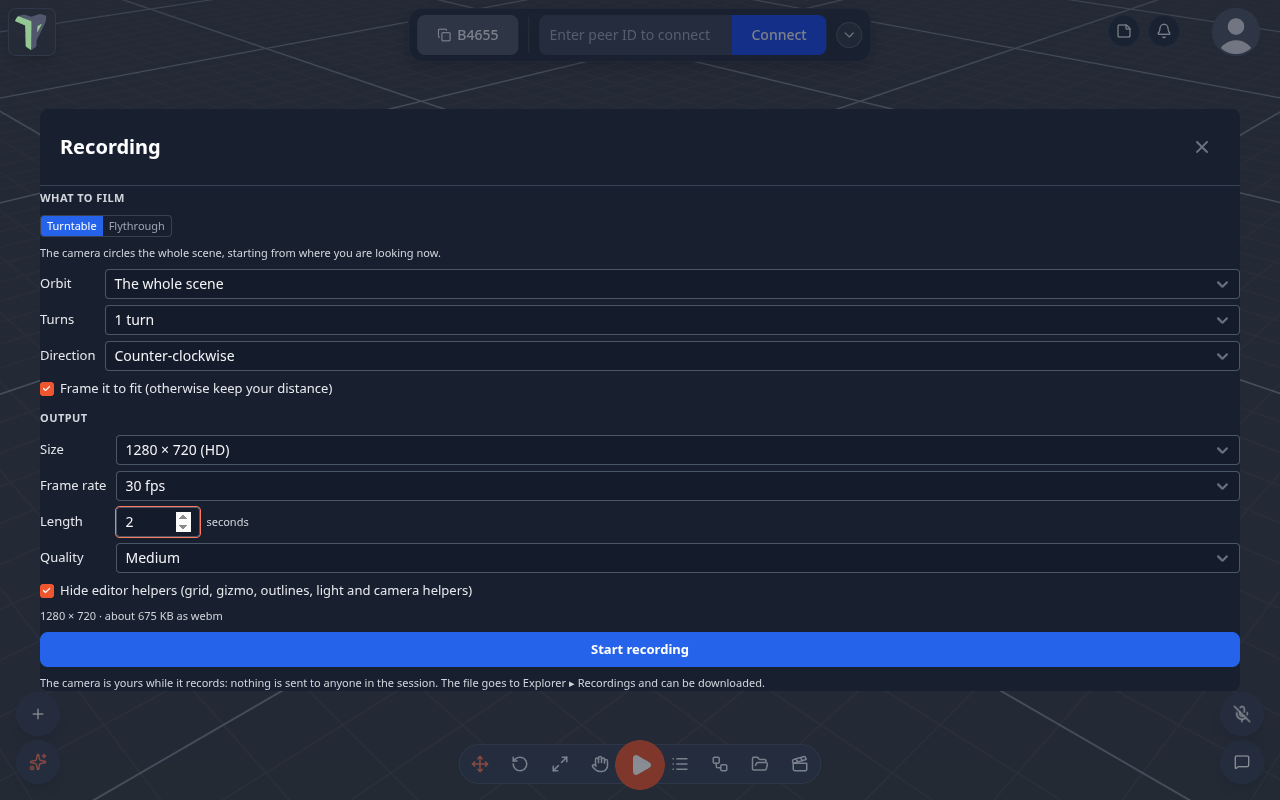
What to film
| Mode | What the camera does | Options |
|---|---|---|
| Turntable | circles the selection (or the whole scene), starting from where you are looking | Turns (¼ – 3), Direction, Frame it to fit (otherwise it keeps your distance) |
| Flythrough | flies through your saved camera views in order, passing through each one and blending the lens (field of view) between them | — |
A flythrough needs at least two saved views: right-click the viewport ▸ Camera bookmarks ▸ Save current view.
Output
| Option | Choices |
|---|---|
| Size | the viewport, 1280 × 720, 1920 × 1080, square 1080, vertical 1080 × 1920 |
| Frame rate | 24 / 30 / 60 fps |
| Length | 1 – 60 seconds |
| Quality | low / medium / high |
| Hide editor helpers | on by default: hides the grid, the gizmo, selection outlines and light and camera helpers for the take |
The dialog estimates the file size before you start.
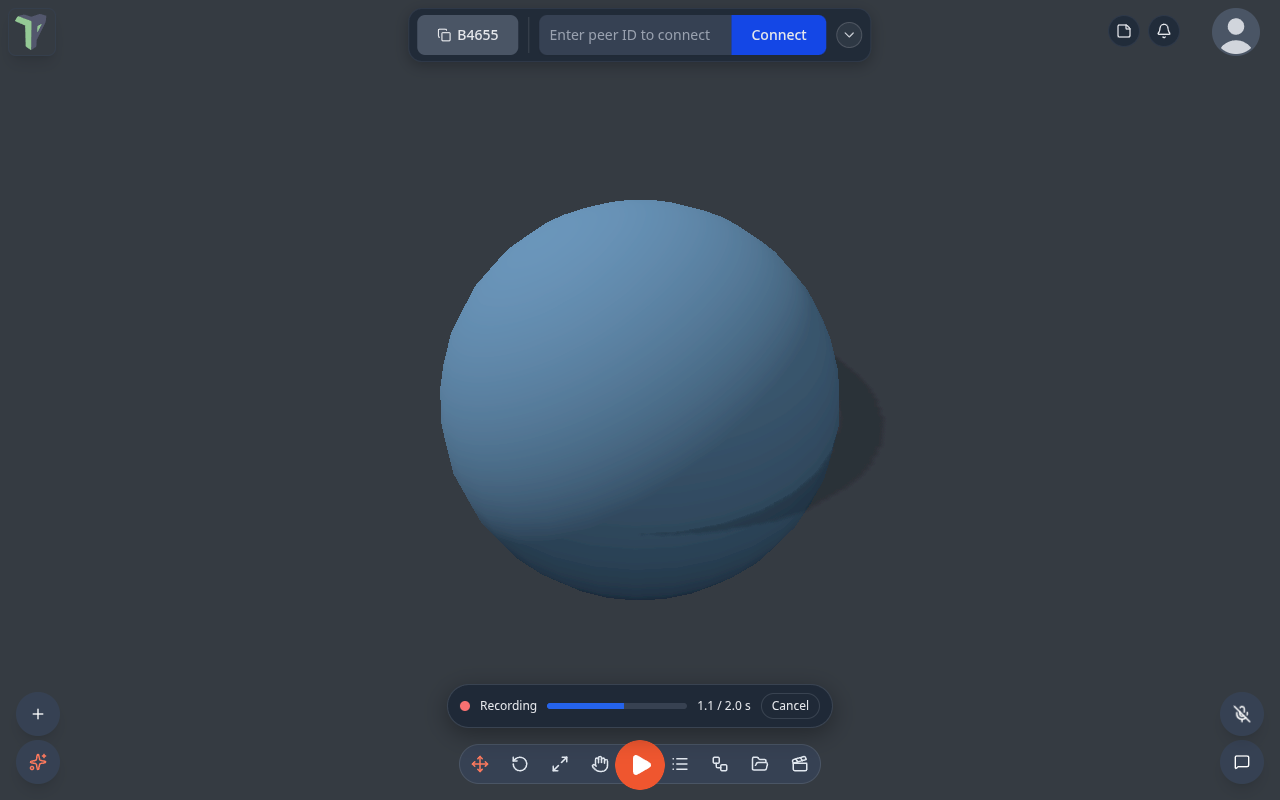
While it records
A small bar shows the progress, with Cancel. The camera is yours alone: nothing is sent to anyone in the session, and your view comes back where it was afterwards.
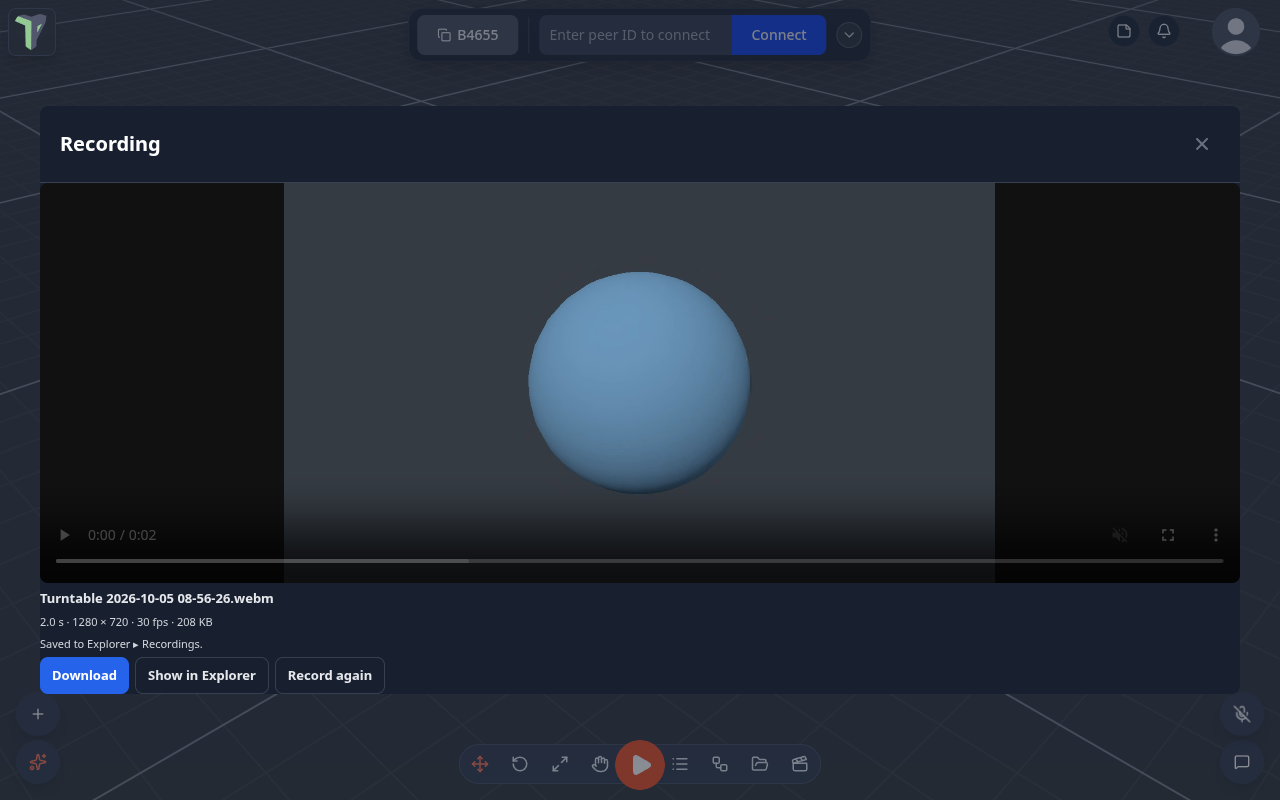
The file
The video is saved to Explorer ▸ Recordings (double-click it to play it) and offered as Download.
Limits
- Not in VR or Play — the recorder drives the editor camera.
- Hiding the browser tab stops the take.
- Files over the Explorer's 25 MB item limit can still be downloaded but are not kept in the library.
- A small viewport is rendered at a higher pixel ratio during the take (up to 3×), so a 1080p video stays sharp.
Note
This page is about video. Performance recordings — frame time and draw calls — are in the Profiler.