Importing Big Models
New in 1.37. A model straight out of a scanner, a marketplace or a CAD tool is often far heavier than a phone or a headset can draw. ThePrototype now optimizes such a model as it comes in, the way a game engine's importer does, and keeps your original next to it.
What happens on import
When you import a model with more than 50,000 triangles or a texture larger than 2048 px:
- Textures are resized to at most 2048 px and given a GPU-compressed copy (KTX2 / Basis). Your scene, saves and peers still get an ordinary picture; the graphics card holds the compressed copy — about a sixth to an eighth of the memory (on a Quest, 0.5–1 byte per pixel instead of 4).
- A level-of-detail chain is added: lighter versions of the model (by default 50 %, 25 % and 10 % of the triangles) that take over as the model gets smaller on screen. Up close you always see the full model. See Levels of Detail.
- The original file stays in the Library next to the optimized copy (Name (optimized).glb). The toast that reports the numbers offers Keep original only, which puts the original back in the scene (one undo step) and removes the optimized copy.
The work runs in the background (a few seconds for a big model); the window stays usable meanwhile.
A model under both thresholds is placed straight away (since 1.39): the optimizer is not even loaded. An asset whose Import settings say Always is still optimized whatever its size.
Measured on a test model (65,024 triangles, one 4096 px JPEG texture):
| Original | Optimized | |
|---|---|---|
| Texture | 4096 × 4096 | 2048 × 2048 + KTX2 |
| Texture memory on the GPU | 85.3 MB | ≈ 2.8 MB on a Quest (−97 %); 5.6 MB on a desktop GPU (−93 %) |
| File in the Library | 2.43 MB | 1.63 MB (plain picture + KTX2 copy) |
| Triangles as it gets smaller on screen | 65,024 | 32,512 / 16,255 / 6,502 (LOD 1 / 2 / 3) |
Texture resize and compression need a .glb or .gltf; OBJ, STL and FBX imports get the LOD chain only. Skinned
(animated character) models keep full detail — a lighter level cannot carry its bone weights — and get the texture
work.
A model that is far too heavy for this device still asks before it lands.
Settings ▸ Import (this device)
The defaults for every new import, under Settings ▸ Import ▸ Import defaults:
| Setting | Default | What it does |
|---|---|---|
| Optimize big models automatically | on | off = imports arrive exactly as they are |
| Triangle threshold | 50,000 | a model above this gets its LOD chain |
| Texture threshold | 2048 | a texture above this (long side, px) is resized and compressed |
| Max texture size | 2048 | 512 / 1024 / 2048 / 4096 — the long side a resized texture gets |
| Compress textures (KTX2) | on | the GPU-compressed copy |
| LOD levels | 3 | Off / 2 / 3 / 4, with LOD 1 keeps, LOD 2 keeps… for each level's share of the triangles |
Reset puts the shipped defaults back.
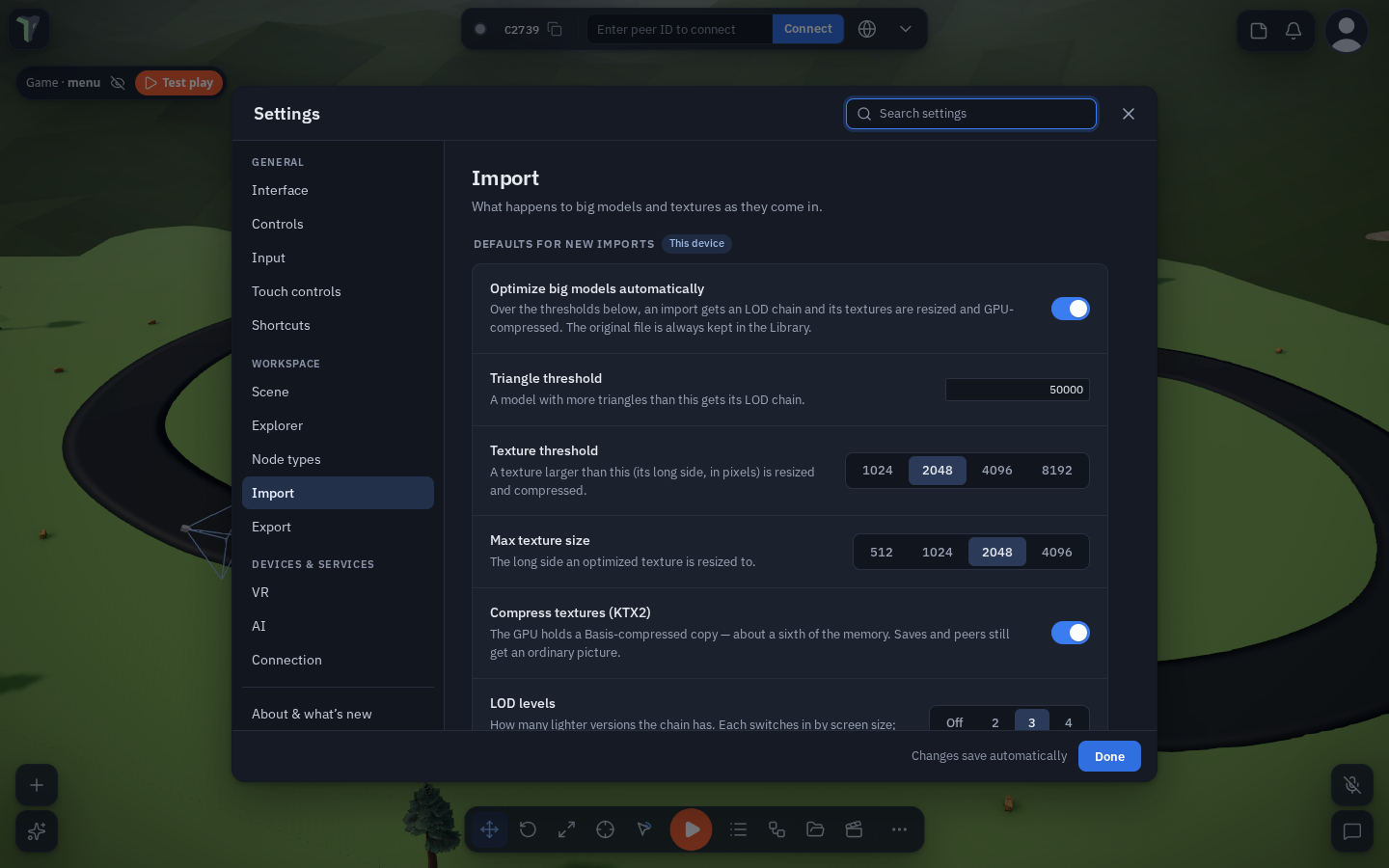
Per file: Import settings and Reimport
Select the original file in the Explorer and open its Properties (ⓘ): Import settings has Optimize (Auto / Always / Never), LOD levels, Max texture size and Compress textures (KTX2) for that file only; Use defaults forgets them. Reimport runs the original again with these settings and updates every placed copy (one undo step each). An optimized copy's Properties show what was saved and link back to its original.
The scene's LOD distance
Configure Scene ▸ Level of detail ▸ LOD distance is one slider for the whole scene, shared with everyone in it: above 1 keeps full detail further away, below 1 switches to the lighter levels sooner. It applies to every model with an LOD chain.
Exporting for Quest / web
The other half of the pipeline is on the way out: Optimize for: For Quest / web in Save options and Settings ▸ Export writes compressed textures, compressed geometry and the LOD chain into a GLTF or a Scene file — see Publish & Export.
Limits
- After an undo, or opening a
.tpscenesaved with Full quality, a texture is the plain (resized) picture again — the size saving stays; the GPU compression comes back on the next import or a For Quest / web save. - The original is kept in the Library even when it is larger than the 25 MB sharing limit; it is not shared with peers in that case.