Accessibility
1.41 is an accessibility pass over the editor — for people who need bigger text, more contrast, no mouse, a screen reader or captions. Everything on this page is a choice for this device only: nothing is sent to the other people in your session, and their choices never change your screen.
Most of it lives in Settings ▸ Accessibility (under General, right after Interface). Settings search finds the page by accessibility, a11y, zoom, low vision, contrast, colour blind, motion, captions and similar words.
The games you make have their own Accessibility page for players — see Making your game accessible.
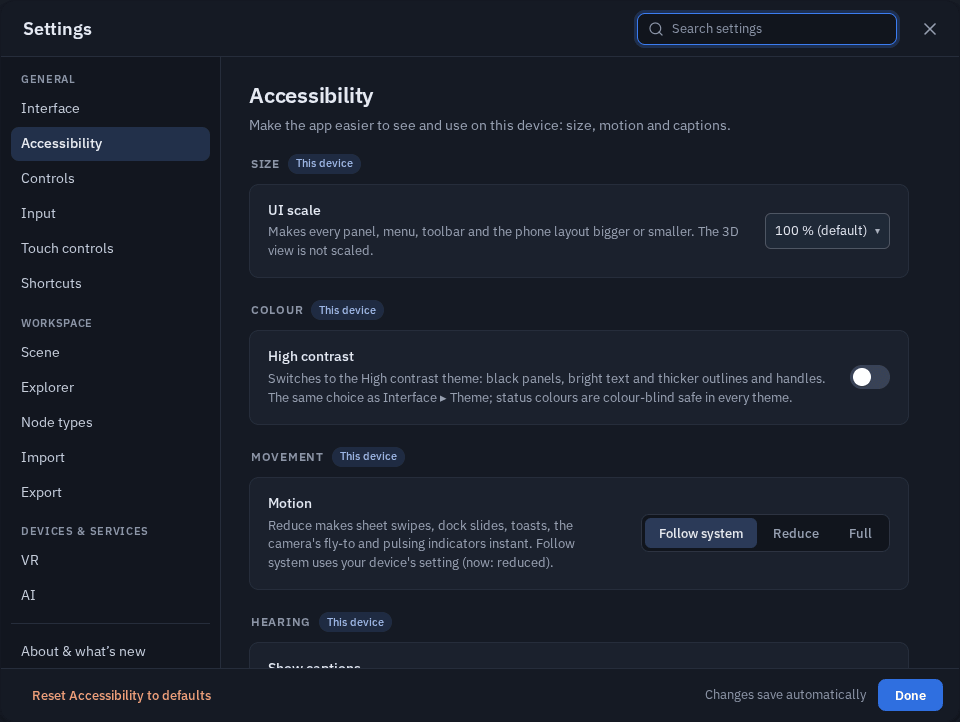
UI scale
Settings ▸ Accessibility ▸ Size ▸ UI scale: 90 %, 100 % (default), 110 %, 120 %, 130 %, 140 %, 150 %.
Every panel, sheet, dock, toolbar, menu, toast and the phone layout grows or shrinks with it.
- The 3D view is not scaled. It keeps drawing at your screen's full resolution, so a bigger UI does not make the scene blurry or slower.
- Panels you resized yourself (the side column, the bottom dock, floating windows) follow the scale, so you do not have to resize them again.
- The scale is applied before the app draws its first frame, so a reload never flashes the old size.
- On a small phone, 150 % leaves less room for the scene; 120–130 % is often the best balance there.
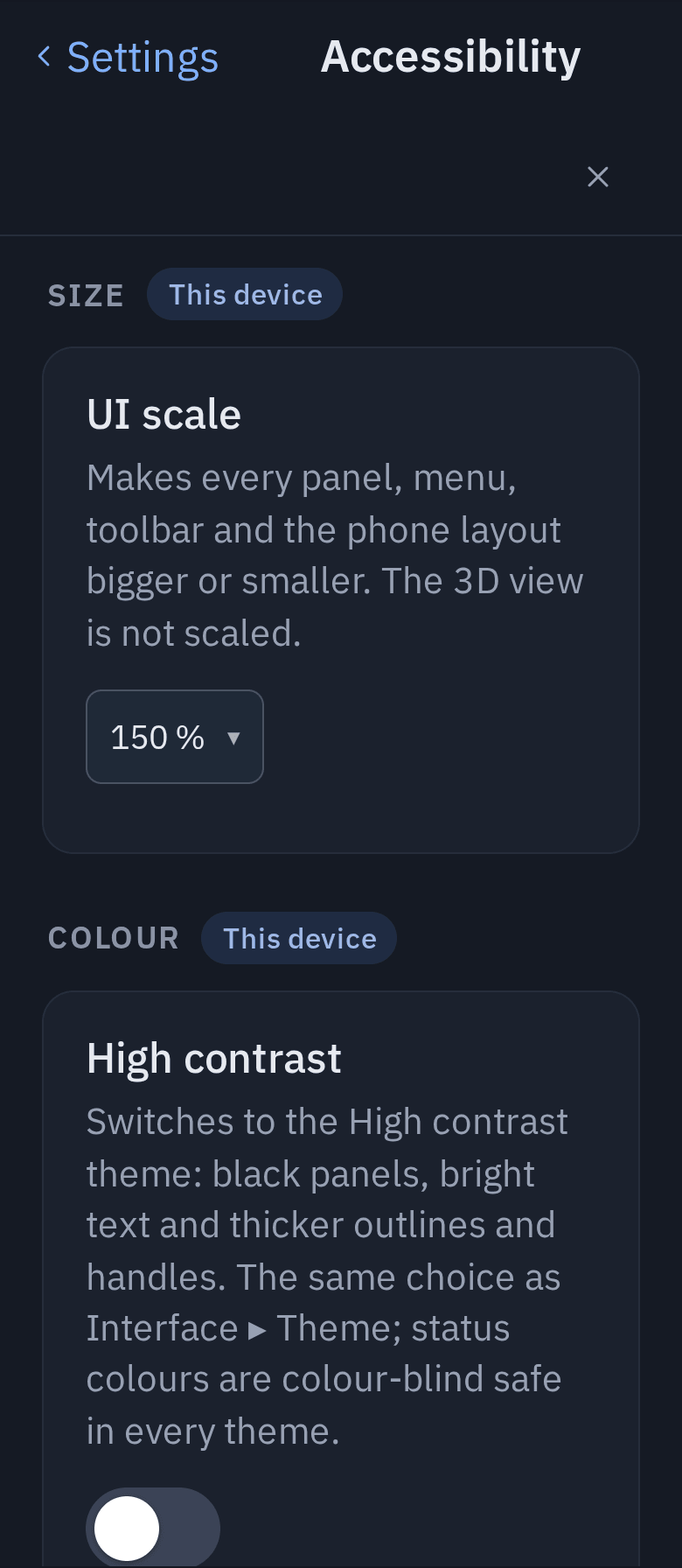
High contrast
Settings ▸ Accessibility ▸ Colour ▸ High contrast (the same choice as Interface ▸ Theme ▸ High contrast).
White text on black, a yellow accent, and every surface measured against WCAG: text reaches 7:1 (AAA) on every panel, and buttons, borders and switches reach 3:1. It is built on the same theme tokens as Dark and Light, so every panel, window and the node editor follow it.
The 3D view follows it too, on this device only:
- the selection outline becomes a thick yellow edge, readable on a dark sky and on a light wall;
- an object another person is holding gets a pink-red outline;
- the move / rotate / scale handles are bigger and drawn in brighter axis colours (X red, Y green, Z light blue).
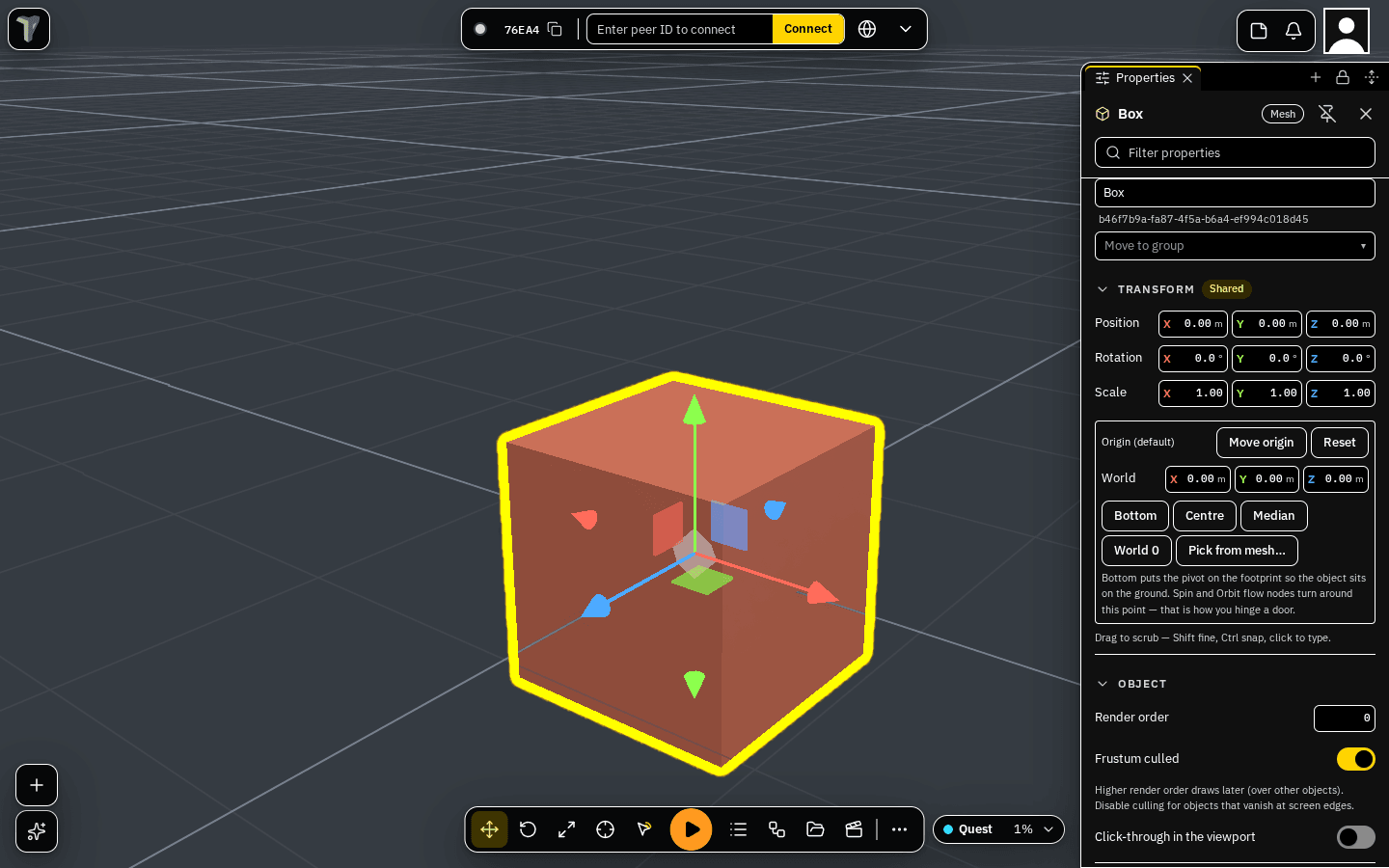
If you picked your own selection-outline colour in Settings, High contrast keeps yours. Switching High contrast off here goes back to the theme you had before.
Status colours you can tell apart
In every theme, statuses use a colour set that people with red-green (protanopia, deuteranopia) or blue-yellow (tritanopia) colour blindness can tell apart — the scene budget (chip, object list, Statistics), connection and network quality, badges, draw-call counts and the node editor's "can't connect here":
| Status | Colour (Dark) | Shape |
|---|---|---|
| fine | teal | ● disc |
| careful | amber | ▲ triangle |
| over / error | crimson | ✕ cross |
| not measured / off | grey | ○ ring |
Colour is never the only signal. Every status mark also has its shape, a warning toast shows a triangle and an error toast a crossed circle, and the draw-call count shows ▲ or ✕ before the number (on the desktop counter and in the VR strip).
In the node editor every socket type has a colour and a shape — number disc, vector3 diamond, boolean square, color hexagon, object pentagon, event arrow, effect star, anything else a capsule. The ⚙ panel's Socket types legend shows both, and while you drag a wire a socket that cannot take it becomes a red cross. See Node System.
Motion
Settings ▸ Accessibility ▸ Movement ▸ Motion: Follow system (default) / Reduce / Full.
- Follow system uses your device's own setting (Windows: Animation effects; macOS / iOS: Reduce motion; Android: Remove animations). The row says which one your device asks for now.
- Reduce makes these instant: sheet swipes, dock and panel slides, pop-up toasts, the camera's fly-to (F, saved views, note jumps) and pulsing indicators — even when your device setting is off.
- Full keeps every animation, even when your device asks for reduced motion.
Games play normally either way: this covers the editor's own interface and camera moves. For VR comfort see the VR Guide.
Keyboard navigation
Everything in the editor can be reached and used from the keyboard.
- Tab / Shift+Tab move through the controls in reading order — the skip link, the main menu, the touch tools, the Connect bar, the top-right group and your profile, then the toolbar, the corner buttons, the budget chip and any open panel. Every control shows a focus ring in the theme's accent.
- Toolbars are one stop each. In the bottom toolbar, the corner stacks, the touch tools and the top-right group, ← / → (or ↑ / ↓) move between buttons, Home / End go to the ends and Enter / Space press.
- Skip to the 3D viewport is the first thing Tab reaches. With the viewport focused the 3D shortcuts work as usual (W A S D, 1 2 3, F, Delete, Tab = Edit Mesh on the selection), and Esc gives the keyboard back — nothing is trapped in the canvas. Tab is Edit Mesh only in the 3D view; on any control it moves focus.
- F6 / Shift+F6 jump between regions: main menu, Connect, top-right, object list, Properties, windows, docks, toolbar, corner buttons, viewport.
- Object list: ↑ ↓ select, → / ← expand / collapse (or go to the parent), Home / End, Enter opens Properties, F2 renames, letters jump by name.
- Menus: the arrow keys walk a menu and its submenus, Enter runs, typing filters, Esc closes and puts focus back where it was. Shift+F10 or the Menu key opens the selection's menu (or the viewport's Add menu when nothing is selected).
- Dialogs keep Tab inside them; Esc closes them and focus returns to what opened them. The main menu, notifications, the Connect drawer, notes and the peers panel close with Esc too.
- Number fields in Properties: type a value and Enter commits and keeps your place, so the next Tab goes to the next field.
Settings ▸ Shortcuts lists F6 and "Esc leaves the viewport" under Navigation. F6 cannot be rebound.
Screen readers
The editor's interface and your selection work with a screen reader (NVDA, JAWS, VoiceOver, TalkBack). The 3D scene itself is not narrated.
What is read aloud:
- Toasts — every notice is spoken politely, after whatever the reader is saying; errors ("Could not …", "… failed", "Something went wrong") interrupt. Toasts you moved into the Connect drawer are still read.
- Connection requests — "Connection request ABC123", plus the room's label when there is one.
- Selection — selecting an object says its name and kind ("Crate, box", "Sun, directional light", "Pillars, group"); several objects say "3 objects selected"; clearing says "Nothing selected".
The object list is a tree. Each row is announced with its name, kind and level, whether it is selected or expanded, and its badges ("hidden", "local only", "locked by Ada"). The toolbars are announced as toolbars with a name ("Scene tools", "Notes, notifications and people", "Left corner buttons").
Names. Every icon button, menu row, dialog and floating window has an accessible name; windows are announced by their title ("Explorer, region"), submenu rows say they open a menu, and greyed-out rows say they are unavailable.
Not covered: scene narration, Play-mode announcements, and game HUDs (those are whatever the game's author built).
Captions
Settings ▸ Accessibility ▸ Hearing ▸ Show captions shows a caption line for every sound that has one — Timeline audio clips and Sound / Game Sound nodes — everywhere, the editor included (handy while you preview a Timeline sequence). Players also turn captions on in a game's pause menu ▸ Accessibility.
To give a sound a caption: the Caption field of a Timeline audio clip, or the caption field of a Sound or Game Sound node. See Making your game accessible.
For contributors: the accessibility check
CI runs an axe-core check (npm run e2e -- a11y-axe) over the editor shell, the object list, Properties, Settings, the
Asset Browser and the phone shell. It fails on serious or critical violations; moderate and minor findings are
listed in the axe-report artifact. New UI uses the kit primitives and theme tokens, which already carry the names,
focus ring and contrast this page describes.